ExcelTip.com
ExcelTip.com
Account Icon Account Icon Account Icon
Google Exceltip.com
JOIN OUR NEWSLETTER
  and receive for joining:
Free eBook Learn More!
Free Excel ADD-IN
Free Weekly Excel Tip
4 e-books in cd-rom
F1 Formulas & Functions
F1 EXCEL
F1 eBook (Spanish)
F1 EXCEL
Financial Statements.xls
 

» Summing Values in a Range Containing Redundant Spaces
CATEGORY: Summing
Problem:

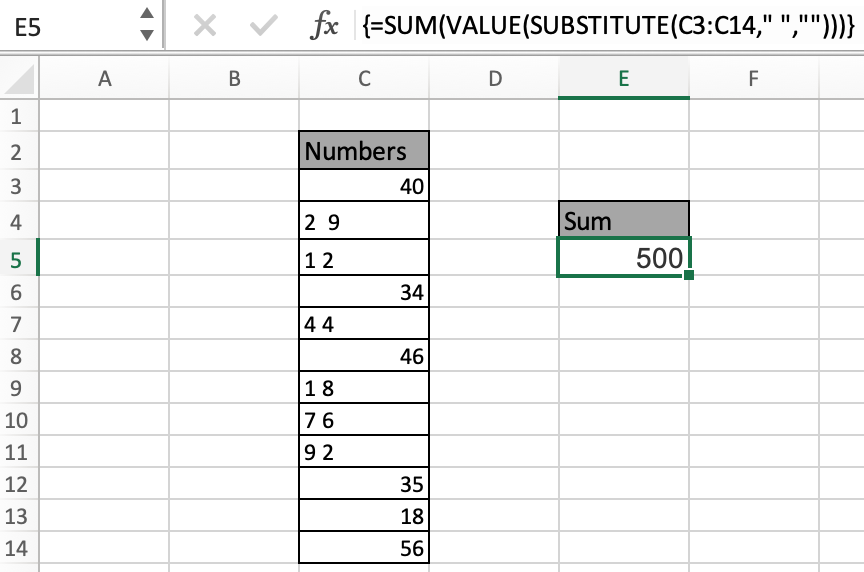
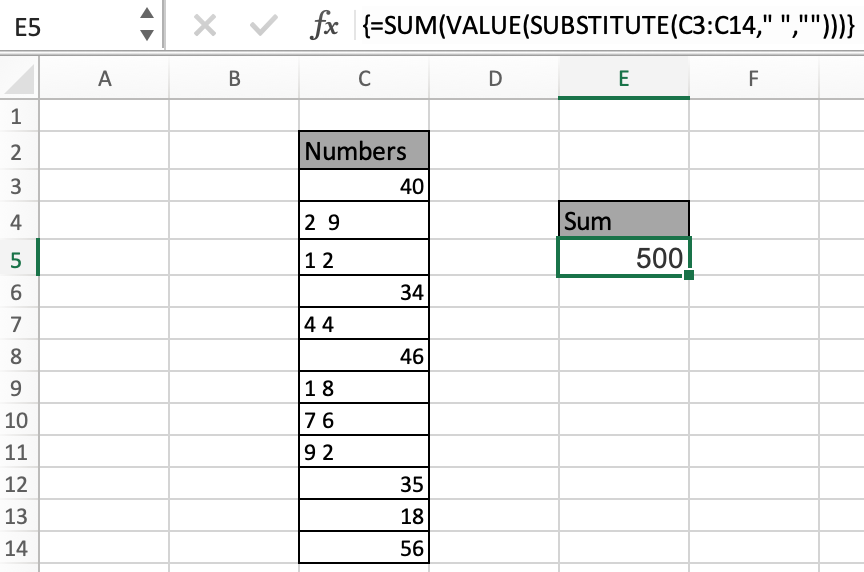
The numbers in column A contain redundant spaces.
If we try to calculate a total using the SUM function, 0 is returned.

Solution:

Use the SUM, VALUE, and SUBSTITUTE functions as shown in the following Array formula:
{=SUM(VALUE(SUBSTITUTE(A2:A4," ","")))}


Screenshot // Summing Values in a Range Containing Redundant Spaces

Summing Values in a Range Containing Redundant Spaces
Rate this tip
12 34 5
  RATING: 2.89
  VIEWS: 18521

READER COMMENTS (view all comments)


Mine doesn't work
hanelg wrote on July 05, 2005 22:24 EST
I'm using excel 2003. I tried n tried but seems to always end up with a
#VALUE!

Did anyone able to get it.I know it simple but it kindda driving me carzy when it did'ntwork for me.:C
Reply: hanelg
Alan wrote on July 07, 2005 00:05 EST
Hi hanelg,

[QUOTE=hanelg]I'm using excel 2003. I tried n tried but seems to always end up with a
#VALUE!

Did anyone able to get it.I know it simple but it kindda driving me carzy when it did'ntwork for me.:C[/QUOTE]Did you enter it as an array formula?

Alan.
pacific poker
pacific poker wrote on July 09, 2005 00:13 EST

dave wrote on December 31, 1969 19:00 EST
The only way I got it to work is create 2 columns, put the =VALUE(SUBSTITUTE(B1," ","")) in the next column and then sum them up?
User of 2003
Mike wrote on December 31, 1969 19:00 EST
It worked fine for me.....don't forget to set the array
array formula
michaelas wrote on October 12, 2005 22:22 EST
It didn't work for me until I remembered that with an array formula you have to use Ctrl-Shift-Enter, and then that was it!

michaelas
Amount to convert into words
Sudhir P wrote on December 31, 1969 19:00 EST
Can we convert the numeric amount into words..i.e. Rs. 148250.00 (Rupee One Lac Forty Eight Thousand Two Hundred Fifty Only)..Is there any simple formula...Pls help

Ingeniero1 wrote on October 13, 2005 09:58 EST
Why the redundant spaces, anyway?
At first I thought that they were used instead of the comma; i.e., 3 300 = 3,300 but then realized that is not the case looking at 50 0 and 10 50.

Thanks
As I look from Mount Olympus
Thor wrote on December 31, 1969 19:00 EST
You mortals must have to much time on your hands. Any normal person would put the column in an editor and remove the spaces
Reply: Ingeniero1
Alan wrote on October 13, 2005 20:57 EST
Hi Ingeniero1,

[QUOTE=Ingeniero1]Why the redundant spaces, anyway?
At first I thought that they were used instead of the comma; i.e., 3 300 = 3,300 but then realized that is not the case looking at 50 0 and 10 50.

Thanks[/QUOTE]I'm not sure what context you are asking the quesiton in, but a redundant space normally refers to having a space within a number such as 1234 being represented as:

12 34

This is often the result of bringing data in from an 'unclean' source such as a formatted report.

HTH,

Alan.
Amount to convert into words
mahendra wrote on December 31, 1969 19:00 EST
Can we convert the numeric amount into words..i.e. Rs. 148250.00 (Rupee One Lac Forty Eight Thousand Two Hundred Fifty Only)..Is there any simple formula...Pls help

shantanuo wrote on October 28, 2005 00:10 EST
Mahendra commented:
>> Can we convert the numeric amount into words..i.e. Rs. 148250.00 (Rupee One
>> Lac Forty Eight Thousand Two Hundred Fifty Only)..
>> Is there any simple formula...Pls help

1) Such request should be posted on excel forums as a new topic and not here.
2) There is no "simple formula" available. A complex one can be found here...
[url]http://www.mrexcel.com/board2/viewtopic.php?t=62472&start=10[/url]
Problem
Gagan wrote on December 31, 1969 19:00 EST
Is there is any Simple method to covert the Number into Word for instance like ( 1400 into One thousand four hunderd ) please let me know I am not able to get this one I am using Office XP.
Amount to convert into words
shailesh gandharv wrote on December 31, 1969 19:00 EST
Can we convert the numeric amount into words..i.e. Rs. 148250.00 (Rupee One Lac Forty Eight Thousand Two Hundred Fifty Only)..Is there any simple formula in xls and ms access...Pls help
I dont get it
Ali wrote on December 31, 1969 19:00 EST
I understand that array functions are functions that return an array, but why would a function which return only one value be called an array function!!! I know its not directly related to this tip, its more of a general issue I have with excel.

Also many other function which take a range as input, have do no have this problem, so why do some function which receive an array as input must be classified as array function! very weird stuff
What am I doing wrong?
Cumberland wrote on April 26, 2006 05:53 EST
Try as I might, I type the formula exactly as written, press CTRL-SHIFT-ENTER, and keep getting "The formula you entered contains an error" message. Why isn't it working???
I know now!
Cumberland wrote on April 26, 2006 08:37 EST
The answer is: don't type the {} brackets before pressing CTRL-SHIFT-ENTER.

Duh!
Duh? - how fast you forget....
LTUser54 wrote on April 26, 2006 11:19 EST
previously posted:

Try as I might, I type the formula exactly as written, press CTRL-SHIFT-ENTER, and keep getting "The formula you entered contains an error" message. Why isn't it working???

(reply:
Cumberland wrote on April 26, 2006 07:37 EST
The answer is: don't type the {} brackets before pressing CTRL-SHIFT-ENTER.

Duh!
=========================
Once again, those that have suffered through a MS Excel course or been tutored personally know what to do, and forget how stinky and bad and crummy and incompetent MS is at helping new users with their product. The MS Help function is abominable. Fiding out what terms really mean (and their applications) is an exercise in frustration.

REALLY finding out what sequence of steps to use, what commands to use, where to save macros, how to WRITE macros, and really WHAT TO DO is frustrating beyond belief. MS has no high level algorithm to help, no worthwhile "wizzer", NOTHING that actually helps anyone with reasonable intelligence to assist them in using their product.

Save your "Duh!" for yourself. I guess it makes you feel all superior that you had to learn commands and procedures that should NOT be necessary to learn, if MS was providing support software that helped.

Not a rant, merely commenting on a truly inferior product with aggravating aspects to it. Please everyone, lets keep posting our REAL problems (that MS has a crappy product) until SOMEBODY actually pays attention and IMPROVES IT!!! Having to rely on a forum to get help for a bad product is a waste of everyone's time.

Take care, all.

Mark
re: Duh!
MDiaz wrote on December 31, 1969 19:00 EST
posted:
Try as I might, I type the formula exactly as written, press CTRL-SHIFT-ENTER, and keep getting "The formula you entered contains an error" message. Why isn't it working???

I know now!
Cumberland wrote on April 26, 2006 07:37 EST
The answer is: don't type the {} brackets before pressing CTRL-SHIFT-ENTER.

Duh!
=========================
Once again, those that have suffered through a MS Excel course or been tutored personally know what to do, and forget how stinky and bad and crummy and incompetent MS is at actually telling new users how to use their product. The MS Help function is abominable. Fiding out what terms really mean (and their applications) is an exercise in frustration. REALLY finding out what sequence of steps to use, what commands to use, where to save macros, really WHAT TO DO is frustrating beyond belief. MS has no high level algorithm to help, no worthwhile "wizzer", NOTHING that actually helps anyone with reasonable intelligence to assist them in using their product. Save your "Duh!" for yourself. I guess it makes you feel all superior that you have had to learn commands and procedures that should NOT be necessary to learn, were MS providing support software that helped.

Not a rant, merely commenting on an inferior product with aggravating aspects.

Take care, all.

Mark
Simplify, simplify
Marshall Waddel wrote on April 26, 2006 11:40 EST
Would it not be simpler to select the entire range of cells that have spaces in their number entries, type Control-H (Replace), and replace all spaces with no spaces?
Simlify
Curtis Martin wrote on December 31, 1969 19:00 EST
I agree with Marshall. We have a lot of text reports that we download into excel using text-to-columns. The Ctrl-H is much easier solution. I think this is a "cool" formula, but I can't see a practical application for it.

BlueDaze wrote on April 26, 2006 12:39 EST
[QUOTE=Thor]You mortals must have to much time on your hands. Any normal person would put the column in an editor and remove the spaces[/QUOTE]

Mt. Olympus must not get a whole lot of excel training. To remove spaces simply highlight the cells or column and do a Find and Replace (ctrl + h) for one space. Then a sum formula will work just fine.
Thanks for the Ctrl-Shift-Enter Tip for setting the array
John wrote on December 31, 1969 19:00 EST
basic user instrucs
mk wrote on December 31, 1969 19:00 EST
enter the formula (in formula bar or cell) without {}, then press CTRL+SHIFT+ENTER.
How to use Ctrl H function?
SD wrote on December 31, 1969 19:00 EST
How do you use the Ctrl H function? I did press Ctrl H, then need to enter what to find and replace. How do you indicated a space and then how to indicate no space?
please help me
ebadullahmomin@yahoo.com wrote on December 31, 1969 19:00 EST
Can we convert the numeric amount into words..i.e. Rs. 148250.00 (Rupee One Lac Forty Eight Thousand Two Hundred Fifty Only)..Is there any simple formula in xls and ms access...Pls help
Convert Numeric Amount to Words
Rup wrote on August 22, 2006 04:28 EST
Plz try link - See [url]http://www.xldynamic.com/source/xld.xlFAQ0004.html[/url]

Regards

Rup

v_rjsh wrote on August 22, 2006 16:52 EST
[QUOTE=ebadullahmomin@yahoo.com]Can we convert the numeric amount into words..i.e. Rs. 148250.00 (Rupee One Lac Forty Eight Thousand Two Hundred Fifty Only)..Is there any simple formula in xls and ms access...Pls help[/QUOTE]

Imagine a situation where you send a quote or invoice generated from Excel. Here you'd want the amount to be spelt out in words. Ex. Rs.100 to be spelt as Rupees One Zero Zero.
For this, splitting the digits is the first step. Then you'd have to use a lot of nested IF's to convert the numbers into text for values 1 to 0 of each corresponding cell (remember, excel lets you use only 8 nested conditions).

It'll be like this for the first digit of a 5 digit number:
=IF(I27=1,"One Lakh",(IF(I27=2,"Two Lakhs",(IF(I27=3,"Three Lakhs",(IF(I27=4,"Four Lakhs",(IF(I27=5,"Five Lakhs",(IF(I27=6,"Six Lakhs",(IF(I27=7,"Seven Lakhs",(IF(I27=8,"Eight Lakhs")))))))))))))))

For the same 5 digit number, for 9 to 0 [to overcome 8 nesting limit problem]:
=IF(I28=FALSE,(IF(I27=8,"Eight Lakhs",(IF(I27=9,"Nine Lakhs",IF(I27=0,"Zero","NA"))))))

After you do the same for all digits, here's what you do to display as words:

=CONCATENATE("Rupees "," ",I30," ",J30," ",K30," ",L30," and ",M30," ",N30," Only")

And the result i got for the amount Rs. 144958 is:
Rupees One Lakh Forty Four thousand Nine hundred and Fifty Eight Only

Sorry if it all sounds too complex guys, but that's the way I've been doing it.


REGISTERED USERS - Click here to post comments


GUESTS (Click here to register)
Name
Comment Title
Comments

H&R Block's Just Plain Smart(tm) Tax Planning Advisor: A year-round approach to lowering your taxes this year, next year and beyond

Microsoft Access Version 2002 Step by Step

East of Eden (Oprah's Book Club)

Dictionary of Finance and Investment Terms

Analysis of Financial Statements

The Sweet Potato Queens' Big-Ass Cookbook and Financial Planner

RELATED MICROSOFT EXCEL TIPS


Convert PDF Files to Excel


Excel VBA books
Accounting books
Business Plans
MS Office books
Taxes books

VIEW ALL BOOKS


  Advertise With Us                               

Tips

Add-In in VBA | Applications - Word, Outlook in VBA | Array Formulas | Cells, Ranges, Rows, and Columns in VBA | Counting | Custom Functions | Custom Functions in VBA | Database Formulas | Database in VBA | Date & Time Formulas | Date & Time in VBA | Events in VBA | Excel 2003 | Excel Chart | Excel Consolidating | Excel Counting | Excel Custom Functions using VBA | Excel Customizing | Excel Data | Excel Dates | Excel Editing | Excel Files | Excel Filter | Excel Format | Excel Formula | Excel General | Excel Grouping and Outlining | Excel Importing Text Files | Excel Information | Excel Keyboard Shortcuts | Excel Loan Formulas | Excel Macros - VBA | Excel Pivot Tables | Excel Printing | Excel Range Name | Excel Security - Protection | Excel Sorting | Excel Style | Excel Subtotals | Excel Summing | Excel Text | Excel Time | Excel Tools | Excel Worksheet, Workbook | Files, Workbook, and Worksheets in VBA | Financial Formulas | Formating in VBA | General Topics in VBA | Import and Export in VBA | Information Formulas | Keyboard & Other Shortcuts in VBA | Keyboard Formula Shortcuts | Links between Worksheet and Workbooks | Links in VBA | Logical Formulas | Lookup Formulas | Mail - Send and Receive in VBA | Menus, Toolbars, Status bar in VBA | Modules, Class Modules in VBA | Other Q&A Formulas | Printing in VBA | Protecting in VBA | Summing | Text Formulas | User Forms, Input boxes in VBA | Using Loops | Working with Formulas |

Tips by Version

Microsoft Excel 97 | Microsoft Excel 2000 | Microsoft Excel 2002 | All Microsoft Excel Versions | New in Excel 2002 | New in Excel 2003 - Office 11

Website

Home | Tip of Hour | Recommended Tips | Most Viewed Tips | Tips by Version | Submit a Tip | My Tips
Microsoft Excel Tutorials | Excel Links | Write for Us | About Us | Search Results | Tip Archives | Excel Forum | Excel Forum Archives

Excel Book

Excel 97 Book | Excel 2000 Book | Excel 2002 Book | Excel XP Book | Book Store

Terms and Conditions of use
The applications/code on this site are distributed as is and without warranties or liability. In no event shall the owner of the copyrights, or the authors of the applications/code be liable for any loss of profit, any problems or any damage resulting from the use or evaluation of the applications/code.

Copyright © 2003 ExcelTip.com
Microsoft, Microsoft Excel is a U.S. registered trademark of Microsoft Corporation
Site Developed By: Varien