

In this article, we will learn how to apply quick filtering, using auto filter icon in Microsoft Excel.
AutoFilter is very nice and useful function in Excel. In huge data, filter is a quick and simple way to apply filter in the given data and find what we need.
For example:- we have sales data with the details of region, city, sales name, product, sales amount, revenue amount, etc. To see the region wise detail, simply we put the filter on header and then select ay region from the region dropdown list.
Let’s do it practically and understand how to use auto filter quickly.
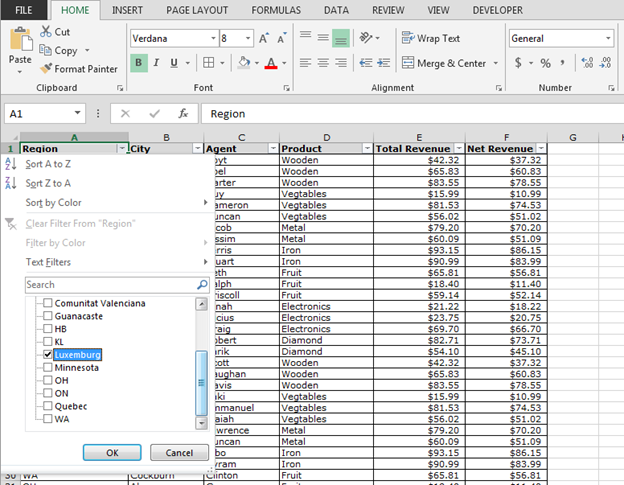
We have data in which column A contains region, column B contains City, column C Agent, column D product, column E total revenue, and column F contains Net revenue.

Now, we want to see the data for Luxemburg region. Follow below steps:-
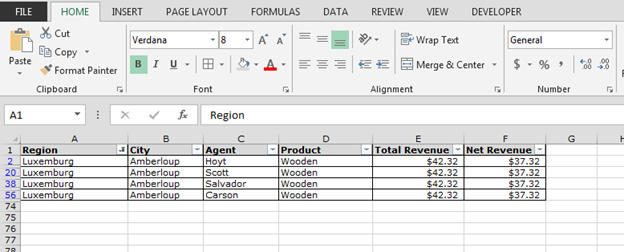
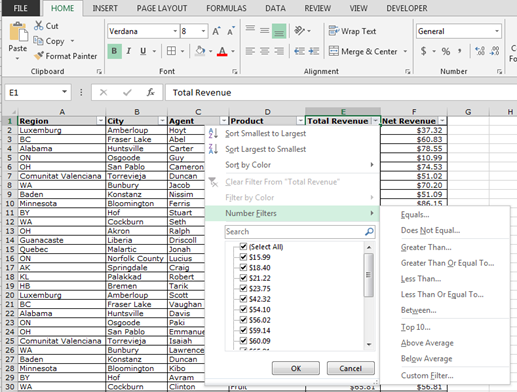
Now, we will put the criteria based filter. In data, we have total revenue and net revenue columns. And, we want to see the data in which total revenue is less than $54.
Follow below steps:
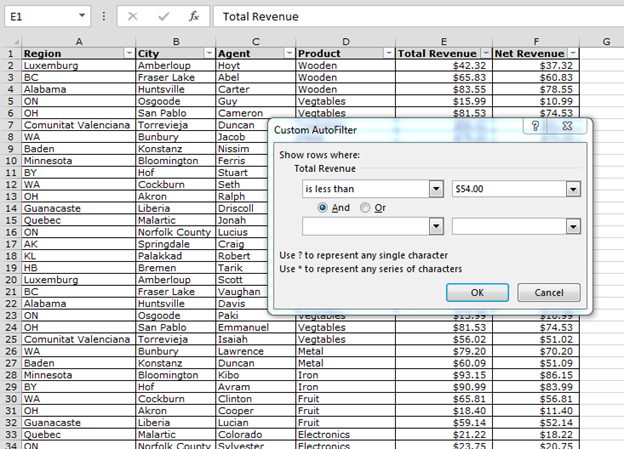
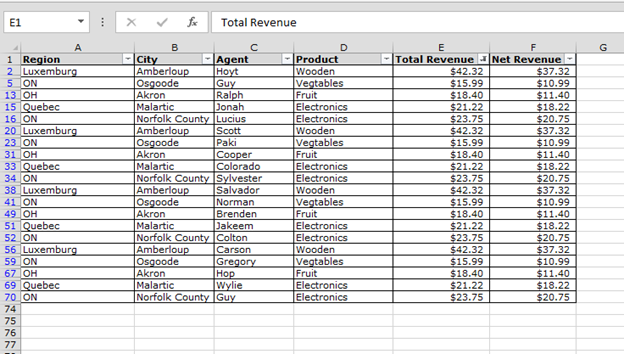
This is the way we can do quickly filtering using auto filter in Microsoft Excel.

If you liked our blogs, share it with your friends on Facebook. And also you can follow us on Twitter and Facebook.
We would love to hear from you, do let us know how we can improve, complement or innovate our work and make it better for you. Write us at info@exceltip.com
The applications/code on this site are distributed as is and without warranties or liability. In no event shall the owner of the copyrights, or the authors of the applications/code be liable for any loss of profit, any problems or any damage resulting from the use or evaluation of the applications/code.



