

In this article we will learn how to add a calculated field in Excel.
“PIVOT TABLE” is used for summarizing a large amount of data without using any formulas, it makes the data easy to read with flexibility.
Let’s take an example to understand how to add a calculated field in PIVOT TABLE
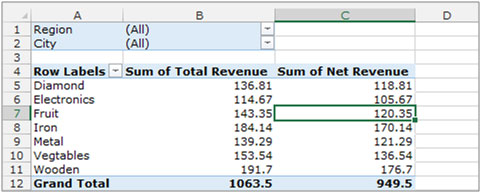
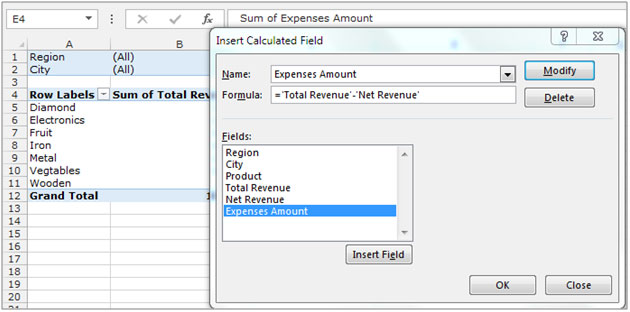
I have a “PIVOT TABLE” where Column A contains the products, column B sum of total revenue and column C the net revenue. I need to show the expenses amount in the “PIVOT TABLE”. To add the data field in the “PIVOT TABLE”follow the below mentioned steps:-
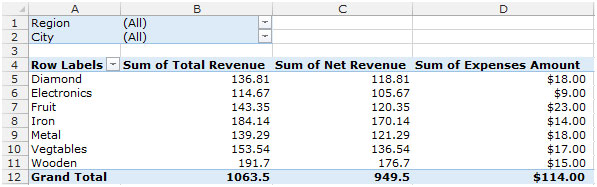
Conclusion:- You can add your own calculation in PivotTable as per the requirement.

For more Example of Pivot Table refer below links:-
Apply conditional formatting in PivotTable
How to insert calculated field
Grouping Text fields in PivotTable
If you liked our blogs, share it with your friends on Facebook. And also you can follow us on Twitter and Facebook.
We would love to hear from you, do let us know how we can improve, complement or innovate our work and make it better for you. Write us at info@exceltip.com
The applications/code on this site are distributed as is and without warranties or liability. In no event shall the owner of the copyrights, or the authors of the applications/code be liable for any loss of profit, any problems or any damage resulting from the use or evaluation of the applications/code.




Hi
When I insert formula in calculated field A - B, A is task end time, B is task start time. But showing zero in added field in pivot table.