ExcelTip.com
ExcelTip.com
Account Icon Account Icon Account Icon
Google Exceltip.com
JOIN OUR NEWSLETTER
  and receive for joining:
Free eBook Learn More!
Free Excel ADD-IN
Free Weekly Excel Tip
4 e-books in cd-rom
F1 Formulas & Functions
F1 EXCEL
F1 eBook (Spanish)
F1 EXCEL
Financial Statements.xls
 

» Retrieving Unique Values From A List
Problem:

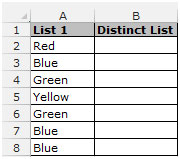
Column A contains a list of values, each of which may appear more than once.
We want to create a list in column B in which each value from column A may only appear once.

Solution:

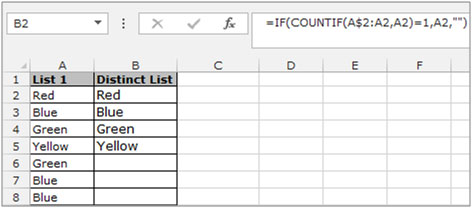
Use the INDEX, MATCH, and COUNTIF functions as shown in the following Array formula:
{=INDEX($A$2:$A$8,MATCH(0,COUNTIF($B$2:B2,$A$2:$A$8),0))}

Note:
The first cell in the unique list (column B) must remain empty.
The formula should be entered in the second cell and copied down until the #N/A error is returned.


List_________Distinct List
Red
Blue_________Red
Green________Blue
Yellow_______Green
Green________Yellow
Blue_________#N/A
Blue

Screenshot // Retrieving Unique Values From A List

Retrieving Unique Values From A List
Rate this tip
12 34 5
  RATING: 3.07
  VIEWS: 23895

READER COMMENTS (view all comments)


macroll wrote on May 11, 2005 11:03 EST
man, i can't get this to work???
Reply: macroll
Alan wrote on May 12, 2005 01:39 EST
Hi macroll,

[QUOTE=macroll]man, i can't get this to work???[/QUOTE]I haven't tried to decipher the tip above, but this should do what you want:

If you have a list in A1:A13 as follows:

Alan
Bob
Charlie
Alan
Alan
Alan
Charlie
Dave
Charlie
Bob
Edgar
Bob
Bob

In B1 enter either "Alan" or link to A1

In B2 enter this as an array formula:

{=OFFSET($A$1,MATCH(0,MMULT(--TRANSPOSE(TRANSPOSE($A$1:$A$13)=B$1:B1),ROW(INDIRECT("1:"&ROW()-1))/ROW(INDIRECT("1:"&ROW()-1))),0)-1,0,1,1)}

To enter the array formula, type it in without the curly brackets, and then enter using Shift-Ctrl-Enter and excel will put the braces on the formula.

Copy that formula down to B2:B13.

It returns 'Not Applicable' in B6:B13 since there are no more unique entries. If you want to show something else (or a blank cell), just wrap it in a check using the ISNA function. That would be as follows (in B2):

{=IF(ISNA(OFFSET($A$1,MATCH(0,MMULT(--TRANSPOSE(TRANSPOSE($A$1:$A$13)=B$1:B1),ROW(INDIRECT("1:"&ROW()-1))/ROW(INDIRECT("1:"&ROW()-1))),0)-1,0,1,1)),"",OFFSET($A$1,MATCH(0,MMULT(--TRANSPOSE(TRANSPOSE($A$1:$A$13)=B$1:B1),ROW(INDIRECT("1:"&ROW()-1))/ROW(INDIRECT("1:"&ROW()-1))),0)-1,0,1,1))}

I prefer to return #NA myself and trap for that whereever I use the results - just a preference though.

HTH,

Alan.
Very Helpful Formulae
Sid wrote on May 31, 2005 00:58 EST
Good Stuff
Something missing
someone wrote on July 20, 2005 16:14 EST
In the initial formula there is something the author forgot to mention:
B3 Formula: {=INDEX($A$2:$A$8,MATCH(0,COUNTIF($B2:B2,$A$2:$A$8),0))}
B4 Formula: {=INDEX($A$2:$A$8,MATCH(0,COUNTIF($B2:B3,$A$2:$A$8),0))}
B5 Formula: {=INDEX($A$2:$A$8,MATCH(0,COUNTIF($B2:B4,$A$2:$A$8),0))}

And so on... (First array in COUNTIF should be all the cells above the current cell).

Also, to enter these formulas, you need to press CTRL+SHIFT+ENTER when you're done entering the formula. This will convert the formula into an array formula.

Hope it helps.
got some problem
siju wrote on July 23, 2005 07:47 EST
it is not work out
Reply: siju
Alan wrote on July 27, 2005 02:04 EST
Hi siju,

[QUOTE=siju]it is not work out[/QUOTE]In what way?

Alan.
Advanced Filter - unique?
littleIdiot wrote on December 31, 1969 19:00 EST
How is this different to doing the following?
Data > Filter > Advanced Filter > Unique records only

gjcase wrote on August 26, 2005 11:33 EST
This is different than using the advanced filter in that the filter list does not update if the list changes, whereas this does.
Reply: gjcase
Alan wrote on August 28, 2005 17:23 EST
Hi gjcase,

[QUOTE=gjcase]This is different than using the advanced filter in that the filter list does not update if the list changes, whereas this does.[/QUOTE]If you want an autofilter / advanced filter to automatically update you will need to use VBA.

Alan.
Re Alan
Donna wrote on December 31, 1969 19:00 EST
Alan formula worked good, but when I change the $A$13 to the $74 for the number in MY list, I get error. Don't know what I did wrong..
a thousand thankyous
min5h wrote on December 31, 1969 19:00 EST
I have been looking for the simple fix to this excel problem for ages, wondering about it for years. Up to now I have been going into MS access and running a count query on the table with all the extra entries. This suits me perfectly:

Advanced Filter - unique?
littleIdiot wrote on December 31, 1969 18:00 EST
How is this different to doing the following?
Data > Filter > Advanced Filter > Unique records only

Can't get the other formula's to work but thanks very much for the advanced filter tip.


REGISTERED USERS - Click here to post comments


GUESTS (Click here to register)
Name
Comment Title
Comments

Adventure Capitalist: The Ultimate Road Trip

Not-for-Profit Accounting Made Easy

Cashflow Quadrant: Rich Dad's Guide to Financial Freedom

Seven Habits Of Highly Effective People

VBA for Modelers: Developing Decision Support Systems Using Microsoft« Excel

Business Plans Kit for Dummies (With CD-ROM)

RELATED MICROSOFT EXCEL TIPS


Convert PDF Files to Excel


Excel VBA books
Accounting books
Business Plans
MS Office books
Taxes books

VIEW ALL BOOKS


  Advertise With Us                               

Tips

Add-In in VBA | Applications - Word, Outlook in VBA | Array Formulas | Cells, Ranges, Rows, and Columns in VBA | Counting | Custom Functions | Custom Functions in VBA | Database Formulas | Database in VBA | Date & Time Formulas | Date & Time in VBA | Events in VBA | Excel 2003 | Excel Chart | Excel Consolidating | Excel Counting | Excel Custom Functions using VBA | Excel Customizing | Excel Data | Excel Dates | Excel Editing | Excel Files | Excel Filter | Excel Format | Excel Formula | Excel General | Excel Grouping and Outlining | Excel Importing Text Files | Excel Information | Excel Keyboard Shortcuts | Excel Loan Formulas | Excel Macros - VBA | Excel Pivot Tables | Excel Printing | Excel Range Name | Excel Security - Protection | Excel Sorting | Excel Style | Excel Subtotals | Excel Summing | Excel Text | Excel Time | Excel Tools | Excel Worksheet, Workbook | Files, Workbook, and Worksheets in VBA | Financial Formulas | Formating in VBA | General Topics in VBA | Import and Export in VBA | Information Formulas | Keyboard & Other Shortcuts in VBA | Keyboard Formula Shortcuts | Links between Worksheet and Workbooks | Links in VBA | Logical Formulas | Lookup Formulas | Mail - Send and Receive in VBA | Menus, Toolbars, Status bar in VBA | Modules, Class Modules in VBA | Other Q&A Formulas | Printing in VBA | Protecting in VBA | Summing | Text Formulas | User Forms, Input boxes in VBA | Using Loops | Working with Formulas |

Tips by Version

Microsoft Excel 97 | Microsoft Excel 2000 | Microsoft Excel 2002 | All Microsoft Excel Versions | New in Excel 2002 | New in Excel 2003 - Office 11

Website

Home | Tip of Hour | Recommended Tips | Most Viewed Tips | Tips by Version | Submit a Tip | My Tips
Microsoft Excel Tutorials | Excel Links | Write for Us | About Us | Search Results | Tip Archives | Excel Forum | Excel Forum Archives

Excel Book

Excel 97 Book | Excel 2000 Book | Excel 2002 Book | Excel XP Book | Book Store

Terms and Conditions of use
The applications/code on this site are distributed as is and without warranties or liability. In no event shall the owner of the copyrights, or the authors of the applications/code be liable for any loss of profit, any problems or any damage resulting from the use or evaluation of the applications/code.

Copyright © 2003 ExcelTip.com
Microsoft, Microsoft Excel is a U.S. registered trademark of Microsoft Corporation
Site Developed By: Varien