


In a previous article, we learned how you can dynamically change and update individual pivot tables with shrinking or expanding data sources.
In this article, we will learn how we can make all pivot tables in a workbook automatically change the data source. In other words, instead of changing one pivot table at a time we will try to change the data source of all the pivot tables in the workbook to dynamically include new rows and columns added to source tables and reflect the change in pivot tables instantly.
Since we want this to be completely automatic, we will use sheet modules to write code instead of a core module. This will allow us to use worksheet events.
If the source data and pivot tables are in different sheets, we will write the VBA code to change pivot table data source in the sheet object that contains the source data (not that contains pivot tables).
Press CTRL+F11 to open the VB editor. Now go to project explorer and find the sheet that contains the source data. Double click on it.

A new coding area will open. You may not see any change but now you have access to the worksheet events.
Click on the left drop down menu and select the worksheet. From the left drop down menu, select deactivate. You will see a blank sub written on the code area name worksheet_deativate. Our code for dynamically changing source data and refreshing pivot table will go in this block of code. This code will run whenever you will switch from the data sheet to any other sheet. You can read about all worksheet events here.

Now we are ready to implement the code.
To explain how it works, I have a workbook. This workbook contains three sheets. Sheet1 contains the source data that can change. Sheet2 and Sheet3 contain pivot tables which depend on the source data of sheet2.
Now I have written this code in sheet1's coding area. I am using the Worksheet_Deactivate event, so that this code runs to update the pivot table whenever we switch from source data sheet.
Private Sub Worksheet_Deactivate()

Dim source_data As Range


 'Determining last row and column number

 lstrow = Cells(Rows.Count, 1).End(xlUp).Row

 lstcol = Cells(1, Columns.Count).End(xlToLeft).Column


 'Setting the new range

 Set source_data = Range(Cells(1, 1), Cells(lstrow, lstcol))


'Code to loop through each sheet and pivot table

 For Each ws In ThisWorkbook.Worksheets

  For Each pt In ws.PivotTables


   pt.ChangePivotCache _

     ThisWorkbook.PivotCaches.Create( _

     SourceType:=xlDatabase, _

     SourceData:=source_data)


  Next pt

 Next ws


End Sub
If you have a similar workbook, you can directly copy this data.I have explained this code works below so that you can modify it as per your needs.
You can see the effect of this code in gif below.
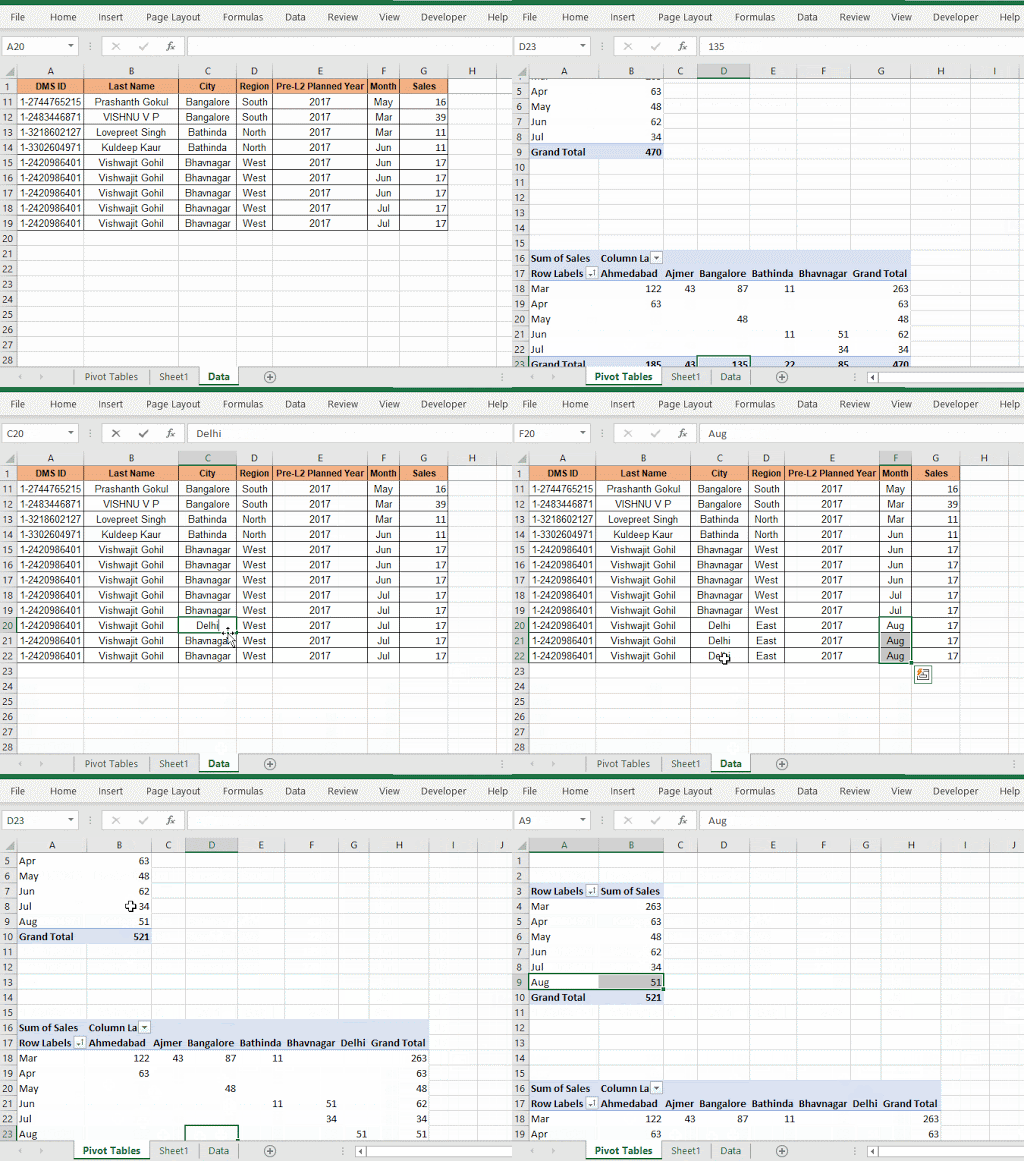
How does this code automatically change source data and update pivot tables?
First of all we used a worksheet_deactivate event. This event triggers only when the sheet containing the code is switched or deactivated. So this is how the code automatically runs.
To dynamically get the whole table as data range we determine the last row and last column.
lstrow = Cells(Rows.Count, 1).End(xlUp).Row
lstcol = Cells(1, Columns.Count).End(xlToLeft).Column
Using these two numbers we define the source_data. We are definite that source data range will always start from A1. You can define your own beginning cell reference.
Set source_data = Range(Cells(1, 1), Cells(lstrow, lstcol))
Now we have the source data which is dynamic. We just need to use it in the pivot table.
As we don't know how many pivot tables a workbook will contain at a time, we will loop through each sheet and pivot tables of each sheet. So that no pivot table is left. For this we use nested for loops.
For Each ws In ThisWorkbook.Worksheets
For Each pt In ws.PivotTables
pt.ChangePivotCache _
ThisWorkbook.PivotCaches.Create( _
SourceType:=xlDatabase, _
SourceData:=source_data)
Next pt
Next ws
The first loop loops through each sheet. The second loop iterates over each pivot table in a sheet.
The pivot tables are assigned to variable pt. We use the ChangePivotCache method of pt object. We dynamically create a pivot cache using ThisWorkbook.PivotCaches.Create
Method. This method takes two variables SourceType and SourceData. As source type we declare xlDatabase and as SourceData we pass source_data range that we have calculated earlier.
And that is it. We have our pivot tables automated. This will automatically update all pivot tables in the workbook.
So yeah guys, this is how you can dynamically change data source ranges of all the pivot tables in a workbook in Excel. I hope I was explanatory enough. If you have any questions regarding this article, let me know in the comments section below.
Related Articles:
How to Dynamically Update Pivot Table Data Source Range in Excel : To dynamically change the source data range of pivot tables, we use pivot caches. These few lines can dynamically update any pivot table by changing the source data range.
How to Auto Refresh Pivot Tables Using VBA : To automatically refresh your pivot tables you can use VBA events. Use this simple line of code to update your pivot table automatically. You can use either of 3 methods of auto refreshing pivot tables.
Run Macro If Any Change Made on Sheet in Specified Range: In your VBA practices, you would get the need to run macros when a certain range or cell changes. In that case, to run macros when a change is made to a target range, we use the change event.
Run Macro When any Change is Made On Sheet | So to run your macro whenever the sheet updates, we use the Worksheet Events of VBA.
Simplest VBA Code to Highlight Current Row and Column Using | Use this small VBA snippet to highlight the current row and column of the sheet.
The Worksheet Events in Excel VBA | The worksheet event are really useful when you want your macros to run when a specified event occurs on the sheet.
Popular Articles:
50 Excel Shortcuts to Increase Your Productivity | Get faster at your task. These 50 shortcuts will make you work even faster on Excel.The VLOOKUP Function in Excel | This is one of the most used and popular functions of excel that is used to lookup value from different ranges and sheets.
COUNTIF in Excel 2016 | Count values with conditions using this amazing function. You don't need filter your data to count specific value. Countif function is essential to prepare your dashboard.
How to Use SUMIF Function in Excel | This is another dashboard essential function. This helps you sum up values on specific conditions.
The applications/code on this site are distributed as is and without warranties or liability. In no event shall the owner of the copyrights, or the authors of the applications/code be liable for any loss of profit, any problems or any damage resulting from the use or evaluation of the applications/code.



