Date Formula Microsoft Excel 97 2000 2002 free tutorial format function workbook worksheet sum report printing pivot table forms templates template Date Data CountIf Count VBA Macro excel formula subtotal filtering chart graph

Microsoft Excel Combo Box

ArticleBody
376 I have a spreadsheet with several combo boxes, which list data referenced from other cells in my workbook. I often get the message "Not Enough System Resources to Display Completely" when I click on one of the combo boxes. Maybe my computer is just wimpy. (but I have 256 MB of RAM, although not the fastest machine on the market). Anyone know what is causing the message to appear? I am running Office '97 on a Windows NT system. Thanks, Dan Winterton
669 I have a spreadsheet with several combo boxes. I often get the message "Not Enough System Resources to Display Completely" when I click on one of the combo boxes to select an item from the drop-down list. I have tried it on my machine at work (256 MB RAM, Windows NT, running Excel 97) and my laptop (128 MB RAM, Windows XP Professional, running Excel XP), and I get the same error on both machines. I am struggling to find a solution, wondering if this has happened to anyone else and if there is a solution. Any help is very much appreciated. Thanks, Dan Winterton
686 Make sure the zoom is set to 100% Not being at 100% is a common cause of memory problems, but not an exclusive cause. Dan <daniel_winterton@hk.ml.com wrote in message news:101b801c21be8$348047a0$36ef2ecf@tkmsftngxa12... I have a spreadsheet with several combo boxes. I often get the message "Not Enough System Resources to Display Completely" when I click on one of the combo boxes to select an item from the drop-down list. I have tried it on my machine at work (256 MB RAM, Windows NT, running Excel 97) and my laptop (128 MB RAM, Windows XP Professional, running Excel XP), and I get the same error on both machines. I am struggling to find a solution, wondering if this has happened to anyone else and if there is a solution. Any help is very much appreciated. Thanks, Dan Winterton
1363 I have a combo box (drop down list) on my worksheet. My problem is I can't find a way to change the font size of the entries on the list. I'd really appreciate help. Rob
1487 Hi Dave, Thanks for taking the time to get back to me. Unfortunately on my spreadsheet of Project Tasks I will be allowing the users to add more rows as required and therefore I would need to dynamically add combo boxes/delete combo boxes as rows are added and deleted. I have done this before and it is all a bit messy and sometimes things go wrong. As this spreadsheet will be distributed to hundreds of remote users I would rather go for the more simple solution of Validation lists if I can get them to work. I appreciate you taking the time to reply and I will have a good look at the solutions you pointed me to just in case. Regards Tony "" <DavidH@OzGrid.com wrote in message news:BWYU8.8$lY.21766@vicpull1.telstra.net... Hi Tony I have a working example here that should help: /download/default.htm It's under "ChangingCombo2.zip" -- \ Get 8 Add-ins in one! For less than the price of 1 /Services/AddinExamples.htm FREE EXCEL NEWSLETTER /News/2home.htm "Tony Starr" <tonyXXXnospamxxxStarr@ozemail.com.au wrote in message news:ugoshexICHA.2464@tkmsftngp12... | Hi Folks, | | I need some help with implementing data validation lists. | I want to have a validation list for column B that is based upon the value | the user selects in column A and a validation list in Column C that depends | on the choices made in columns A and B. | | | On a sheet named Projects users enter the details of people working on | Projects | The sheet looks like this | | Department Project Person | Accounts Payroll System John Smith | Accounts Payroll System Helen Brown | Accounts Debt Recovery Allan Welling | Despatch New Loading Bay Mike Lang | Despatch New Loading Bay Sharon Stone | HR Leave System John Smith | HR Leave System Mike Lang | HR Training Jodi Rich | | (It is possible that two departments may have a project of the same name) | | | The values entered in the Department Column are from a predefined list. | The values entered in the Project and Person columns are user defined. (i.e. | absolutely anything) | | | My "Project Tasks" Sheet looks like this | | Department Project Person | Task | Accounts Payroll System John Smith | Scoping | Accounts Payroll System John Smith | Planning | Accounts Payroll System John Smith | Purchase | Accounts Payroll System Helen Brown | Installation | | | | I want the values entered in the Department, Project and Person columns to | be picked from a validation list. | If the user selects Accounts in the Department column, the validation list | for Project Column should consist of only projects entered on the "Projects" | sheet against the Accounts department. | Likewise the validation list for the Person column should only consist of | people listed in the "Projects" sheet for the nominated department/project. | | | How do I do this? | (Just stressing again I do not know in advance the values the users will be | entering as Projects and Persons on the "Projects" sheet.) | | | TIA | Tony | |
1510 Hi Tony You have misunderstood me. I meant for you to use the same type of Dynamic Range in the List Source of the Validation. The example does use Comboboxes, but as no VBA is needed (al via single dynamic range) it can very easily be used in many situations. -- \ Get 8 Add-ins in one! For less than the price of 1 /Services/AddinExamples.htm FREE EXCEL NEWSLETTER /News/2home.htm "Tony Starr" <tonyXXXnospamxxxStarr@ozemail.com.au wrote in message news:OuOXQa6ICHA.2280@tkmsftngp12... | Hi Dave, | | Thanks for taking the time to get back to me. Unfortunately on my | spreadsheet of Project Tasks I will be allowing the users to add more rows | as required and therefore I would need to dynamically add combo boxes/delete | combo boxes as rows are added and deleted. I have done this before and it is | all a bit messy and sometimes things go wrong. As this spreadsheet will be | distributed to hundreds of remote users I would rather go for the more | simple solution of Validation lists if I can get them to work. | | I appreciate you taking the time to reply and I will have a good look at the | solutions you pointed me to just in case. | | Regards | Tony | | "" <DavidH@OzGrid.com wrote in message | news:BWYU8.8$lY.21766@vicpull1.telstra.net... | Hi Tony | | | I have a working example here that should help: | /download/default.htm It's under "ChangingCombo2.zip" | | | -- | | | \ | Get 8 Add-ins in one! For less than the price of 1 | /Services/AddinExamples.htm | FREE EXCEL NEWSLETTER | /News/2home.htm | | "Tony Starr" <tonyXXXnospamxxxStarr@ozemail.com.au wrote in message | news:ugoshexICHA.2464@tkmsftngp12... | | Hi Folks, | | | | I need some help with implementing data validation lists. | | I want to have a validation list for column B that is based upon the | value | | the user selects in column A and a validation list in Column C that | depends | | on the choices made in columns A and B. | | | | | | On a sheet named Projects users enter the details of people working on | | Projects | | The sheet looks like this | | | | Department Project Person | | Accounts Payroll System John Smith | | Accounts Payroll System Helen Brown | | Accounts Debt Recovery Allan Welling | | Despatch New Loading Bay Mike Lang | | Despatch New Loading Bay Sharon Stone | | HR Leave System John Smith | | HR Leave System Mike Lang | | HR Training Jodi Rich | | | | (It is possible that two departments may have a project of the same | name) | | | | | | The values entered in the Department Column are from a predefined list. | | The values entered in the Project and Person columns are user defined. | (i.e. | | absolutely anything) | | | | | | My "Project Tasks" Sheet looks like this | | | | Department Project Person | | Task | | Accounts Payroll System John Smith | | Scoping | | Accounts Payroll System John Smith | | Planning | | Accounts Payroll System John Smith | | Purchase | | Accounts Payroll System Helen Brown | | Installation | | | | | | | | I want the values entered in the Department, Project and Person columns | to | | be picked from a validation list. | | If the user selects Accounts in the Department column, the validation | list | | for Project Column should consist of only projects entered on the | "Projects" | | sheet against the Accounts department. | | Likewise the validation list for the Person column should only consist | of | | people listed in the "Projects" sheet for the nominated | department/project. | | | | | | How do I do this? | | (Just stressing again I do not know in advance the values the users will | be | | entering as Projects and Persons on the "Projects" sheet.) | | | | | | TIA | | Tony | | | | | | | |
1552 yep, that seems to have done the trick thanks p -----Original Message----- Phil, The problem is with the line Sub Userform1_Initialize() You don't want "Userform1" here. Rather, you want the name of the object type, not the name of the specific object. Change Sub Userform1_Initialize() to Sub Userform_Initialize() -- Cordially, Chip Pearson Microsoft MVP - Excel Pearson Software Consulting, LLC www.cpearson.com chip@cpearson.com "phil" <pperry@acsoft wrote in message news:1589001c22377$a9bcfa90$3bef2ecf@TKMSFTNGXA10... Hi, I can't seem to initialize a user form. i'm using: Sub Userform1_Initialize() to put some values in combo boxes, etc, but this doesn't work. Am i missing something obvious? thanks Phil .
1567 Hi Phil Just as a future tip, you only need to double click any Control while in the VBE and it will default to it's default Procedure, normally Click. You can then easily select the Event you want from the "Procedure" list in the Top right of the Module window. -- \ Get 8 Add-ins in one! For less than the price of 1 /Services/AddinExamples.htm FREE EXCEL NEWSLETTER /News/2home.htm "phil" <pperry@acsoft wrote in message news:12fce01c22400$9498ff90$9ee62ecf@tkmsftngxa05... | yep, that seems to have done the trick thanks | p | | -----Original Message----- | Phil, | | The problem is with the line | | Sub Userform1_Initialize() | | You don't want "Userform1" here. Rather, you want the | name of the object type, | not the name of the specific object. Change | | Sub Userform1_Initialize() | | to | Sub Userform_Initialize() | | | -- | Cordially, | Chip Pearson | Microsoft MVP - Excel | Pearson Software Consulting, LLC | www.cpearson.com chip@cpearson.com | | | | | "phil" <pperry@acsoft wrote in message | news:1589001c22377$a9bcfa90$3bef2ecf@TKMSFTNGXA10... | Hi, | I can't seem to initialize a user form. | i'm using: | Sub Userform1_Initialize() | to put some values in combo boxes, etc, but this doesn't | work. Am i missing something obvious? | thanks | Phil | | . |
1693 Dave, Thank you very much. You solution works very nicely. Regards Tony "" <DavidH@OzGrid.com wrote in message news:XH6V8.15$G11.29347@vicpull1.telstra.net... Hi Tony You have misunderstood me. I meant for you to use the same type of Dynamic Range in the List Source of the Validation. The example does use Comboboxes, but as no VBA is needed (al via single dynamic range) it can very easily be used in many situations. -- \ Get 8 Add-ins in one! For less than the price of 1 /Services/AddinExamples.htm FREE EXCEL NEWSLETTER /News/2home.htm "Tony Starr" <tonyXXXnospamxxxStarr@ozemail.com.au wrote in message news:OuOXQa6ICHA.2280@tkmsftngp12... | Hi Dave, | | Thanks for taking the time to get back to me. Unfortunately on my | spreadsheet of Project Tasks I will be allowing the users to add more rows | as required and therefore I would need to dynamically add combo boxes/delete | combo boxes as rows are added and deleted. I have done this before and it is | all a bit messy and sometimes things go wrong. As this spreadsheet will be | distributed to hundreds of remote users I would rather go for the more | simple solution of Validation lists if I can get them to work. | | I appreciate you taking the time to reply and I will have a good look at the | solutions you pointed me to just in case. | | Regards | Tony | | "" <DavidH@OzGrid.com wrote in message | news:BWYU8.8$lY.21766@vicpull1.telstra.net... | Hi Tony | | | I have a working example here that should help: | /download/default.htm It's under "ChangingCombo2.zip" | | | -- | | | \ | Get 8 Add-ins in one! For less than the price of 1 | /Services/AddinExamples.htm | FREE EXCEL NEWSLETTER | /News/2home.htm | | "Tony Starr" <tonyXXXnospamxxxStarr@ozemail.com.au wrote in message | news:ugoshexICHA.2464@tkmsftngp12... | | Hi Folks, | | | | I need some help with implementing data validation lists. | | I want to have a validation list for column B that is based upon the | value | | the user selects in column A and a validation list in Column C that | depends | | on the choices made in columns A and B. | | | | | | On a sheet named Projects users enter the details of people working on | | Projects | | The sheet looks like this | | | | Department Project Person | | Accounts Payroll System John Smith | | Accounts Payroll System Helen Brown | | Accounts Debt Recovery Allan Welling | | Despatch New Loading Bay Mike Lang | | Despatch New Loading Bay Sharon Stone | | HR Leave System John Smith | | HR Leave System Mike Lang | | HR Training Jodi Rich | | | | (It is possible that two departments may have a project of the same | name) | | | | | | The values entered in the Department Column are from a predefined list. | | The values entered in the Project and Person columns are user defined. | (i.e. | | absolutely anything) | | | | | | My "Project Tasks" Sheet looks like this | | | | Department Project Person | | Task | | Accounts Payroll System John Smith | | Scoping | | Accounts Payroll System John Smith | | Planning | | Accounts Payroll System John Smith | | Purchase | | Accounts Payroll System Helen Brown | | Installation | | | | | | | | I want the values entered in the Department, Project and Person columns | to | | be picked from a validation list. | | If the user selects Accounts in the Department column, the validation | list | | for Project Column should consist of only projects entered on the | "Projects" | | sheet against the Accounts department. | | Likewise the validation list for the Person column should only consist | of | | people listed in the "Projects" sheet for the nominated | department/project. | | | | | | How do I do this? | | (Just stressing again I do not know in advance the values the users will | be | | entering as Projects and Persons on the "Projects" sheet.) | | | | | | TIA | | Tony | | | | | | | |
1846 If you mean a combo box from the Control toolbox or the Forms toolbar, make sure it's completely within the cell, then drag the Fill handle. Rows to which it's being copied should be the same height as the original cell's row. If it's a dropdown from Data Validation, just drag the Fill handle. You can use the right mouse button while you drag, and copy the formatting only. Ann Withington wrote: I know how to crete drop downs in Excel. But wanted to know if there was a quicker way to copy the drop down box to all the rows in the same column without the tediuos task of copying and pasting. Like an AutoFill for example. -- Debra Dalgleish Excel FAQ, Tips & Book List /tiptech.html
1869 Thanks everyone. This is what I ended up doing. I had to tweak the VBA codes because many of the form objects (combo boxes, list boxes etc. were created with different names). Everyting is fine now. But I think this is a bug (in Excel 97). As soon as the file is re-saved to 97 format, that annoying message should completely disappear. Also, I think Excel XP should have Excel 97 as one of the formats (not the 97-2000,5.0/95 combo format) listed in the save as type. -----Original Message----- no problem open the workbook and a new one rightclick on a sheetab and choose select all sheets select move or copy and choose in "to book" the new workbook. select copy!! also then OK now all sheets ar in the new workbook hit alt f11 in the VBA editor you can drag and drop the modules and userforms to the new workbook. only the code that is under thisworkbook you must copy in the thisworkbook of the new file. Regards Ron "Tng Hau" <thau@gwbakeries.com schreef in bericht news:1491901c22784$c6a69f10 $2ae2c90a@hosting.microsoft.com... Thanks. I thought about that. But I have a lot of macros and forms and range names that could become a litte messy. -----Original Message----- the only way I heve solved it to copy the sheets and modules to a new workbook in Excel 97 and save that one. Regards Ron "Tng Hau" <thau@gwbakeries.com schreef in bericht news:1456701c22776$9ab87800$37ef2ecf@TKMSFTNGXA13... I am the only one in my office so far to have the XP version of Excel. My problem is that any file I saved in XP will be upgraded to the XP. When other users use my files and try to save them, they would get a message saying the file was created using a later version of Excel, if you click yes you will lose the new information, I told the users to go ahead click yes. But the message keeps coming back no matter how many times they do that. Does any one how to get rid of that? I could not find anything in the Excel XP help or in the Knowledge Base to help me solve this problem. Excel XP does not have an option to save file as Excel 97 type. It only has a "Excel 97-2000 & 5.0/95 workbook" which doubles the size of the file. Thanks. . .
1934 Thanks, Chip. That makes sense. "Chip Pearson" <chip@cpearson.com wrote in message news:eNd8u01JCHA.2288@tkmsftngp12... The ControlSource property does not specify the source of the data in the combobox. It specifies the cell that the Value of the combobox is take from, and where the new value of the combobox is put when the control loses focus. You want to use the RowSource property to specify where the combobox gets the list of values. Me.ComboBox1.RowSource = "Sheet2!B1:B20" Me.ComboBox1.ControlSource = "Sheet2!A1" This loads B1:B20 in to the list box, and puts value of the combobox in A1 when the control loses focus. -- Cordially, Chip Pearson Microsoft MVP - Excel Pearson Software Consulting, LLC www.cpearson.com chip@cpearson.com "Splash" <splash@mosquitonet.com wrote in message news:uilvenecguns90@corp.supernews.com... Evidently what I'm seeking can only be done in Excel, but I don't know the proper syntax to do it: I want to define the control source for a combo box in a userform as a worksheet range ("WorksheetName!B1:B12"). Every permutation of that that I try is wrong: "Could not set the control source property. Invalid property valid." I know how to "add item" in the code, but how can I simply assign a worksheet range to the Control source for the combo box in the properties for the combo box? (What is the required format?) Thanks in advance.
1943 If this is a combobox from the control toolbox toolbar, right click on it and select properties. Look for a property called Font. Double click on it. If this is a combobox from the forms toolbar, then I don't think you can. Kip Kauffman wrote: How do I format the font within a combo box? If I change the format of the text in the cells defined by the input range nothing happens. There is also nothing in the format control. Thanks in advance, Kip -- Dave Peterson ec35720@msn.com
1947 ComboBox1 (on a userform) simply will not "fill-in" values. That is, though I have assigned values to Combobox1 ("AddItem"), and these values "show" from the drop-down arrow, when I simply type the value it will not 'fill-in". Furthermore, unless the value is obtained through the actual clicking of ComboBox1, the change event (which brings up another form, given circumstances) is not "triggered". I have the "MatchEntry" property set to 1 and the "MatchRequired" set to false. I have another combo box that works perfectly with exactly the same settings (but that's the first combobox on the form). Is there anything that prevents subsequent comboboxes from "filling in"? Thanks in advance.
1992 On Thu, 11 Jul 2002 11:01:31 +1000, "BC" <noneofyourbusiness@nospam.com wrote: I'm sure this is an easy fix but i just can't work it out. My default currency (ie when i click on the $ icon on the formatting bar) has somehow changed to the UK Pound symbol. I can't figure out how to change it back to the $ symbol. My location settings in the control panel are correct and the currency icon there shows a $. I've also tried deleting all the custom formats featuring the pound sign but all that did was give me no response at all when i click the $ formatting icon in a cell. Hope that all makes sense. Appreciate any advice The tool button applies whatever format that you have defined as the "Currency" STYLE. (NB: Not to be confused with the Currency FORMAT that you see in the Format-Cells dialog.) To modify the Currency style, go to the Format menu, select Style, choose Currency from the Style Name combo box, then click on the Modify button to select the format that you want. You should find that the button works correctly again. --------------------------------------------------------- Hank Scorpio apolloXVIII@ozemail.com.au Change XVIII to 18 for real address.
2468 If you use the combo box from the Control Toolbox, you can change the font. 1. Add the combo box, then right-click on it and choose Properties. 2. Click in the font cell, and click the ... button. 3. Choose a font and size. christmas_3 wrote: This is how I did my drop down - use the form toolbox to create a drop down menu. - in another area or another sheet list down the choices. - right click the drop down menu and link to the selected list. My problem is I can't seem to change the font size of the dropdown menu. even if I changed the size on my list. if someone knows how to do this i would really appreciate it. thanks -----Original Message----- Hi: Would someone please point me in the right direction. I need to create drop down lists in an Excel document. I want to create a list of eligible choices and have a down arrow appear when the user comes to the cell. I know it can be done, I just cannot find it. Thanks . -- Debra Dalgleish Excel FAQ, Tips & Book List /tiptech.html
2565 xl97? If yes, then try this at the top of your code: activecell.activate There's a bug in xl97 (fixed with xl2k) that affects controls from the controltoolbox toolbar when those tools are placed on a worksheet. (You may have seen suggestions about changing the takefocusonclick to false for commandbuttons from the same controltoolbox toolbar.) If not xl97, then Dave has the best suggestion--post the code (not the workbook) and the version of excel. steve wrote: Hi everyone I did a macro on an Excel spreadsheet at work to do a basic counting function. During normal operation all (2) worksheets are protected and the only area on the worksheet that can be changed is the cell where the data is entered. problem 1 - At the end of each 'batch' you start a macro in worksheet 1 that takes off protection in both sheets and then takes the data to worksheet 2 for archiving. On the way back to worksheet 1 the macro puts the protection back on in the process. Problem is the macro stalls when it switches between the worksheets. problem 2 - If I take the bits of the script out that look after the protection then the macro works. But for some reason whenever the macro is run the drop down lists from combo boxes in sheet 1 all start to loose the entries?? Any help is much appreciated Steve -- Dave Peterson ec35720@msn.com
3015 We have recently upgraded our pc's from NT and Office 97 to W2000 and Excel 2000. Excel '97 files created with Basic macros will now no longer open. An error message occurs saying the file has been locked. People have told me that the macros have to be recreated in Excel 2000. Any help. The macros are very basic Combo Boxes etc. BG
3211 I am trying to use a list or combo box to give users the ability to select from five options. The number 1 thru 5 will be displayed to show their selection. The problem is they need to be able to see the explanation of each choice. They are 1 - Sedentary - No physical activity whatsoever. 2 - Moderate - Average physical activity. 20 to 30 minutes exercise 2 to 3 time per week. 3 - Active - Participate in organized physical activity for more than 30 minutes 3 yo 5 time per week. 4 - Very Active - Engage in vigorous physical activity for 1 hour or more 5 or more times per week. 5 - Athlete - A competitive athlete in training. Twice- daily heavy physical workouts for 1 hour of more. I only want the box to be large enough to show the number of the choice I don't want a box stretching several columns with a single digit in it. Suggestions?
3244 You can use Data Validation, with an Input Message. 1. Select the cells 2. Choose DataValidation 3. Choose Allow: List 4. For Source, type: 1,2,3,4,5 5. On the Input Message tab, enter your descriptions. 6. Click OK Doug Pongracz wrote: I am trying to use a list or combo box to give users the ability to select from five options. The number 1 thru 5 will be displayed to show their selection. The problem is they need to be able to see the explanation of each choice. They are 1 - Sedentary - No physical activity whatsoever. 2 - Moderate - Average physical activity. 20 to 30 minutes exercise 2 to 3 time per week. 3 - Active - Participate in organized physical activity for more than 30 minutes 3 yo 5 time per week. 4 - Very Active - Engage in vigorous physical activity for 1 hour or more 5 or more times per week. 5 - Athlete - A competitive athlete in training. Twice- daily heavy physical workouts for 1 hour of more. I only want the box to be large enough to show the number of the choice I don't want a box stretching several columns with a single digit in it. Suggestions? -- Debra Dalgleish Excel FAQ, Tips & Book List /tiptech.html
3718 Sorry for my poor english ! copy this in a module: this code copy the last row non empty from ColA to Col C in sheet 1 and paste it to sheet 2 in the last row free. (in i understand your problem) Patrick Sub CopierVersFeuille2() Dim Cell As Range, Plage As Range, I As Long Dim desti As Range, depart As Range, LASTROW As Integer Sheets(1).Select LASTROW = Range("A65000").End(xlUp).Row 'Set depart = Range(Cells(65500, 1).End(xlUp)) Range(Cells(LASTROW, 1), Cells(LASTROW, 3)).Select ' 2,1 correspond à ligne 2 colonne A (sans les titres) ' 65536,5 ...up correspond à trouver la dernière cellule occupée ' dans la colonne E ' donc on sélectionne la Zone A2...jusqu'à Ex 'depart.Select Set desti = Sheets(2).Range("a65536").End(xlUp)(2) Selection.Copy desti 'Selection.Clear 'effacement des data originales Sheets(2).Select End Sub "Infliction" <infliction_uk@hotmail.com a écrit dans le message de news: d6556d3.0207311123.7e14ac41@posting.google.com... Hi, Im not an expert with excel so this is probably a fairly basic qustion This is what i want to do: On one sheet i have a row of cells: name, house, monday, tuesday.. sunday I want the user to type in their name and house. Then, underneath the days of the week select their desired newspaper from a drop down list, which i have created. so far so good. once the user has completed that row of input i then want a macro to copy the information into another sheet, reset the combo boxes (this isnt an necessity). I think i can create the macro to copy an paste the cells to another place However, want i want help on is: Once i have copied and pasted the info to another sheet, how do i create a macro to then paste the next line of info below the first??? So far im only able to paste the second users paper requests over the forst users when what i want to do is create a list of user requests below each other If ive missed any vital info out that would help solve this problem then please let me know. By the way, the option of usinga database is out of the question as the end user in completely unfamiliar with them and has no time to train. All help appreciated Thank you Nick Halliday
3831 Good day I have designed a user form which is activiated via a command button on a startup sheet in excel. On another sheet called "Lochinvar" are items such as (Full Name, Address, Suburb, Phone, Date and Group) The Userform is the edit details for the Lochinvar sheet. The problem being I need to code the user form I have named "frmed" to select a person from a the combo box "cboName" this is currently working but I need to place the relevant details in "frmed" I have placed Six text boxes named "txtname" etc to accept the relevant data but I can not get it to work. The details are to be edited and to updated the Lochinvar sheet. Your help or advice would be greatly appreciated (This is for as school assignment) Trev
3887 Hi Trevor I think your ComboBox method will be OK until your names list gets very long. Here is some code that may help you on your way :- '--- MACRO NOT TESTED ---------- Sub UPDATE_WORKSHEET() Dim MyForm As userform Dim FindInSheet As Worksheet Dim Foundcell As Object Dim FindValue As String ' or whatever Dim FoundRow As Long '-------------------- Set FindInSheet = ThisWorkbook.Worksheets("Lochinvar") FindValue = MyComboBox.Value '- do Find Set Foundcell = FindInSheet.Rows(1).Cells.Find(what:=FindValue, after:=[A1]) If Foundcell Is Nothing Then MsgBox (FindValue & " not found.") End Else FoundRow = Foundcell.Row End If '- Get all values MyForm.TextBox1.Value = FindInSheet.Cells(FoundRow, 1).Value MyForm.TextBox2.Value = FindInSheet.Cells(FoundRow, 2).Value '- etc. '- Show form MyForm.Show '- Replace all values (changed & unchanged- saves more code) FindInSheet.Cells(FoundRow, 1).Value = MyForm.TextBox1.Value FindInSheet.Cells(FoundRow, 2).Value = MyForm.TextBox2.Value '- etc. Unload MyForm End Sub '-- end ------------------------------------------ Regards BrianB ------------------------------------------------ "Trevor" <trev5084@yahoo.com.au wrote in message news:<01f401c239d0$cad1e7d0$3aef2ecf@TKMSFTNGXA09... Good day I have designed a user form which is activiated via a command button on a startup sheet in excel. On another sheet called "Lochinvar" are items such as (Full Name, Address, Suburb, Phone, Date and Group) The Userform is the edit details for the Lochinvar sheet. The problem being I need to code the user form I have named "frmed" to select a person from a the combo box "cboName" this is currently working but I need to place the relevant details in "frmed" I have placed Six text boxes named "txtname" etc to accept the relevant data but I can not get it to work. The details are to be edited and to updated the Lochinvar sheet. Your help or advice would be greatly appreciated (This is for as school assignment) Trev
4045 This is posting 9 of Frequently Asked Questions for the Excel newsgroups microsoft.public.excel.misc, microsoft.public.excel.programming and microsoft.public.excel.worksheet.functions. Topics are: The Excel application and Excel files Worksheet functions and formats Dates and times Macros, VBA functions I didn't find my answer here, now what ? Good resources on the web Collected by Harald Staff, Microsoft Excel MVP. This FAQ can also be found at Debra Dalgleish's website /xlfaqIndex.html -it's worth a bookmark. If you reply to this posting, reply to a single group and quote as little as possible. ************************************************* **** The Excel application and Excel files **** * When I start Excel, why do a million files open up automatically? Menu Tools Options General has an entry for "Startup directory", and all files there will be loaded when Excel starts. Alter or remove this entry. * When I start XL, I get the error message "Compile error in Hidden Module" An add-in with a programming error is bothering you. 1 Tools, Add-ins 2 note which are checked 3 uncheck all (but one) 4 restart XL 5 if no error, check the next one and repeat from step 4 Got the error? uncheck the one you last checked. If no luck, see if there's an .xla file in the startup directory (see previous tip). Scanner software typically place itself there, sometimes with code errors like the one in question. Not an add-in? It will be a hidden workbook then. 1 Try (in Excel) Windows, Unhide and write down which files are listed. 2 Unhide them. 3 Now go to the VBE (press Alt-F11). 4 On the left side there should be the project explorer. 5 Select the first project you unhid 6 From the menu choose Debug, compile 7 No Errors? select the next project listed, repeat 6. * Why do the column headers show numbers instead of letters? How do I change my column headings so they are back to alpha letters instead of numbers ? Tools / Options / General / Settings / R1C1 Reference Style (uncheck) * How can I change the color of the sheet tabs? Excel 10 (XP) is the only version that can color sheet tabs. * I want to lock in my Title Row and keep it there Visible while I scroll down to see the rest of my data. Any ideas? Assuming title row is 1, select A2 then WindowFreeze Panes. * I need more than 256 columns and/or 65536 Rows. Excel has no more. Quattro Pro v9 has 1 million rows and 18278 columns. * I just began to design an intricate spreadsheet and after over an hour got an error message in Excel - which then closed automatically. Unfortunately, I did not save my file. Excel did not automatically recover the file. Is there anything I can do to get it back? No. There should be an Autosave add-in in Tools Addin menu that you now might consider start using. (But then again, you may not want to overwrite an existing file with every little test you do in it, so be careful). Jan Karel Pieterse has an add-in Autosafe.zip downloadable from www.bmsltd.co.uk/mvp. See also 's /dmcritchie/excel/backup.htm for more on backup and recovery. Finally, Excel XP has great backup and recovery tools, so upgrading is a good future solution to those problems. * All of a sudden a number of my Excel 2000 files have become "read-only". Clear out c:\windows\temp directory on the machine that houses the files, reboot. * I have an excel file that I use every day at work. Some time ago, mysteriously, the file began opening two copies of itself every time I double-click the icon. If I close one of the copies, both close. Any changes made to one copy show up in the other. This sounds like you just have two windows open that are displaying the same workbook. You can close the extra window by clicking the lower of the two X buttons in the upper right corner of the screen (don't click the top X button, as that will close Excel). Then save the workbook. * When I type a number; example 44 it becomes 0.44 even if I format the cell without decimals. Goto Tools/Options/Edit and uncheck the fixed decimals checkbox. * When I click on an Excel file to open it, the file opens but an error message is displayed that says a file with that name is already open and that I can not open two files open with the same name. If you are sure it's not really happening -you may have Book1 open and then attempt to open a Book1 from another folder- then try re-register Excel. click startrun and "C:\Program Files\Microsoft Office\Office\Excel.Exe" /regserver (include the quotes) adapt to fit your path. Other things to look at: Tools=Option=General Tab, make sure "Ignore Other Applications" is not checked * Why does Excel say my file has links, when I know it doesn't? Links come in several flavors; linked formulas, defined names (Insert Name Define menu), objects (buttons and stuff) assigned to remote macros, ... You might find the FINDLINK.XLA program useful - you can get it from Stephen Bullen's web site: * Is there a way to allow the use of autofilter on a protected worksheet ? This needs a macro to run first: Sub Protect_keep_filter() With ActiveSheet .EnableAutoFilter = True .Protect DrawingObjects:=True, _ contents:=True, Scenarios:=True, UserInterfaceOnly:=True End With End Sub Note that the .enableautofilter has to be reset each time you open your file. (It's not persistent between closes.) * How many worksheets I can put in a workbook? It is not a limit per se, but of course there is a practical one which depends on the computer resources.. * How many Characters can be placed in a Cell? In Excel 97 and above, you can have up to 32K characters in a worksheet cell, but only the first 1000 or so can be displayed (the exact number depends on your font and display characteristics). * I've lost my password ! Yeah sure. Well, there are passwords and there are passwords. One is to open the file, one other is to unprotect the spreadsheet, still another is to unprotect the workbook and yet another one is to unprotect the macro code. File and VBA passwords can not be cracked by a "normal macro", workbook and worksheet passwords are fairly easy. A search for "excel password" at / will find both commercial and free solutions of varying quality and brutality. * Can anyone advice how to protect an Excel file (and associated code) from un-authorized copying and/or create time limited functionality ? There is no fool-proof method for this, and most solutions limit themselves to require macros enabled on opening. This said, creating your own system is a fun challenge allowing lots of "evil creativity". * When I try to open XL, it freezes and all I can do is reboot * Excel crashes on me regularly, what can I do * EXCEL caused an invalid page fault... * Illegal Operation Error when starting Excel To-Do List: Try opening Excel without any addins or hidden workbooks: Start, Run, "C:\Program Files\Microsoft Office\Office\Excel.exe" /Automation Note you may have to change the path. If your error disappears, there is either an add-in or a (hidden) workbook that is loaded upon XL's start, which bothers you. - Try locating the XLSTART directory, move everything from there. - In XL: Tools, Addins, note the ones checked and uncheck them one at the time, each time restarting XL - In XL, Tools, options, general. Check if a path is entered after "Alternate startup file location". Clear it. Another option is to open XL in Safe mode: "C:\Program Files\Microsoft Office\Office\Excel.exe" /Safe Also, you might try: "C:\Program Files\Microsoft Office\Office\Excel.exe" /Regserver Yet another possible problem is a corruption of your toolbar customisation file. Locate all files with extension .xlb and rename the extension(s) to something like .old .Now try and start XL again. Finally, this is what MS has to say: /default.aspx?scid=kb;en-us;Q280504 **** Worksheet functions and formats **** * How can I protect a formulas from being deleted or changed? Select all cells that users ARE allowed to change. Go menu Format Cells Protection and uncheck Locked. When done, protect the worksheet in menu Tools Protection Protect worksheet. * How can I enter the date into a cell so it doesn't change every day? Press Ctrl ; (that's holding Ctrl down while pressing semicolon.) Ctrl : will enter the time. * I have to enter the Expenses and to select from some criteria. That means, the user can only enter 'DHL', 'FEDEX', 'UPS'. In other word once the user move into the corresponding cell under expenses it will popup a combo box with the above 3 Companies and user will select one. Select the region you want to apply this to, then select menu item Data/Validation. In the Allow dropdown, select List. In the Source textbox, enter "DHL,FEDEX,UPS" (without the quotes) * Is there a way to create a formula that will do this type of function =IF(D25 DOES NOT EQUAL E25 THAN D25 FONT WILL TURN RED) ? Try Format=Conditional Formatting: Select D25. Click on FormatConditional Formatting. Set Condition 1 - Cell Value Is, not equal to, click on E25 on the worksheet. Click on Format, select the Font tab. Under Colour, choose red. OK, OK. * Is there a way to enter a formula that will round a value to the nearest increment of 5? =ROUND(A1/5,0)*5 * or to the nearest quarter ? =ROUND(A1/0.25,0)*0.25 * I am looking for a formula that will look at an adjacent column then find that value in another sheet and return the data from an adjacent column. Try VLOOKUP. =VLOOKUP(A2,Sheet2!A2:B100,2,FALSE) * I want to add the largest/smallest 5 entries in A column. =SUM(LARGE(A:A,{1,2,3,4,5})) * I have data stored in rows and I want to change these rows to columns Select the data, copy it, select where you want it, do editpaste special, check the transpose option, click OK * How do I pick 20 random items from a list of 100 ? Enter the items down A1:A100. In B1:B100 enter formula =RAND(). Sort the list by B column; top 20 rows is your selection. Press F9 for new B numbers and repeat for a new selection. * Is it possible to write a SUMIF worksheet formula to sum visible cells only? If the cells are hidden as a result of AutoFiltering, you can use the SUBTOTAL function, with 9 as the first argument * I can sum all numbers =10 with =SUMIF(A1:A20,"=10") . But how do I enter two criterias so I can sum numbers between 5 and 10 ? That equals sum of all =5 minus sum of all 10: =SUMIF(A1:A20,"=5")-SUMIF(A1:A20,"10") Or you can use this method: =SUMPRODUCT((A1:A20=5)*(A1:A20<=10)*A1:A20) * Using DataSubtotals, I would like to create a table that has just these subtotals, not the hidden detail rows. 1. Once you've applied the Subtotal, collapse the outline so that only the rows you want to copy are visible. 2. Select the cells. 3. Choose EditGo To, click the Special button 4. Select 'Visible Cells Only', click OK 5. Click the Copy button 6. Go to another sheet, and paste * When I use AutoFilter I don't see all the items in the drop down list. Why not? An AutoFilter dropdown list will only show 1000 entries. You could add a new column, and split the list into 2 or three groups, e.g.: =IF(LEFT(C2,1)<"N","A-M","N-Z") Filter on this column first, then by the intended criteria. Another option is to choose Custom from the drop-down list, and type the criteria. * In a cell I have "lastname, firstname". I want to put lastname in one cell and first name in another. Use DataText to columns and specify the comma as a delimiter. * How can I prevent hyperlinks from appearing when I type an email address? You can turn that option off in Excel XP only. All versions: Select the cell and press Ctrl+Z, this will convert the hyperlink back to text. The code below, when run on a selection, will also delete the hyperlinks. Sub delHyperlinks() Dim myCell As Range For Each myCell In Selection myCell.Hyperlinks.Delete Next myCell End Sub * When I import information from my merchant account the field which holds the 16 digit credit card information does not display it properly. Excel only maintains 15 significant digits for numbers and cannot be used for credit cards which require 16 digits. If you don't need to do math on them, input long numbers into a range that you've formatted as text. Both above -and also entries automatically converted to dates- can be prevented by entering a single ' before the actual entry. Excel will now treat the cell as pure text and change nothing. * Why does my function display #NAME? The function may point to an add-in function that is not avaliable to this Excel. Most frequently it's an Analysis Toolpack function; go menu Tools Add-Ins and check that there are checks against Analysis Toolpak. Unlike Excel's built-in functions, Add-in functions do not translate themselves to regional language, so american add-in functions are by default unavaliable on a Norwegian computer and vice versa. * Is there way of returning the name of a sheet in a cell without using code? =CELL("Filename",A1) returns the complete file path and sheet name =MID(CELL("filename",A1),FIND("]",CELL("filename",A1))+1,255) will stip away everything but the sheet name. The file must be saved or the formula will not work. * My spreadsheet does not calculate correctly ! I'm right, Excel's wrong ! There are three common causes for messages like this. 1. What is displayed in the cells is not what's really there. A cell can show 1 (no decimals format) but it may well contain real or calculated values like 0.6 or 1.4. Add or multiply a bunch of those and you're surprised; Excel will calculate with real cell contents, NOT displayed contents. You may choose "precision as displayed" in the tools options menu for a workaround, but make sure you know what you do. 2. A computer use binary numbers, and this has its limitations. It can not represent numbers like 1/10 exact. Numbers like that are rounded to nearest 15 significant decimal digits, and Excel will be "wrong" around 15th-16th digit. Some operations suffer from this, and some boolean tests (tests that may appear as 0.1=0.1) can return False because of this. "Normal work" like sensible-number budgetting and day-to-day math is usually not affected, but this may not be the tool for advanced science. 3. You are using Excel's statistical functions. Some of those are not good enough. LINEST() (also SLOPE(), INTERCEPT(), VAR(), STDEV(), LOGEST(), TREND(), FORECAST(), etc.) uses a numerically unstable algorithm. You're right, Excel's wrong. Links to backgrounders and tools at /Excel/Statistics/ * My spreadsheet does not calculate at all ! Calculation is set to Manual, alter this in Tools Options menu. International issues: These functions are in english, and you can not enter them i a Swedish Excel as is. Run this macro: Sub EnterEnglishFunction() ActiveCell.Formula = InputBox("English function:") End Sub paste the function in and OK, and in most cases it translates. **** Dates and times **** Very very many Excel questions are about dates and times. Chip Pearson's webpage /excel/datetime.htm will give you understanding of how this works in Excel , and it has lots of useful samples. Here are a very few common questions: * How do I add times together ? Just add together just like any number (=A1+A2+A3). Use custom number format [h]:mm in the result cell to prevent rollover at 24 hours * How do I subtract time? Just subtract, like =B1-A1. Use Calendar format 1904 if you need to display negative results; Tools/Options/Calculation and check the 1904 Date System checkbox. Note that 1904 calendar will offset all dates by 4 years 1 day, so be careful. * I need to calculate a column with hh:mm (formatted for TIME) against a hour rate. So 0:45 minutes needs to be calculated against 120 per hour - with an answer of 90. Now it says 3.75 ??? 1 is a day; 24 hours. So one hour is 1/24. =A1*B1*24 will bring the desired result. Format result cell as currency or number (it tends to pick the date format by default). * When I copy-paste dates, they end up one day wrong. * When I copy-paste dates, they end up four years wrong. One workbook is using 1904 calendar, the other one 1900 (in the first example, years are not displayed, but definitely present). Go menu Tools/Options/Calculation and make them equal, preferrably also correct if you know what the dates was supposed to be. * When I try to sum the time data in the format: 5:20, 12:02, 20:12 etc. I get the value that is the real sum minus N*24, eg. 2:07 instead of 50:07. Use custom number format [h]:mm to prevent rollover at 24 hours * I'm adding up a large number of cells with seconds in them, i.e... 25, 50 47, etc... the result I would like is 1:10, 1:50: 2:03 Since XL stores times as fractions of days, in order to convert integers into times you need to divide the sum by (24*60*60) or 86,400 * How do I add 3 months to a date ? =DATE(YEAR(A1),MONTH(A1)+3,DAY(A1)) * Could someone give me the series of worksheet functions that would emulate EOMONTH; last day of month? The last day of the month equals the zero'th of next month for some strange reason: =DATE(YEAR(A1),MONTH(A1)+1,0) * Excel thinks 1900 is a leap year. It's not. Yes it does and it's not. **** Macros, VBA functions **** * I have a user defined function that doesn't recalculate. Include all the cells that your UDF depends on in the argument list. Or enter this as the first statment in your Function: Application.Volatile This will cause the function to be executed whenever a calculation occurs in the workbook. * All of a sudden, when I open the file, it asks if I want to "Enable or Disable a Macro". There are no macros in this workbook. A macro has been added and then removed, leaving an empty module. Open the file, right click on a sheet tab and choose View Code. Look for modules and delete them. Empty modules trigger the macro query, as does an actual macro. While there, make sure all other object's modules are completely empty. *When a button is drawn onto a sheet the assign macro is not displayed. When right-clicking on the button the "assign macro" context menu item is no present. There are buttons and there are buttons, from the Forms toolbar or from the Control Toolbox. If "assign macro" is no option then it's the second kind. Choose "View code" and call your macro from it like this: Private Sub CommandButton1_Click() Call Macro1 End Sub * Some of the functions that we want our macros to accomplish are not possible without first unprotecting the worksheet/workbook with the password. Worksheets("MySheet").Unprotect password:="drowssap" 'your code here Worksheets("MySheet").Protect password:="drowssap" Be sure to protect your macro code to hide the sheet password. * I want Excel to run this macro automatically every time the Excel file is opened. Place the code in (or call it from) the Workbook_open event of the ThisWorkbook module in the VB editor. Or simply name your macro Auto_Open. If you choose to use both then Workbook__open will run before Auto_open. Auto_open will not run if the workbook is opened by another macro, you must use the RunAutoMacros method. Contrary; Workbook_open will run if the workbook is opened by a macro, you must use Application.EnableEvents = False to prevent it. * I want to add a toolbar to my spreadsheet that when clicked, brings up Userform1. Assing the toolbar button to this macro, which should be in a standard VBA module: Sub ShowForm () Userform1.Show End Sub * I want to show a userform each time my file is opened. Combine the two solutions above: Private Sub Workbook_Open() UserForm1.Show End Sub or Sub Auto_open() UserForm1.Show End Sub See Chip Pearson's /excel/events.htm for detail and many more useful events. * Can I ask my user for confirmiation before executing the macro ? Sub AskAndDo() If MsgBox("Are you sure ?", vbYesNo + vbQuestion) = _ vbNo Then Exit Sub 'Code goes here instead of MsgBox "Actions here" End Sub * Can I have my Macro make Excel NOT to ask "the file already exists, do you want to overwrite" type of questions ? Application.DisplayAlerts = False 'code to save, overwrite, delete, whatever goes here Application.DisplayAlerts = True * Is it possible to call a macro from the condition true or false side of a worksheet formula? ie. if(a2="ok",Run macro1,run macro2) Basically, the answer is No. You can write functions in VBA that you can call from worksheet cells, but these functions can only return a value. They can't modify other cells or alter any part of the Excel environment. (See next Q for a macro solution to the problem) * How do I run a macro everytime a certain cell changes it's value? There is an event called Worksheet_Change which is triggered when a value is entered (it will not fire when a formula result changes). One of the arguments to this event is 'Target' which is a reference to what changed. Since this event will occur whenever a value changes - you can use the target to see if it is the cell you are interested in: Private Sub Worksheet_Change(ByVal Target As Range) If Intersect(Target, Range("C5")) Is Nothing Then Exit Sub Else 'The cell you are monitoring has changed! 'Do whatever you need to do... End If End Sub * How do I find the first empty cell in A column ? If ActiveSheet.UsedRange.Count < 2 Then MsgBox 1 Else MsgBox Columns("A:A").Find(What:="", LookAt:=xlWhole).Row End If * How do I find the cell below the last entry in A column ? MsgBox Cells(65000, 1).End(xlUp).Row + 1 (This will return 2 on an empty A column) * How do I find the last row in my spreadsheet ? MsgBox ActiveSheet.Cells.SpecialCells(xlCellTypeLastCell).Row * I want to loop through all selected cells and perform an operation on each of them. Sub DoOnSelection() Dim oCell As Range For Each oCell In Selection oCell.Font.Bold = True Next End Sub * I want to loop through all worksheets and perform an operation on each of them (unprotecting or whatever). Sub AllSheets() Dim ws As Worksheet For Each ws In ActiveWorkbook.Worksheets MsgBox ws.Name Next End Sub * I want to loop through all workbooks in a folder and perform an operation on each of them. Sub AllFolderFiles() Dim wb As Workbook Dim TheFile As String Dim MyPath As String MyPath = "C:\Temp" ChDir MyPath TheFile = Dir("*.xls") Do While TheFile < "" Set wb = Workbooks.Open(MyPath & "\" & TheFile) MsgBox wb.FullName wb.Close TheFile = Dir Loop End Sub * How can I tell if a file exists in a spesific folder ? Function bFileExists(rsFullPath As String) As Boolean bFileExists = Len(Dir$(rsFullPath)) End Function * How can I tell if a spesific workbook is open ? Function bWorkbookIsOpen(rsWbkName As String) As Boolean On Error Resume Next bWorkbookIsOpen = Len(Workbooks(rsWbkName).Name) End Function * I want to let the user select a file within my macro. Sub SelectWebPageToOpen() Dim ThePage As Variant ThePage = _ Application.GetOpenFilename("Webpage (*.htm*), *.htm*", _ , "Pick one:") If ThePage = False Then MsgBox "You cancelled" Else MsgBox "Do something with file " & CStr(ThePage) End If End Sub * I want to let the user enter a "Save As" location in my macro. Sub SelectSaveFileName() Dim TheFile As Variant TheFile = Application.GetSaveAsFilename("C:\Temp\File.xls", _ "Workbook (*.xls), *.xls", , "Your choice:") If TheFile = False Then MsgBox "You cancelled" Else MsgBox "Do something with file " & CStr(TheFile) End If End Sub * Is there a way to hide the process of executing macro? Application.ScreenUpdating = False 'code here Application.ScreenUpdating = True *Is there a way to protect the macros I create so people can't see or alter them? Go to Tools VBAProject properties, lock the project for viewing, and enter a password. * How can I unprotect a VBA project using code ? You can not. A workaround is to simulate keystrokes with the SendKeys method. * How do I close a file/close Excel with a macro ? ActiveWorkbook.Close savechanges:=False 'true ??? will close the active workbook Workbooks("mywkbk.xls").Close savechanges:=False 'true ??? will close mywkbk.xls ThisWorkbook.Close savechanges:=False 'true ??? will close the workbook that holds the code that's running. Application.Quit will close all of Excel. Be careful with this one. **** I didn't find my answer here, now what ? **** First, do a search on /advanced_group_search to see wether a similar question has been answered before. Use *excel* in the newsgroup field. See 's /dmcritchie/excel/xlnews.htm for more on archive search. If no luck, post a question. Please follow these guidelines for a best possible result: * Tell us what versions of Excel and Windows you're using * Use an illustrative subject line, not "Excel problem" or "Help" * Don't post to more than one group. People don't like wasting time helping you if your problem is already solved elsewhere. * If you've already tried using some formulas or VBA, include what you've already tried. You may be very close. * Please don't ask us to email and don't follow up answers by direct email unless you are invited to. * Finally; do not attatch files. Attachments are frowned upon for a variety of reasons: - newsgroup Bloat. - download time. Many (most?) people pay their phone company a per-minute rate for connections. - virus concerns. Many won't or aren't allowed to open such files. - they takes up space on individual hard drives - they are not stored on newsgroup archives. - Take the time to explain your problem. Who knows, by writing out the question, you may even figure it out yourself. This list is condensed from Chip Pearson's webpage /excel/newposte.htm. **** Good resources on the web **** There is a very good Excel functions workbook by Peter Noneley at /noneley/ . Recommended. Comp.Apps.Sprreadsheets FAQ is located at /faqs/spreadsheets/faq/ .That one's stuffed with good links, some may be too old though. There are many good Excel webpages, and MVPs' / Frequent posters' signature addresses are all worth a visit. Instead of creating yet another links collection, let's just say Start Here: -walk.com/ss/excel/links/index.htm Finally: * What is an MVP and which exams do I take to become one ? MVP is an award that Microsoft give those who help people with using MS products and do it well. So stay here and provide lots of brilliant answers, then see what happens. There are no other exams than "practice, practice, practice". The MVP program is presented at /
4055 ok, that works for one month. but how do i set the main sheet to switch between the months. i.e. cell A1 has the month name in it "july". now when cell A1 says "july" i want cells A12, and A16 to show cells A12, and A16 from the july worksheet. and so forth. so kinda like the month on the main worksheet could be like a combo box with all of the months listed in it. i hope this is a bit clearer. thanks. Tony -----Original Message----- Message unavailable
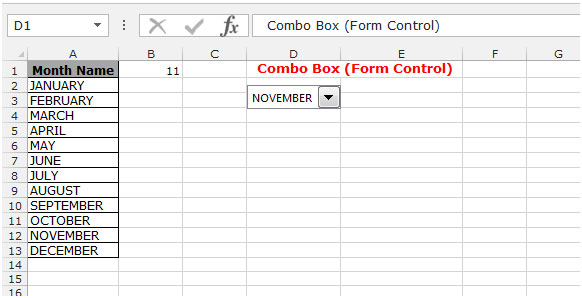
4098 Tony, month name in it "july". now when cell A1 says "july" i want cells A12, and A16 to show cells A12, and A16 from the july worksheet Cell A1 contains the text "july" alright. Make sure the sheet name is also "july" (without quotes) If so, then in cell A12, you have this formula. =INDIRECT(A1&"!A12") In cell A16, the formula would be: =INDIRECT(A1&"!A16") Hope this helps you. -- Regards, Murthy "tony" <i_like_it@madona.com wrote in message news:063701c23cbe$c988be30$9ae62ecf@tkmsftngxa02... ok, that works for one month. but how do i set the main sheet to switch between the months. i.e. cell A1 has the month name in it "july". now when cell A1 says "july" i want cells A12, and A16 to show cells A12, and A16 from the july worksheet. and so forth. so kinda like the month on the main worksheet could be like a combo box with all of the months listed in it. i hope this is a bit clearer. thanks. Tony -----Original Message----- Message unavailable
4133 I have a combo box on a protected sheet and when a selection is changed or made in the box pressing the Tab key does move to the next unprotected cell. What can be done to make the Tab key move from the combo box.
4162 This solution worked great. Can this be modified to delete only selected boxes instead of all check boxes? Or be modified to delete multiple Combo Boxes? -----Original Message----- No contest -- I deleted the check boxes in 6 steps. (Is this part of the 'attack Canada' campaign?) Dave Peterson wrote: After reading Deb's reply, I realize you might not be looking for a VBA solution. So you could do this, too: make the worksheet with the checkboxes the active sheet Hit alt-F11 to see the VBE. Then hit ctrl-G to see the immediate window type this in ActiveSheet.CheckBoxes.Delete hit enter close out of that window or just hit alt-f11 to toggle back and forth. (Battling checkbox removals!!! Take that Deb!) Dave Peterson wrote: All of them?? if yes, something like this might work for you: ActiveSheet.CheckBoxes.Delete Terri Beth wrote: I have a sheet that was created using the Forms Check Boxes. There are about 100 Check boxes. How can I remove all the Form Check boxes at once. Removing the Check boxes one at a time is too time consuming. -- Dave Peterson ec35720@msn.com -- Debra Dalgleish Excel FAQ, Tips & Book List /tiptech.html .
4166 To get some, but not all means that you have to do some looping (well, at least the way I would do it). If you want to get rid of all the Dropdowns (from the Forms toolbar), you could use: activesheet.dropdowns.delete But if you don't want all of them gone, it's keep the ones that have a characteristic you want (name, topleftcell in a certain column) and looping through them all. Option Explicit Sub testme() Dim myDropDown As DropDown For Each myDropDown In ActiveSheet.DropDowns If LCase(Left(myDropDown.Name, 4)) = "keep" Then 'do nothing Else myDropDown.Delete End If Next myDropDown For Each myDropDown In ActiveSheet.DropDowns If myDropDown.TopLeftCell.Column = 3 Then 'do nothing Else myDropDown.Delete End If Next myDropDown End Sub If they were comboboxes from the controltoolbox toolbar, then something like this would be the way I looped through them: Terri Beth wrote: This solution worked great. Can this be modified to delete only selected boxes instead of all check boxes? Or be modified to delete multiple Combo Boxes? -----Original Message----- No contest -- I deleted the check boxes in 6 steps. (Is this part of the 'attack Canada' campaign?) Dave Peterson wrote: After reading Deb's reply, I realize you might not be looking for a VBA solution. So you could do this, too: make the worksheet with the checkboxes the active sheet Hit alt-F11 to see the VBE. Then hit ctrl-G to see the immediate window type this in ActiveSheet.CheckBoxes.Delete hit enter close out of that window or just hit alt-f11 to toggle back and forth. (Battling checkbox removals!!! Take that Deb!) Dave Peterson wrote: All of them?? if yes, something like this might work for you: ActiveSheet.CheckBoxes.Delete Terri Beth wrote: I have a sheet that was created using the Forms Check Boxes. There are about 100 Check boxes. How can I remove all the Form Check boxes at once. Removing the Check boxes one at a time is too time consuming. -- Dave Peterson ec35720@msn.com -- Debra Dalgleish Excel FAQ, Tips & Book List /tiptech.html . -- Dave Peterson ec35720@msn.com
4167 To get some, but not all means that you have to do some looping (well, at least the way I would do it). If you want to get rid of all the Dropdowns (from the Forms toolbar), you could use: activesheet.dropdowns.delete But if you don't want all of them gone, it's keep the ones that have a characteristic you want (name, topleftcell in a certain column) and looping through them all. Option Explicit Sub testme() Dim myDropDown As DropDown For Each myDropDown In ActiveSheet.DropDowns If LCase(Left(myDropDown.Name, 4)) = "keep" Then 'do nothing Else myDropDown.Delete End If Next myDropDown For Each myDropDown In ActiveSheet.DropDowns If myDropDown.TopLeftCell.Column = 3 Then 'do nothing Else myDropDown.Delete End If Next myDropDown End Sub If they were comboboxes from the controltoolbox toolbar, then something like this would be the way I looped through them: Sub testme2() Dim oleObj As OLEObject For Each oleObj In ActiveSheet.OLEObjects If TypeOf oleObj.Object Is MSForms.ComboBox Then If oleObj.TopLeftCell.Column = 3 Then 'do nothing Else oleObj.Delete End If End If Next End Sub Terri Beth wrote: This solution worked great. Can this be modified to delete only selected boxes instead of all check boxes? Or be modified to delete multiple Combo Boxes? -----Original Message----- No contest -- I deleted the check boxes in 6 steps. (Is this part of the 'attack Canada' campaign?) Dave Peterson wrote: After reading Deb's reply, I realize you might not be looking for a VBA solution. So you could do this, too: make the worksheet with the checkboxes the active sheet Hit alt-F11 to see the VBE. Then hit ctrl-G to see the immediate window type this in ActiveSheet.CheckBoxes.Delete hit enter close out of that window or just hit alt-f11 to toggle back and forth. (Battling checkbox removals!!! Take that Deb!) Dave Peterson wrote: All of them?? if yes, something like this might work for you: ActiveSheet.CheckBoxes.Delete Terri Beth wrote: I have a sheet that was created using the Forms Check Boxes. There are about 100 Check boxes. How can I remove all the Form Check boxes at once. Removing the Check boxes one at a time is too time consuming. -- Dave Peterson ec35720@msn.com -- Debra Dalgleish Excel FAQ, Tips & Book List /tiptech.html . -- Dave Peterson ec35720@msn.com
4199 Thanks Harald, the code has saved me much time and frustration. Jimi -----Original Message----- Hi Jimi Paste this code into the Sheet module: Private Sub ComboBox1_KeyDown(ByVal _ KeyCode As MSForms.ReturnInteger, _ ByVal Shift As Integer) If KeyCode = 9 Then ActiveCell.Next.Select End Sub HTH. Best wishes Harald "Jimi" <kiwitech@bigplanet.com skrev i melding news:103801c23d2c$b5607c90$2ae2c90a@phx.gbl... I have a combo box on a protected sheet and when a selection is changed or made in the box pressing the Tab key does move to the next unprotected cell. What can be done to make the Tab key move from the combo box. .
5491 I know that there is a way to make a Combo dropdown box with out VBA, right in the sheet. can some one please shed some light... what I need to do is have a column filled with embeded combo boxes in the cells themselves. Thanks in advance.
5494 Not exactly a combobox, but you can use Data Validation to create a dropdown list in a cell. This is information in Excel Help, and some instructions on my web site: /xlDataVal01.html ggofman wrote: I know that there is a way to make a Combo dropdown box with out VBA, right in the sheet. can some one please shed some light... what I need to do is have a column filled with embeded combo boxes in the cells themselves. Thanks in advance. -- Debra Dalgleish Excel FAQ, Tips & Book List /tiptech.html
5506 Need some help with a combo box code.Here is the code I put in , but an error of "Method or data member not found" comes up and the debuger highlights the (.listindex ) I also noticed it not capitalized, I'm missing something. Objective: Pick a name from the combobox on the userform "FmTechCharts" and then hit the command button to show a sheet containg a chart. sheet names are Chart1 through Chart28. Private Sub CommandButton1_Click() Select Case FmTechCharts.listindex Case -1 msgbox "Nothing selected..." Case 0 Chart1.Show Case 1 Chart2.Show Case 2 Chart3.Show Case 3 Chart4.Show Case 4 Chart5.Show Case 5 Chart6.Show Case 6 Chart7.Show Case 7 Chart8.Show Case 8 Chart9.Show Case 9 Chart10.Show Case 10 Chart11.Show Case 11 Chart12.Show Case 12 Chart13.Show Case 13 Chart14.Show Case 14 Chart15.Show Case 15 Chart16.Show Case 16 Chart17.Show Case 17 Chart18.Show Case 18 Chart19.Show Case 19 Chart20.Show Case 20 Chart21.Show Case 21 Chart22.Show Case 22 Chart23.Show Case 23 Chart24.Show Case 24 Chart25.Show Case 25 Chart26.Show Case 26 Chart27.Show Case 27 Chart28.Show End Select End Sub
5508 hi I have a question: how can I put values into the combo box, without putting the values on the actual workbook? or if there isn't a way how can I hide the values but still make it show up on the combo box? thanx in advance Paolo
5523 Hi It's the combo listindex you want, the form itself doesn't have one: FmTechCharts.Combobox1.listindex Replace Combobox1 with whatever name it has in the form. HTH. Best wishes Harald "Palmer" <rpalmer4msx@msn.com wrote in message news:1e4801c2498f$ae4dcb00$9be62ecf@tkmsftngxa03... Need some help with a combo box code.Here is the code I put in , but an error of "Method or data member not found" comes up and the debuger highlights the (.listindex ) I also noticed it not capitalized, I'm missing something. Objective: Pick a name from the combobox on the userform "FmTechCharts" and then hit the command button to show a sheet containg a chart. sheet names are Chart1 through Chart28. Private Sub CommandButton1_Click() Select Case FmTechCharts.listindex
5527 Hi Paolo By macro code: Combobox1.Clear Combobox1.Additem "Fish" Combobox1.Additem "Meat" Combobox1.Additem "Cheese" Or, you can put the list in a separate worksheet and then hide it. HTH. Best wishes Harald "Paolo" <paolo@macalalad.com wrote in message news:c9a401c24998$93327790$39ef2ecf@TKMSFTNGXA08... hi I have a question: how can I put values into the combo box, without putting the values on the actual workbook? or if there isn't a way how can I hide the values but still make it show up on the combo box? thanx in advance Paolo
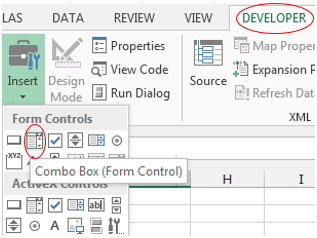
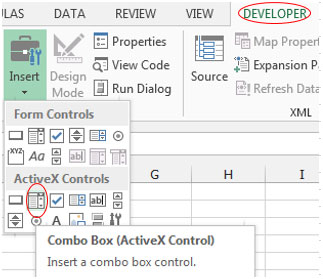
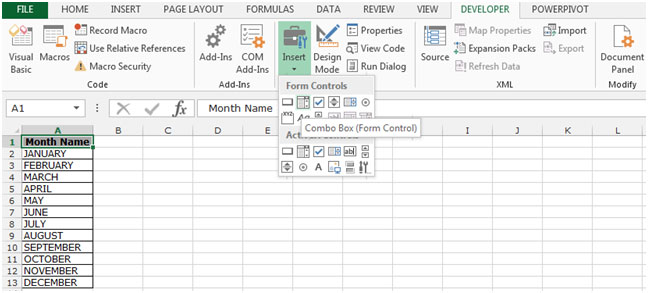
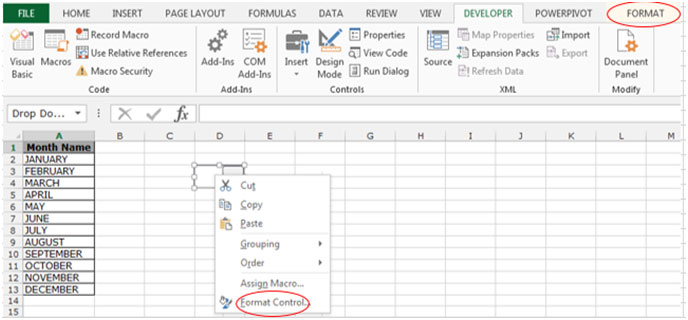
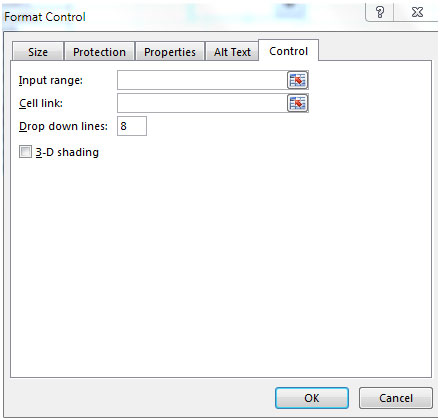
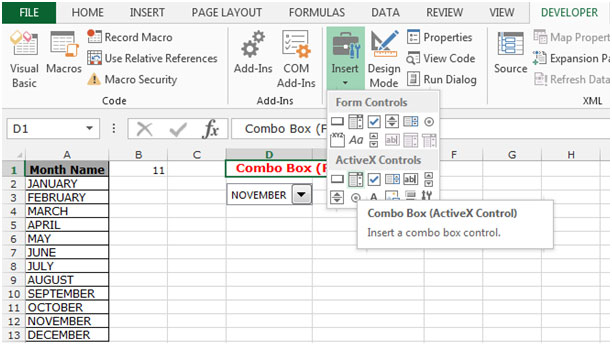
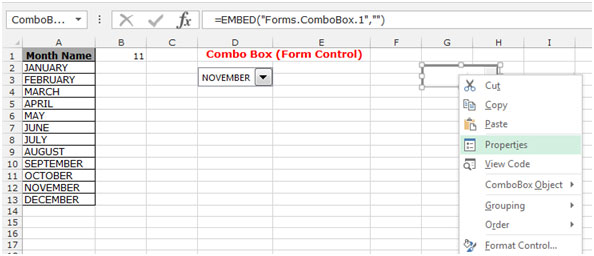
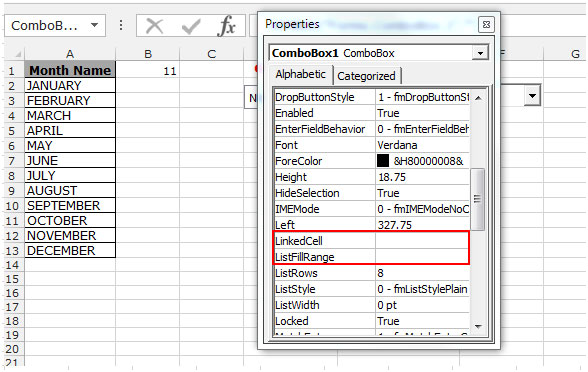
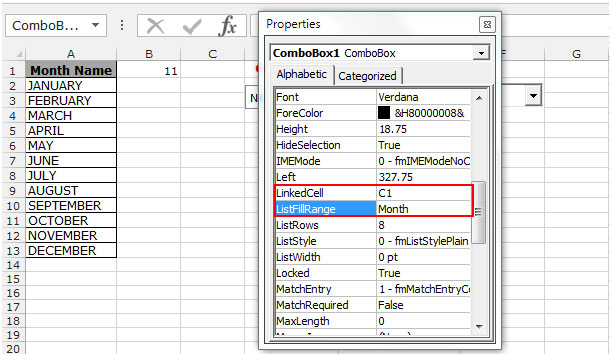
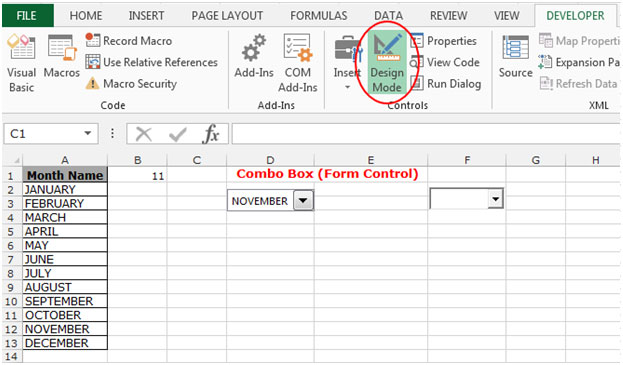
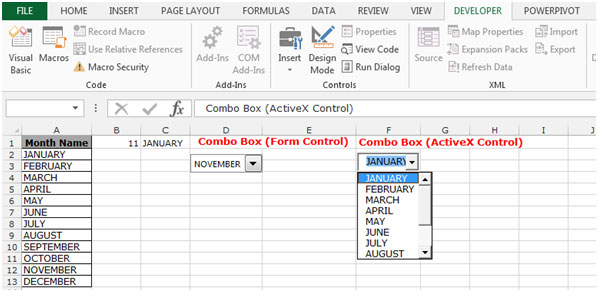
5661 Lynn, There are two groups of controls, each containing a combo box. The combo box in the older Forms Toolbar requires no VBA code, goes on a worksheet, and can get its items from a range you specify ("List Range"), and will put an index number into the "linked cell." If the user has selected the second item in the combo box, the index number will be 2. This is all set up in "Format Control" (right click the combo box for that). You'd use the INDEX function in a formula to retrieve the actual text item that was selected in the combo box. The newer combo box control, in the Controls Toolbox, will work similarly, without VBA code, or can be used with VBA code (which is probably the "language of the codes" to which you refer). It will put the actual text of the selected item into the linked cell. Set it up by selecting design view (on the Controls Toolbox), selecting the combo box you've put on the sheet, right-clicking it, and selecting the properties window. You want the Linked Cell and List Fill Range properties. Type them in. Make sure the combo box remains selected as you do this. Then turn design view off, and it's ready to go. -- Regards from Virginia Beach, EarlK ------------------------------------------------------------- "Lynn" <Lynn.Messer@PalmettoGBA.com wrote in message news:613501c24a05$539c2870$37ef2ecf@TKMSFTNGXA13... I have been searching for a couple days now for specific information about putting a combo box in a spreadsheet. Everything I have found so far assumes you understand the language of the codes. I don't! Please Help!
5841 I seem to have solved the problem by directing the Tab to a specific cell instead of "Then ActiveCell.Next.Select" I would still be interested in any VBA code that would work in XL 2000 & 97. -----Original Message----- I have a protected sheet with combo box where user makes a selection and then presses the tab key to move to the first active cell. I saved the file as 2000/97 but when tested in 97 I get a Run Time Error (1004) "Unable to get Next property of the Range Class". Here is the code, any suggestions on making this work in 97 also? Private Sub ComboBox1_KeyDown(ByVal _ KeyCode As MSForms.ReturnInteger, _ ByVal Shift As Integer) If KeyCode = 9 Then ActiveCell.Next.Select End Sub Thanks in advance .
5905 There is a bug with xl97 (fixed in xl2k) with controls from the ControlToolbox toolbar that caused these 1004 errors. There were a couple of solutions: 1. Make this the first line of code in your sub. activecell.activate 2. If the control were a commandbutton, then set its "takefocusonclick" property to false (doesn't apply to this case, though. The idea with #1 is to let excel know that you want the worksheet (not those shapes) to have focus. Jimi wrote: I seem to have solved the problem by directing the Tab to a specific cell instead of "Then ActiveCell.Next.Select" I would still be interested in any VBA code that would work in XL 2000 & 97. -----Original Message----- I have a protected sheet with combo box where user makes a selection and then presses the tab key to move to the first active cell. I saved the file as 2000/97 but when tested in 97 I get a Run Time Error (1004) "Unable to get Next property of the Range Class". Here is the code, any suggestions on making this work in 97 also? Private Sub ComboBox1_KeyDown(ByVal _ KeyCode As MSForms.ReturnInteger, _ ByVal Shift As Integer) If KeyCode = 9 Then ActiveCell.Next.Select End Sub Thanks in advance . -- Dave Peterson ec35720@msn.com
6283 I have a worksheet that includes 3 x combo boxes in each row. One an item is selected in each combo box, I am unable to successfully copy and paste that row anywhere else in the worksheet. Is there a setting in the combo box or worksheet that I have missed or need to change that allows me to keep the selected value in a combo box when I copy and paste it. Thank you.
6404 Are these combo boxes from the Forms toolbar or from the Control Toolbox? Using combo boxes from the Forms toolbar, I was able to copy and paste on the same worksheet, and maintain the selection. Using combo boxes from the Control Toolbox, if I switched to Design mode, I could copy and paste the row, with the selection intact, on the same worksheet, or to a different worksheet. Donna-Marie Stewart wrote: I have a worksheet that includes 3 x combo boxes in each row. One an item is selected in each combo box, I am unable to successfully copy and paste that row anywhere else in the worksheet. Is there a setting in the combo box or worksheet that I have missed or need to change that allows me to keep the selected value in a combo box when I copy and paste it. Thank you. -- Debra Dalgleish Excel FAQ, Tips & Book List /tiptech.html
6452 I have created them using the Control Toolbox. Thank you, I have tried copying and pasting in design mode and it works perfectly. Thanks -----Original Message----- Are these combo boxes from the Forms toolbar or from the Control Toolbox? Using combo boxes from the Forms toolbar, I was able to copy and paste on the same worksheet, and maintain the selection. Using combo boxes from the Control Toolbox, if I switched to Design mode, I could copy and paste the row, with the selection intact, on the same worksheet, or to a different worksheet. Donna-Marie Stewart wrote: I have a worksheet that includes 3 x combo boxes in each row. One an item is selected in each combo box, I am unable to successfully copy and paste that row anywhere else in the worksheet. Is there a setting in the combo box or worksheet that I have missed or need to change that allows me to keep the selected value in a combo box when I copy and paste it. Thank you. -- Debra Dalgleish Excel FAQ, Tips & Book List /tiptech.html .


Tips

Excel Keyboard Shortcuts | Excel General | Excel Editing | Excel Text | Excel Importing Text Files | Excel Formatting | Excel Formula | Excel Summing | Excel Counting | Excel Range Name | Excel Dates | Excel Time | Excel Styles | Excel Printing | Excel Charting | Excel Security - Protection | Excel Worksheet, Workbook | Excel Customizing | Excel Tools | Excel Files | Excel Information | Excel Data | Excel Sorting | Excel Filtering | Excel Subtotals | Excel Loan Formulas | Excel Grouping and Outlining | Excel Consolidating | Excel Pivot Tables | Excel Macros - VBA |

Tips by Version

Microsoft Excel 97 | Microsoft Excel 2000 | Microsoft Excel 2002 | All Microsoft Excel Versions | New in Excel 2002 | New in Excel 2003 - Office 11

Website

Home | Tip of Hour | Recommended Tips | Most Viewed Tips | Tips by Version | Submit a Tip | My Tips
Mr Excel on Excel Book | Excel Forum | Excel Links | About Us

Excel Book

Excel 97 Book | Excel 2000 Book | Excel 2002 Book | Excel XP Book