

In this article we will learn how to insert watermark in Microsoft Excel 2010.
Excel watermark is a common way of identifying files belonging to the creator and protecting them from unauthorized use. When you put a watermark such as the company name behind the data, it cannot be re-used by another company or plagiarized.
We can create a watermark and display it behind the data in financial statements, Salary Slip report etc.
Let’s take an example and understand how we can create a watermark behind the data in Excel.
Considering that we want to create a watermark on excel for a financial statement.
How to add watermark in Excel?
Follow the below given steps:-
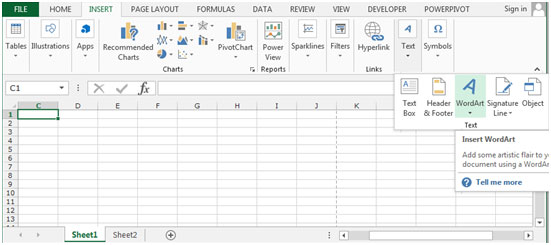
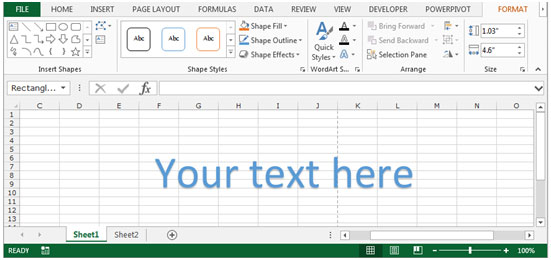

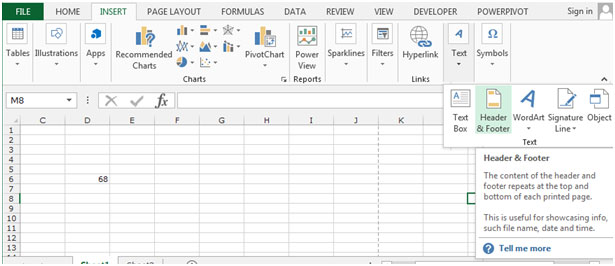
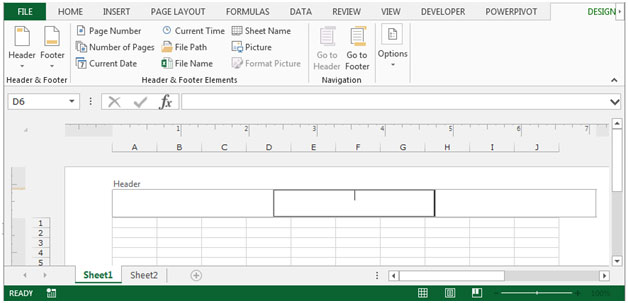
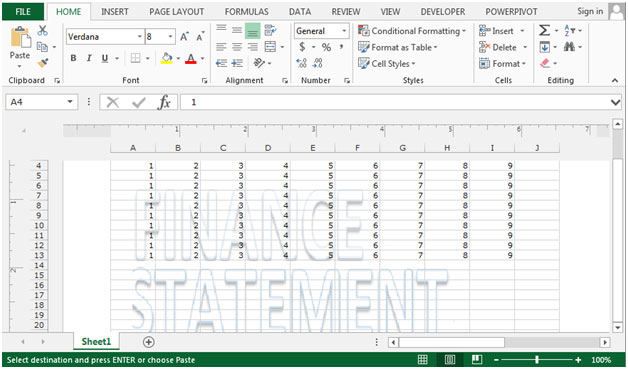
The watermark is inserted behind the text in your file. It will now appear for each sheet in your workbook.
How to remove watermark in Excel ?
Sometimes if we are working with company specific data or if we are creating templates which we do not want to be copied by others and re-used, then we can use this watermark option. However, sometimes, it could be disrupting the normal viewing of the file or it needs to be altered. Then you can use this option to delete the watermark and use a new one as required.
Follow the below given steps:-



Or you can click on this icon -
which is the first icon in the right most lower corner of the excel window. There are 3 icons there and this is the 1st.
So this is how we can easily insert and remove a watermark in an excel sheet.
The applications/code on this site are distributed as is and without warranties or liability. In no event shall the owner of the copyrights, or the authors of the applications/code be liable for any loss of profit, any problems or any damage resulting from the use or evaluation of the applications/code.




hI MIKE,
Please explain in detail how to protect the watermark and allow it to be functional. Is it like , protect cells. pl
I cannot get the Wordart (watermark) to go behind worksheet data. I've tried to change the order "send to back" but nothing happens. What am I doing wrong?
After the watermark has been placed, right click the mouse to get the Format WordArt panel, on the protection tab check the protection locked is checked. Press OK to accept. Return to the worksheet and if editing the cells is to be allowed select the entire sheet. Go into Format Cells and again the protection tab, this time ensure the Locked box is unchecked. Press OK to accept. Finally go to Tools, Protection, Protect worksheet to set up the protection. This now allows normal use of the cells but does not allow access to the watermark.
Is it possible to use a company logo as a watermark. I received recently the tip with regards to using a WORDART format and making TEXT into a watermark. My question is that I have a JPEG company LOGO that I normally use as a watermark in a word doc - my question is if I could do the same within EXCEL, so that I have the same or similar logo WATERMARK on all my documentation?
"Seone,
You solved it! The way to correct it was to click on the ""Normal"" view to take it out of the print mode.
Thank you. Cordially,
Russ Andrea,
It appears that the answer to your suggestion is ""no.""Sembra che la risposta al suo suggerimento è ""No.""If you can put an object into Excel, you can retrieve it. Se lei può mettere un oggetto in Excel, lei lo può ricuperare. My problem was that I did not realize that I was not working with an object (not even a watermark). Il mio problema era che non ho realizzato che non lavorassi con un oggetto (neanche un filigrana).
Thank you for your suggestion. Ringraziarlo per il suo suggerimento.I believe that since you took the time to reply in English, I should respond in Italian. Credo che poiché lei ha portato il tempo a rispondere in Inglese, dovrei rispondere nell'italiano.
Cordialmente, Russ
"
Are you sure your view is not set to print layout? Or is the spreadhseet password protected?
"Bill, I appreciate your advice and followed it. However, when I clicked on ""Objects"", the program responded ""No objects found."" Perhaps the giant ""Page 1"" is something other than a watermark? It just looks like a watermark in that it covers many cells as a medium grey background.I have tried clicking on the area to capture the image, but no response from the program.Any other suggestions?
Cordially,
Russ"
"I followed istructions, I prepared the wordart, I coose colors and lines, sent it to back but I am always able to catch it by clicking with the mouse on it. Is it correct or is it possible to send the object in a position where it is not so easy to click and edit it?
thank you"
Watermark is an Objects, to remove follow this steps: Press F5 > Special > Objects > Ok Press Delete