

In this article we are going to learn how to remove blank rows in Excel?
To delete empty rows, we can use ‘Sort’ option and ‘Go To Special’ option in Microsoft Excel 2010.
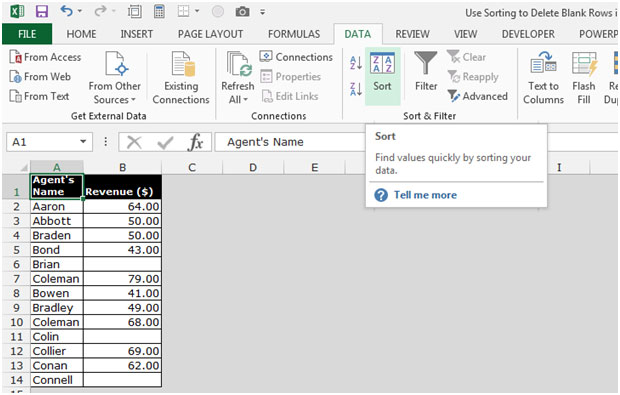
Sort:-This option is available in the Data Tab under the Sort & Filter group.

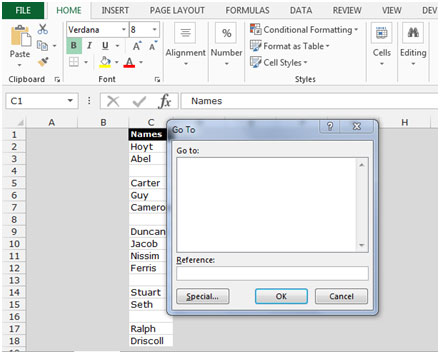
Go To Special: - This option is used for quickly directing to different cells in Excel.
Shortcut: F5 and Ctrl+G
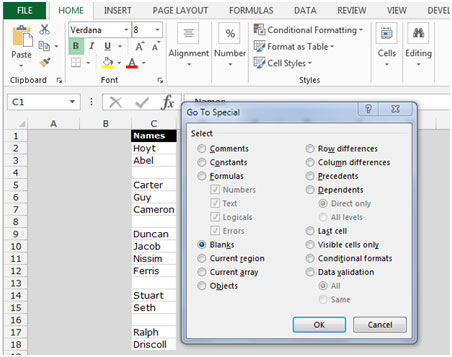
Command button: Home>Find & Select >Go to Special
Let’s take an example to understand how we can delete empty rows.
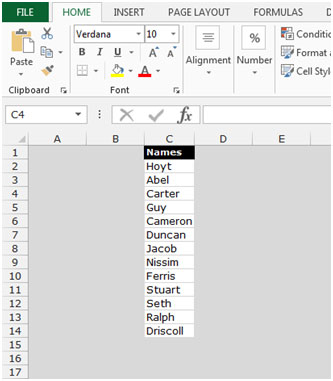
We have data in range C1:C18 where column A contains name in which some cells are blank. Now, we want to delete the blank cells.
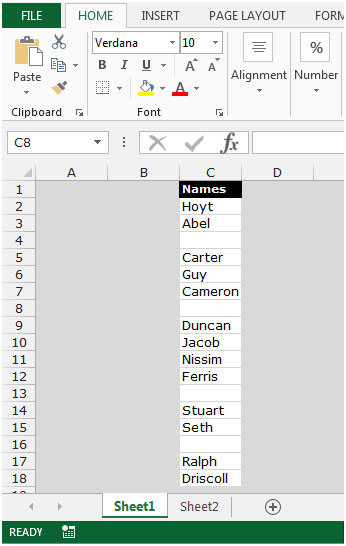
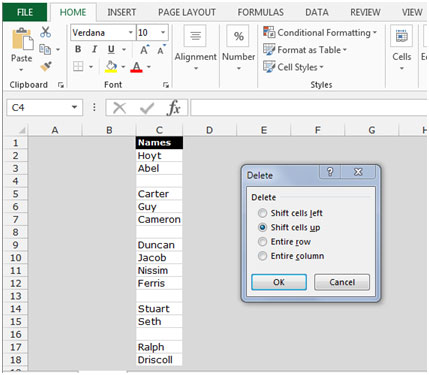
To delete the blank rows we use ‘Go to Special’, follow below given steps:-
Let’s take another example to understand how we can delete data through sorting.
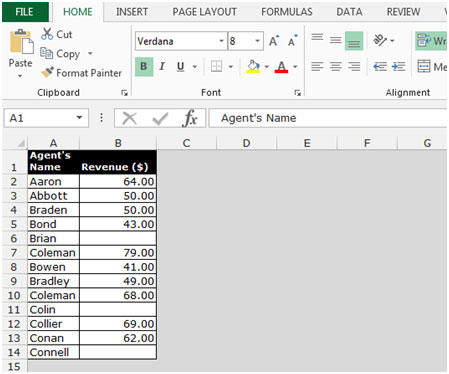
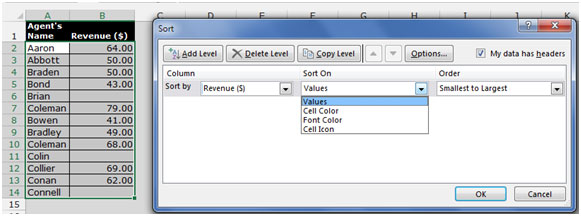
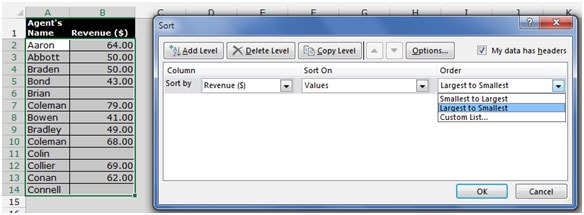
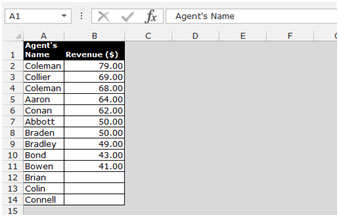
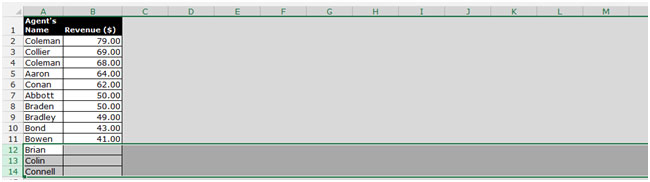
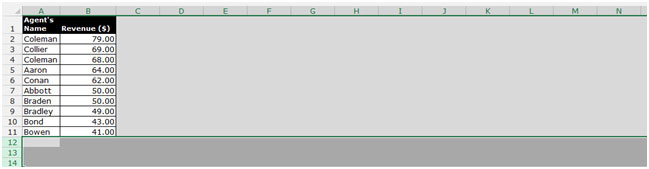
We have data in range A1:B14 where column A contains Agent’s name and column B contains Revenue ($).
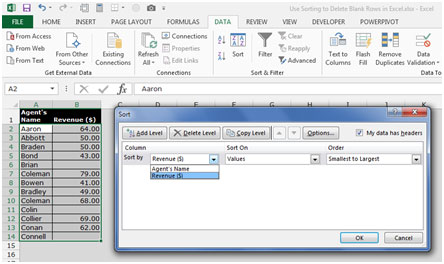
To delete the blank rows, we sort the data.
These are the ways we can delete the empty rows in Microsoft Excel.
The applications/code on this site are distributed as is and without warranties or liability. In no event shall the owner of the copyrights, or the authors of the applications/code be liable for any loss of profit, any problems or any damage resulting from the use or evaluation of the applications/code.




If you want to delete blank lines, but I want everything else to remain in the same order. To accomplish this, add a new column to test the values in the column of data. For example, =IF(B1="","A","B") will calculate a value of "A" if the data is blank, "B" if it has data. Copy this to all cells for the length of the data (doing this in the entire column will give you many more blank lines than you desire). You can then sort the data, using the calculated field (Ascending values). This will put all blank lines first, where you can delete them. The remaining data will be in its original order.
If you do not want do use SORT or FORMULAS, type in a blank column anything you want and than fill all rows until the end of the sheet (end of data). Then select first row of data and aplly the Auto Filter. Now if you choose 'BLANKS' in filter option it will display only blank cells (Rows). Now you may select the rows and delete them.
"How to delete bllank/empty rows in excel?
Filter does not work due to empty rows so I want to delete them in one attempt.
How to do that?"
"Before sorting your list to delete empty rows that are buried in it, do this:
1. Unmerge any cells in your range of data.
2. Insert a column to the left of your data and input this formula [ =IF(B1"""",COUNTA($B$1:B1)&"""","""")]
into the first row in that column(ex: A1). Then fill down in the column to the last row containing data. This operation will number only the rows with data in column B.
3. Then sort by column A. Your data will remain in its original order but all the empty rows will now be grouped together so that you can delete them."
"hello
i would like to remove the empty rows in text file, which was opened in exel sheet.
and, i need to delete a row containing particular data/text which may be there through out the sheet.
mail me in detail if u can(solve it) .my mail id is bobba_vss@indiatimes.com"
"sir,
i would like to delete the empty rows in the exel sheet.
actually i hvae opened a text file(with date) in exel.
i need some guidence in solving this
--thank u"