add-in combo box date excel 2000 excel 2002 excel 97 excel XP format formatting formula grouping loan - amortization macros subtotal sum excel tutorial workbook worksheet vba
| Article | Body |
| 72 | I am using XL2000 and Win 98. I don’t know if this problem is a Macro issue or a general Excel issue, but I start with this news group. I get an error message, “Cannot paste that macro formula into a worksheet” when ever I try to copy and paste a cell or group of cells form one workbook to another. This only happens in workbooks with macros, however the message occurs regardless of whether the copied cell is references in a macro. I can use the Paste Special, Formulas but that loses formatting. The Paste Special, Values or Paste Special, Formats always yields the error message. The details of the error say that I have caused an invalid page fault in Excel.exe. I have seen other posts in which the same error seems to prevent the file from opening, but this is not my problem. Any advice appreciated. Ray Wright -- raycyn.wright@prodigy.net |
| 84 | How about formatting using the Euro symbol? formatcustom [$?-1]#,##0.00 or if you want EUR "EUR"#,##0.00 Regards, Peo Sjoblom Does anyone known how to / whether it is possible to insert text into a column of already filled cells. ie column of cells with numeric values to which I want to add the string "EUR " for euro in front of the the monetary values without deleting or clearing the cells. (There's hundreds of them so doing each one manually is pretty tedious !!) Thanks for yr help Andy . |
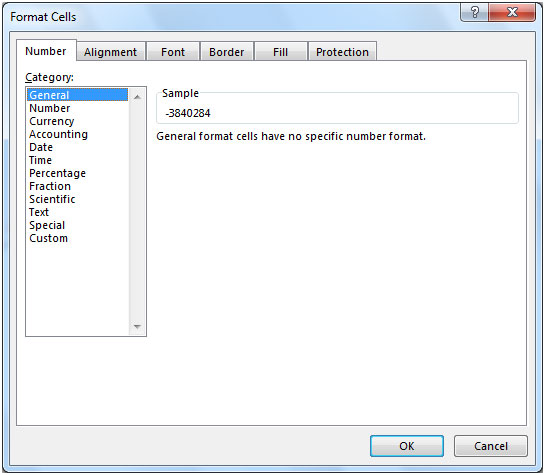
| 86 | 1. Select the cells 2. Choose FormatCells 3. On the Number tab, choose Currency or Accounting 4. Select the number of decimal places, and negative number formatting that you prefer; select $ as the Symbol. 5. Choose the Custom Category 6. In the Type box, replace each $ with: "EUR " 7. Click OK Andy Walawender wrote: Does anyone known how to / whether it is possible to insert text into a column of already filled cells. ie column of cells with numeric values to which I want to add the string "EUR " for euro in front of the the monetary values without deleting or clearing the cells. (There's hundreds of them so doing each one manually is pretty tedious !!) Thanks for yr help Andy -- Debra Dalgleish Excel FAQ, Tips & Book List /tiptech.html |
| 88 | Note: If you have Excel 2000 or Excel 2002, EUR is one of the available currency symbols, so steps 5 and 6 are not required. Debra Dalgleish wrote: 1. Select the cells 2. Choose FormatCells 3. On the Number tab, choose Currency or Accounting 4. Select the number of decimal places, and negative number formatting that you prefer; select $ as the Symbol. 5. Choose the Custom Category 6. In the Type box, replace each $ with: "EUR " 7. Click OK Andy Walawender wrote: Does anyone known how to / whether it is possible to insert text into a column of already filled cells. ie column of cells with numeric values to which I want to add the string "EUR " for euro in front of the the monetary values without deleting or clearing the cells. (There's hundreds of them so doing each one manually is pretty tedious !!) Thanks for yr help Andy -- Debra Dalgleish Excel FAQ, Tips & Book List /tiptech.html |
| 105 | Select Column A, for example, with A1 active (i.e., A1 in the name box on the formula bar). Choose Format/Conditional Formatting and enter, using the dropdowns and textbox: Formula Is =ISBLANK(A1) Click on Format/Pattern, choose green, then OK, OK. In article <ugs5t2mk9oc42a@corp.supernews.com, Splash <splash@mosquitonet.com wrote: Is there a way to make all empty cells in a column be formatted as a color, and when they are no longer empty, that that color be removed (and they have no color)? Thanks, guys. |
| 128 | Highlight the column format, conditional formatting cell value is equal to 0 format, patterns, choose green say OK. Barbara Splash <splash@mosquitonet.com wrote in message news:ugs5t2mk9oc42a@corp.supernews.com... Is there a way to make all empty cells in a column be formatted as a color, and when they are no longer empty, that that color be removed (and they have no color)? Thanks, guys. |
| 136 | I have unusual problem with printing more than one copy of a spread sheet from excell 2000/2002. When more than one copy is printed, the first copy prints, however the second copy prints very large and the formatting is wrecked as well. Sr 1 for xp applied and sr2 for 2000 applied. firm ware on printer is up to date as well. This function works on any onther printer except the one in question a 5si nx. Further, this is not a problem in excel off97, I can print multiple copies in office 97 |
| 140 | 1. Select the cells that you want to format 2. Choose FormatCells 3. On the Number tab, choose Custom 4. In the Type box, type ddd 5. Hold the Alt key, and on the number keypad, type 0010 6. Type dd/mm/yy 7. On the Alignment tab, choose Wrap Text, click OK 8. You'll have to manually adjust the height of the cells, as Autofit doesn't seem to work with this formatting. Ethan wrote: Is there any way to have a custom format have a hard return. I want to have the date displayed as ddd dd/mm/yy, but I don't want the column to be wide, I want the day of the week to be on one line and the date on the next line of the cell. Like this: Mon Tues 6/17/02 6/18/02 Ethan -- Debra Dalgleish Excel FAQ, Tips & Book List /tiptech.html |
| 147 | Is there an echo?? - Jon In article <3D0E5CB4.BCF0639C@msn.com, ec35720@msn.com says... How about this? You keep the date in a column (hidden??) and then use a formula that formats it and wraps it the way you like: =TEXT(A1,"ddd")&CHAR(10)&TEXT(A1,"mm/dd/yyyy") ethan wrote: After playing with it some more, I still have the same original problem. The width of the columns is determined by the format of the date as if the hard return was not there. So even though the format looks correct, if I shrink the column width down so that it is the width of just the date, I get ####. This makes the sheet too wide to fit on the page. Ethan "Debra Dalgleish" <dsd@contextures.com wrote in message news:3D0E4989.3050501@contextures.com... 1. Select the cells that you want to format 2. Choose FormatCells 3. On the Number tab, choose Custom 4. In the Type box, type ddd 5. Hold the Alt key, and on the number keypad, type 0010 6. Type dd/mm/yy 7. On the Alignment tab, choose Wrap Text, click OK 8. You'll have to manually adjust the height of the cells, as Autofit doesn't seem to work with this formatting. Ethan wrote: Is there any way to have a custom format have a hard return. I want to have the date displayed as ddd dd/mm/yy, but I don't want the column to be wide, I want the day of the week to be on one line and the date on the next line of the cell. Like this: Mon Tues 6/17/02 6/18/02 Ethan -- Debra Dalgleish Excel FAQ, Tips & Book List /tiptech.html -- Dave Peterson ec35720@msn.com |
| 174 | I've done many compound graphs like you describe. The trick is to create separate charts embedded on a worksheet. By careful use of formatting, alignment by snapping to cell intersections and grouping, I manage to get the desired effect. In your oscilloscope analogy, you would have 3 differing Y axis and want to share the X or Time axis. In other words, only the bottom time scale shows. I often do this by scaling all X axes identically on all charts then overlapping/hiding the axis for the top graphs. You might think you can just delete the unwanted axis, but the problem you will continually do battle with is Excel's distressing tendency to resize the plot area every time you alter axis formatting. You will want everything *exactly* the same except the Y axis and perhaps, the series displayed. Hint - no auto scaling/formatting whatsoever. No auto *anything*. Basically the procedure is this: 1) Create the bottom chart exactly as you would like to see it. 2) Fix (freeze) the axes by turning autoscaling off. 3) Copy/paste this chart for as many charts as you are going to stack. 4) Alter the Y scaling on the stacked charts as necessary. 5) Lay them out and glue them together (group) With a little effort, the results can be perfect. Thomas Bartkus "Microsoft" <edward@biebel.net wrote in message news:u8btS6uFCHA.2324@tkmsftngp04... Hi all: I have a question that has got me stumped and which I believe cannot done in Excel but figured I'd ask to be sure. I've been asked to construct a chart that has three different scales on it. However, the problem is not the multiple scales but the layout that is being requested. Essentially the person requesting the chart wants the bottom third of the chart done in one scale, the middle third done in a second scale and the top third in third scale. The only analogy that I can think of to describe the look he would like if from my HS physics days where you have an oscilloscope with different meter bands each with its own waveform stacked on top of each other. Anyone ever tried this and does this even sound possible? It didn't possible to me but you known how it goes when you get the "this should be relatively simple" requests. Thanks, Ed |
| 197 | Just a question and guesses: Does excel blow up (with the same error) with any other workbook? If yes, then it's probably not this workbook. If no, then maybe the workbook is corrupted (like Dave suggested). I've had luck using xl2002 opening files that both xl97 and xl2k couldn't open. Sometimes formatting was lost, but the data/formulas/macros were there. Other people have reported that Sun's OpenOffice/StarOffice can sometimes open corrupted excel files. (It used to be between 80-110 meg download. I looked and decided that it's too big for my puny modem!) Not-for-free StarOffice. /software/download/desktop_app.html Free version /dev_docs/source/1.0.0/index.html IrelandA wrote: Dear All I have got a 3MB worksheet which I cannot open. When I try to open it, I get the following dialogue box: =================================== Application Error The instruction at "0x30099749f" referenced memory at "0x00000002". The memory could not be "read". Click on OK to terminate the application. Click on Cancel to debug the application. =================================== Even if I click on "Cancel", it doesn't open Excel, so I can't view the spreadsheet at all. Any help/advice gratefully received... Regards Alistair -- Dave Peterson ec35720@msn.com |
| 224 | Hi Otto Thanks for replying. I realise that its quite complicated as Excel offers all sorts of features to scale the page according to print requirements. And that the geometry requirements of the screen is quite different to a printed page. I guess I'll just have to print out some kind of grid from a spreadsheet to work it all out. Its just a real pain when trying to position objects at a specific position on the page or set column width and row height to a specific mm measurement. In these days of WYSIWYG and DTP etc I hope they may be able to improve this aspect of printing spreadsheets. As I am so used to using DTP and CAD I am spoiled by being able to position text and objects exactly where I want and adjust many fine aspects of text formatting. I find it a bit archaic in the 21st century to have to resort to so much trial and error with many test prints and rulers! Ian. "Otto Moehrbach" <ottom@worldnet.att.net wrote in message news:eFrWdswFCHA.1744@tkmsftngp13... Ian What you will get when you print is determined by your printer driver more than anything else. To see what you will get, click File - Print Preview. HTH Otto "Ian Roberts" <Ian_Roberts@SPAMOFFBTinternet.com wrote in message news:aeo4nq$7of$1@nntp-m01.news.aol.com... Hi I'm trying to recreate a printed form in Excel. I'm just getting a bit confused trying to relate the screen row height and column width measurements to how it will appear printed on paper. Although it might say row height 20.25 (27 Pixels). 20.25 what? How many pixels =1cm. I'm sure this will vary according to screen res - but in order to speed up the process it would help me to have some guidelines. I hope its clear what I'm asking for. Thanks Ian |
| 237 | FWIW When mapping out new forms, two things that I find help me is: Making all columns a width of 5, And placing the "ToggleGrid" icon on my toolbar. The narrow columns give the form a "graph paper" appearance on the screen, so you can make small adjustments to text placement, while the ability to instantly toggle the grid off and on to see how the form will actually appear, is a big time saver. HTH RD "Ian Roberts" <Ian_Roberts@SPAMOFFBTinternet.com wrote in message news:aeoe9a$fra$1@nntp-m01.news.aol.com... Hi Otto Thanks for replying. I realise that its quite complicated as Excel offers all sorts of features to scale the page according to print requirements. And that the geometry requirements of the screen is quite different to a printed page. I guess I'll just have to print out some kind of grid from a spreadsheet to work it all out. Its just a real pain when trying to position objects at a specific position on the page or set column width and row height to a specific mm measurement. In these days of WYSIWYG and DTP etc I hope they may be able to improve this aspect of printing spreadsheets. As I am so used to using DTP and CAD I am spoiled by being able to position text and objects exactly where I want and adjust many fine aspects of text formatting. I find it a bit archaic in the 21st century to have to resort to so much trial and error with many test prints and rulers! Ian. "Otto Moehrbach" <ottom@worldnet.att.net wrote in message news:eFrWdswFCHA.1744@tkmsftngp13... Ian What you will get when you print is determined by your printer driver more than anything else. To see what you will get, click File - Print Preview. HTH Otto "Ian Roberts" <Ian_Roberts@SPAMOFFBTinternet.com wrote in message news:aeo4nq$7of$1@nntp-m01.news.aol.com... Hi I'm trying to recreate a printed form in Excel. I'm just getting a bit confused trying to relate the screen row height and column width measurements to how it will appear printed on paper. Although it might say row height 20.25 (27 Pixels). 20.25 what? How many pixels =1cm. I'm sure this will vary according to screen res - but in order to speed up the process it would help me to have some guidelines. I hope its clear what I'm asking for. Thanks Ian |
| 307 | i'm trying to create a spreadsheet with 4 columns: red, green, blue, and color. the red, green, and blue cells are rgb values. i want the 4th cell to have its background color set to the rgb values in its row. help! this seems like it should be a simple thing to do in excel, but i can't find a way to make it happen. i've explored conditional formatting, script editing, and vb, but no luck. any suggestions on how to make this work? thanks! |
| 311 | Excel is capable of displaying only 56 colors at a time (it's color palette). The default color palette contains 46 different colors - 10 of them are duplicated. If you use VBA to specify an RGB color that's not in the palette, Excel will use the closest match. In other words, if you write a macro to change a cell's color using RGB values, there is no guarantee that the actual color will be displayed. Here's a macro that will give you some info about the color palette in the active workboook. It adds a new worksheet and then write six columns of data. Sub DisplayColorPalette() Dim r As Long Worksheets.Add Range("A1") = "Index" Range("B1") = "Color" Range("C1") = "Value" Range("D1") = "Red" Range("E1") = "Green" Range("F1") = "Blue" Range("A1:F1").Font.Bold = True For r = 2 To 57 Cells(r, 1) = r - 1 Cells(r, 2).Interior.Color = ActiveWorkbook.Colors(r - 1) Cells(r, 3) = ActiveWorkbook.Colors(r - 1) Cells(r, 4) = ActiveWorkbook.Colors(r - 1) \ 256 ^ 0 And 255 Cells(r, 5) = ActiveWorkbook.Colors(r - 1) \ 256 ^ 1 And 255 Cells(r, 6) = ActiveWorkbook.Colors(r - 1) \ 256 ^ 2 And 255 Next r End Sub John Walkenbach For Excel tips, macros, & downloads... -walk.com/ss "Work Fast Party Horror" <news@busymonster.com wrote in message news:tQ5Q8.360$bK.67166@news.uswest.net... i'm trying to create a spreadsheet with 4 columns: red, green, blue, and color. the red, green, and blue cells are rgb values. i want the 4th cell to have its background color set to the rgb values in its row. help! this seems like it should be a simple thing to do in excel, but i can't find a way to make it happen. i've explored conditional formatting, script editing, and vb, but no luck. any suggestions on how to make this work? thanks! |
| 323 | Thanks for the info. (50 meg might be worth it to find out if it can open files). Ron de Bruin wrote: 50 mb Dave I have download it for my brother two weeks ago.(10 minuts that is better than your puny modem) O yes I forgot somthing <vbg Regards Ron "Dave Peterson" <ec35720@msn.com schreef in bericht news:3D0FA860.66014496@msn.com... Just a question and guesses: Does excel blow up (with the same error) with any other workbook? If yes, then it's probably not this workbook. If no, then maybe the workbook is corrupted (like Dave suggested). I've had luck using xl2002 opening files that both xl97 and xl2k couldn't open. Sometimes formatting was lost, but the data/formulas/macros were there. Other people have reported that Sun's OpenOffice/StarOffice can sometimes open corrupted excel files. (It used to be between 80-110 meg download. I looked and decided that it's too big for my puny modem!) Not-for-free StarOffice. /software/download/desktop_app.html Free version /dev_docs/source/1.0.0/index.html IrelandA wrote: Dear All I have got a 3MB worksheet which I cannot open. When I try to open it, I get the following dialogue box: =================================== Application Error The instruction at "0x30099749f" referenced memory at "0x00000002". The memory could not be "read". Click on OK to terminate the application. Click on Cancel to debug the application. =================================== Even if I click on "Cancel", it doesn't open Excel, so I can't view the spreadsheet at all. Any help/advice gratefully received... Regards Alistair -- Dave Peterson ec35720@msn.com -- Dave Peterson ec35720@msn.com |
| 337 | Hello Debra, this is going to sound stupid, but I have been known to ask stupid questions or make stupid remarks, here goes it anyways. I started out this letter with telling you that unfortunately the form is right on top of the page, so I can't follow your instructions. Then I figured, this is easy all I have to do is move the form down, and then do what you suggested. When I tried to move the form it warned me that I will move some formats in certain cells. That scared me enough to abandon the idea. I guess I have to learn to either move, delete, cut and paste, and whatever the other options are to move the form on the page we/of getting an error message about formatting. Can you help me again please "Debra Dalgleish" <dsd@contextures.com wrote in message news:3D10F74B.1000501@contextures.com... To get rid of the border at the top of you form, select the cells in the row above the form, then click the No Border button on the borders dropdown. I'm not sure how you're trying to set up the rows in your form. If you want to start a new page at a specific row, you can select that row, then choose InsertPage Break. PeterM wrote: I made a form that I use daily, I wish I could get rid of the to border. When I go to borders, I look at the pictures of borders, and I don't see the no top border setup. Do the pictures of the border mean that if I click on them they will be there, one after another. IE click on the left border first, then the right border, the bottom border, but I don't click on the top one. Maybe I'm looking at it the wrong way..................... I like to sneak in another question. My form has lots of rows. I took 6 of the rows and made them 40 in size. I thought that it would push the extra rows of the bottom of the first page, it made the rows real tight on the first page though. Is there a way to just run them off the bottom instead of using the same space, and not crunching the rest of the rows? If it would flow into a second page, I guess that would be OK, I could just delete them. I hope.Many thanks...........Peter -- Debra Dalgleish Excel FAQ, Tips & Book List /tiptech.html |
| 342 | Hi Peter, Instead of moving your form, try the following: 1. Select the cells at the top of the form (the ones from which you want to remove the top border 2. Choose FormatCells 3. On the Border tab, you'll see a diagram of your cells with borders: ________________________ | Text Text | 4. Click on the line at the top of the diagram, to remove the border. 5. Click OK Debra PeterM wrote: Hello Debra, this is going to sound stupid, but I have been known to ask stupid questions or make stupid remarks, here goes it anyways. I started out this letter with telling you that unfortunately the form is right on top of the page, so I can't follow your instructions. Then I figured, this is easy all I have to do is move the form down, and then do what you suggested. When I tried to move the form it warned me that I will move some formats in certain cells. That scared me enough to abandon the idea. I guess I have to learn to either move, delete, cut and paste, and whatever the other options are to move the form on the page we/of getting an error message about formatting. Can you help me again please "Debra Dalgleish" <dsd@contextures.com wrote in message news:3D10F74B.1000501@contextures.com... To get rid of the border at the top of you form, select the cells in the row above the form, then click the No Border button on the borders dropdown. I'm not sure how you're trying to set up the rows in your form. If you want to start a new page at a specific row, you can select that row, then choose InsertPage Break. PeterM wrote: I made a form that I use daily, I wish I could get rid of the to border. When I go to borders, I look at the pictures of borders, and I don't see the no top border setup. Do the pictures of the border mean that if I click on them they will be there, one after another. IE click on the left border first, then the right border, the bottom border, but I don't click on the top one. Maybe I'm looking at it the wrong way..................... I like to sneak in another question. My form has lots of rows. I took 6 of the rows and made them 40 in size. I thought that it would push the extra rows of the bottom of the first page, it made the rows real tight on the first page though. Is there a way to just run them off the bottom instead of using the same space, and not crunching the rest of the rows? If it would flow into a second page, I guess that would be OK, I could just delete them. I hope.Many thanks...........Peter -- Debra Dalgleish Excel FAQ, Tips & Book List /tiptech.html -- Debra Dalgleish Excel FAQ, Tips & Book List /tiptech.html |
| 346 | Dear Debra............ I tried it and it still has a border around it. Maybe it is not a border, could it be looking the same, but it is something else? When I click on the sequence of the suggested procedure, it shows no borders in the place where the text box is. The box that shows the borders when you click on the icon with the different border settings I mean. Is that darn thing maybe a frame or something. I just don't know how else to describe it. I hope you don't mind helping me some more. My senior heart appreciates you a lot.............Peter "Debra Dalgleish" <dsd@contextures.com wrote in message news:3D1109F5.8090302@contextures.com... Hi Peter, Instead of moving your form, try the following: 1. Select the cells at the top of the form (the ones from which you want to remove the top border 2. Choose FormatCells 3. On the Border tab, you'll see a diagram of your cells with borders: ________________________ | Text Text | 4. Click on the line at the top of the diagram, to remove the border. 5. Click OK Debra PeterM wrote: Hello Debra, this is going to sound stupid, but I have been known to ask stupid questions or make stupid remarks, here goes it anyways. I started out this letter with telling you that unfortunately the form is right on top of the page, so I can't follow your instructions. Then I figured, this is easy all I have to do is move the form down, and then do what you suggested. When I tried to move the form it warned me that I will move some formats in certain cells. That scared me enough to abandon the idea. I guess I have to learn to either move, delete, cut and paste, and whatever the other options are to move the form on the page we/of getting an error message about formatting. Can you help me again please "Debra Dalgleish" <dsd@contextures.com wrote in message news:3D10F74B.1000501@contextures.com... To get rid of the border at the top of you form, select the cells in the row above the form, then click the No Border button on the borders dropdown. I'm not sure how you're trying to set up the rows in your form. If you want to start a new page at a specific row, you can select that row, then choose InsertPage Break. PeterM wrote: I made a form that I use daily, I wish I could get rid of the to border. When I go to borders, I look at the pictures of borders, and I don't see the no top border setup. Do the pictures of the border mean that if I click on them they will be there, one after another. IE click on the left border first, then the right border, the bottom border, but I don't click on the top one. Maybe I'm looking at it the wrong way..................... I like to sneak in another question. My form has lots of rows. I took 6 of the rows and made them 40 in size. I thought that it would push the extra rows of the bottom of the first page, it made the rows real tight on the first page though. Is there a way to just run them off the bottom instead of using the same space, and not crunching the rest of the rows? If it would flow into a second page, I guess that would be OK, I could just delete them. I hope.Many thanks...........Peter -- Debra Dalgleish Excel FAQ, Tips & Book List /tiptech.html -- Debra Dalgleish Excel FAQ, Tips & Book List /tiptech.html |
| 375 | thanks, this is a great start! but, boy, the palette size is an annoying limitation. some more questions: 1. can i set up a new color palette by assigning my own specific rgb values to the 56 colors in the palette? 2. can i change color palettes when i change worksheets? that way i could give the "illusion" of having more colors by only having 56 per page...? thanks, mark "John Walkenbach" <john@j-walk.com wrote in message news:uQxYnG9FCHA.1424@tkmsftngp04... Excel is capable of displaying only 56 colors at a time (it's color palette). The default color palette contains 46 different colors - 10 of them are duplicated. If you use VBA to specify an RGB color that's not in the palette, Excel will use the closest match. In other words, if you write a macro to change a cell's color using RGB values, there is no guarantee that the actual color will be displayed. Here's a macro that will give you some info about the color palette in the active workboook. It adds a new worksheet and then write six columns of data. Sub DisplayColorPalette() Dim r As Long Worksheets.Add Range("A1") = "Index" Range("B1") = "Color" Range("C1") = "Value" Range("D1") = "Red" Range("E1") = "Green" Range("F1") = "Blue" Range("A1:F1").Font.Bold = True For r = 2 To 57 Cells(r, 1) = r - 1 Cells(r, 2).Interior.Color = ActiveWorkbook.Colors(r - 1) Cells(r, 3) = ActiveWorkbook.Colors(r - 1) Cells(r, 4) = ActiveWorkbook.Colors(r - 1) \ 256 ^ 0 And 255 Cells(r, 5) = ActiveWorkbook.Colors(r - 1) \ 256 ^ 1 And 255 Cells(r, 6) = ActiveWorkbook.Colors(r - 1) \ 256 ^ 2 And 255 Next r End Sub John Walkenbach For Excel tips, macros, & downloads... -walk.com/ss "Work Fast Party Horror" <news@busymonster.com wrote in message news:tQ5Q8.360$bK.67166@news.uswest.net... i'm trying to create a spreadsheet with 4 columns: red, green, blue, and color. the red, green, and blue cells are rgb values. i want the 4th cell to have its background color set to the rgb values in its row. help! this seems like it should be a simple thing to do in excel, but i can't find a way to make it happen. i've explored conditional formatting, script editing, and vb, but no luck. any suggestions on how to make this work? thanks! |
| 384 | I think that excel gets the format for dates from a Windows setting. It sounds like one pc is different than the other and not recognizing the date. I'm in the US and if I type 12/31/2001, I get a date (expected). But if I type 31/12/2001, I get the text 31/12/2001--not really a date. On the "bad" pc, if you format the cell as General (Format|Cells|Number Tab), do you get a number? (I get 37621 for 12/31/2001 (using the 1900 date system). If you don't get a number, then that cell really doesn't have a date in it (no matter what it looks like). And since the value isn't numeric (it's a string), the =text() has no affect on it. If this looks like the case, then close excel and try: Start|Settings|Control Panel|Regional Settings Applet|Date Tab. Check (change to) the format. Start Excel. I'm not sure if it'll react to the change or if you'll have to change something for it to notice. Hit F2 and then enter on one of the cells. Did it fix your problem? If yes, maybe you can convert a whole column of dates at once. Select your column and do a Data|Text to columns. Follow the wizard and make sure you choose the correct (mdy?) format on step 3 of the wizard. Good luck, James Goodchild wrote: Hi all We have a Windows 2000 server running terminal services and Citrix. Because of a requirement from a custom built program, MS Office 2000 was installed to the local hard drive of the Citrix server as well as to the Citrix neighborhood. Everything loads fine and other than one formatting issue, everything seems to work. Here is the problem, in Excel 2000 in the local copy if you type the following date 12/31/01 in cell A1 and then enter the formula =TEXT(A1,"Mmm. Dd yyyy")in cell B2, the result displays as 12/31/01. It should display as Dec. 01 2001. If we try the same formula from Excel 2000 under the Citrix neighborhood install on the same server, it works fine. Unfortunately, the custom application is a reporting tool that makes calls to Excel to generate graphs and charts for the report and requires the local version. Anyone got any ideas on how to address the format issue? Thanks in advance. -- Dave Peterson ec35720@msn.com |
| 466 | Hi Dave I guess I wasn't as clear as I could have been. The issue is on the smae computer - there are two instances of Excel on it, one loaded directly on the computer and the other loaded under Citrix on the same computer. I did check the international settings, but wasn't sure how this would effect one and not the other instance of Excel. Anyone else have any ideas? -----Original Message----- I think that excel gets the format for dates from a Windows setting. It sounds like one pc is different than the other and not recognizing the date. I'm in the US and if I type 12/31/2001, I get a date (expected). But if I type 31/12/2001, I get the text 31/12/2001--not really a date. On the "bad" pc, if you format the cell as General (Format|Cells|Number Tab), do you get a number? (I get 37621 for 12/31/2001 (using the 1900 date system). If you don't get a number, then that cell really doesn't have a date in it (no matter what it looks like). And since the value isn't numeric (it's a string), the =text() has no affect on it. If this looks like the case, then close excel and try: Start|Settings|Control Panel|Regional Settings Applet|Date Tab. Check (change to) the format. Start Excel. I'm not sure if it'll react to the change or if you'll have to change something for it to notice. Hit F2 and then enter on one of the cells. Did it fix your problem? If yes, maybe you can convert a whole column of dates at once. Select your column and do a Data|Text to columns. Follow the wizard and make sure you choose the correct (mdy?) format on step 3 of the wizard. Good luck, James Goodchild wrote: Hi all We have a Windows 2000 server running terminal services and Citrix. Because of a requirement from a custom built program, MS Office 2000 was installed to the local hard drive of the Citrix server as well as to the Citrix neighborhood. Everything loads fine and other than one formatting issue, everything seems to work. Here is the problem, in Excel 2000 in the local copy if you type the following date 12/31/01 in cell A1 and then enter the formula =TEXT(A1,"Mmm. Dd yyyy")in cell B2, the result displays as 12/31/01. It should display as Dec. 01 2001. If we try the same formula from Excel 2000 under the Citrix neighborhood install on the same server, it works fine. Unfortunately, the custom application is a reporting tool that makes calls to Excel to generate graphs and charts for the report and requires the local version. Anyone got any ideas on how to address the format issue? Thanks in advance. -- Dave Peterson ec35720@msn.com . |
| 489 | I am trying to troubleshoot a problem where the format cells dialog box will not appear when trying to format a cell with data in it or if the cell has had previous formatting applied to it. The dialog box appears normally when trying to format an empty cell or if the range selected included an empty cell. I've tried pasting the data into a clean workbook with no luck. Has anyone ever seen this behavior before? I am using Excel 97. Thanks in advance! Chris Lunde |
| 503 | Taking EarlK's lead, here is a way to get the quotes into the same cell without using equations or extra cells. Enter in FormatCellsNumberCustom: \"#\" Apply that format to any selection. --Brian Taylor Refinate (C)2001, 20 free trials. Click to: Rearrange Cells or Cell Content, Find Duplicates, Count Items, Import, much more. www.adetaylor.com "EarlK" <earlk@livenet.net wrote in message news:uhpeQCbGCHA.2520@tkmsftngp13... Matt, If you'd like to see the quote marks around your original numbers, and not use the extra (E) column, you can do it with number formatting. This is going to be tacky, as we have to use two apostrophes (which look pretty much like a quote mark anyway if you have a proportionally spaced font). The Custom number format does not seem to allow including a quote mark as text. :) Select the column, Format-Cells-Number-Custom. Type: "''" # "''" That's a quote mark ("), two apostrophes ('), a quote mark, etc. With a proportionally spaced, font, it looks as it should. This approach, if you need it, will also allow you to use the numbers as numbers, not text, in case you need to sum them, etc, and have your quote marks too. You won't need the extra column. Regards from Virginia Beach, EarlK ------------------------------------------------------ ------- "MattS" <mattschillerberg@106group.com wrote in message news:11bf701c21898$800ac400$35ef2ecf@TKMSFTNGXA11... I'm sure this is a fairly easy question...but I don't use excel much and could use the help. I need to add quotation marks to a large column of numbers. ie. "1" "2" "3" etc. Is there a simple formula that I can use? If column D has the numbers can I make column 5 = """&D1&""" or something like that. When I do this I get "&D1&"....however, when I use the formula "'"&D1&"'" then I get '1' which is close...but I need the double quotes. Any help would be very appreciated. Thanks! |
| 511 | Dave, That's great, thanks. Is there a way I can ask for a password in order to run this macro - if not correct then it exits? Then I could leave this macro in the workbook and just protect the code. Rob. -----Original Message----- Hi Rob This code will toggle sheet protection on/off Sub ToggleProtectContent() Dim i As Integer For i = 3 To 50 If Sheets(i).ProtectContents = False Then Sheets(i).Protect Password:="rob1" Else Sheets(i).Unprotect Password:="rob1" End If Next i End Sub It only checks for Content protection. -- "Rob Pearce" <rob.pearce@consignia.com wrote in message news:f81c01c219bb$7dfb11a0$a4e62ecf@tkmsftngxa06... | I have a workbook with 50 worksheets. | | I protect sheets 3 to 50 [all being the same template for | data entry] with the same password. | | When I want to change some formula/formatting on these 48 | sheets I have to unprotect each sheet individually so that | I can eventually group them together to alter. | | Would it be possible to have some code that will loop from | shhet 3 to 50 and unprotect - the password is rob1 if | anyone could lend a hand - and conversely then to re | protect. | | I would obviously remove the macros from the workbook | afterwards! | | Thanks, | | Rob. . |
| 520 | Ralph, Assume the first date cell is A2. I'll tackle the first part. Click on the first date cell, press & hold Shift, Control and the Down Arrow to highlight all of your dates. Then, click Format, Conditional Formatting. Click the down arrow on Condition 1 and change it to "Formula Is", then, enter WEEKDAY(A2,2)=6 OR WEEKDAY(A2,2)=7, click the Format button, select the Patterns tab, and click on the desired Color then click OK and then click OK. In the second case, part 1, do the same thing but use this formula: =MAXA($B$1:$B$32)=B2; and, for part 2, use the formula =A2280 HTH, --- Ron McKenzie a proficient Excel MOUS Ralph Noble wrote: In Column "A" I have named the column DATE and entered dates for the entire summer ... I need to be able to identify the weekends (Saturdays and Sundays) and make them bold and red on the fly ... is this possible with a formula or some form of macro??? Second, I have Column "B" that is the average daily water usage for the city named in Column "B1" ... I know that maximum daily water usage for this city is 280 (in millions of gallons) and I want to be able to ... 1. Scan the entire column and mark in red and bold the highest daily value that exists anywhere in Column "B" 2. Scan the entire column and mark in blue and bold any records that were set (i.e. any figure that exceeds the 280) Can someone help guide me through how I'd do this??? I'll then apply the same formulas to the other columns, which have different maximums. I'm open to suggestions on how to better format the data, too. Thanks, Ralph Noble ralph_noble@hotmail.com DATE ATLANTA BALTIMORE CHICAGO 06/01/02 206 186 254 06/02/02 223 187 245 06/03/02 231 185 264 etc |
| 521 | Ralph, Assume the first date cell is A2. I'll tackle the first part. Click on the first date cell, press & hold Shift, Control and the Down Arrow to highlight all of your dates. Then, click Format, Conditional Formatting. Click the down arrow on Condition 1 and change it to "Formula Is", then, enter WEEKDAY(A2,2)=6 OR WEEKDAY(A2,2)=7, click the Format button, select the Patterns tab, and click on the desired Color then click OK and then click OK. In the second case, part 1, do the same thing but use this formula: =MAXA($B$1:$B$32)=B2; and, for part 2, use the formula =A2280 HTH, --- Ron McKenzie a proficient Excel MOUS Ralph Noble wrote: In Column "A" I have named the column DATE and entered dates for the entire summer ... I need to be able to identify the weekends (Saturdays and Sundays) and make them bold and red on the fly ... is this possible with a formula or some form of macro??? Second, I have Column "B" that is the average daily water usage for the city named in Column "B1" ... I know that maximum daily water usage for this city is 280 (in millions of gallons) and I want to be able to ... 1. Scan the entire column and mark in red and bold the highest daily value that exists anywhere in Column "B" 2. Scan the entire column and mark in blue and bold any records that were set (i.e. any figure that exceeds the 280) Can someone help guide me through how I'd do this??? I'll then apply the same formulas to the other columns, which have different maximums. I'm open to suggestions on how to better format the data, too. Thanks, Ralph Noble ralph_noble@hotmail.com DATE ATLANTA BALTIMORE CHICAGO 06/01/02 206 186 254 06/02/02 223 187 245 06/03/02 231 185 264 etc |
| 527 | Here is one approach. This will not re-protect the sheets. You will have to use the code from the previous response for that. Sub Get_Password() On Error GoTo errPassword Dim strPassword As String Dim i As Integer '*** GET THE PASSWORD FROM USER strPassword = InputBox("Enter Password", "Unprotection Password") '*** TRY TO UNPROTECT THE FIRST SHEET Sheets(3).Unprotect Password:=strPassword '*** IF NO ERROR THEN UNPROTECT THE REST OF THE SHEETS For i = 4 To 50 Sheets(i).Unprotect Password:=strPassword Next i Exit Sub errPassword: '*** DISPLAY A MESSAGE IF PASSWORD INCORRECT AND EXIT MsgBox "You entered and incorrect password!" End Sub -----Original Message----- Dave, That's great, thanks. Is there a way I can ask for a password in order to run this macro - if not correct then it exits? Then I could leave this macro in the workbook and just protect the code. Rob. -----Original Message----- Hi Rob This code will toggle sheet protection on/off Sub ToggleProtectContent() Dim i As Integer For i = 3 To 50 If Sheets(i).ProtectContents = False Then Sheets(i).Protect Password:="rob1" Else Sheets(i).Unprotect Password:="rob1" End If Next i End Sub It only checks for Content protection. -- "Rob Pearce" <rob.pearce@consignia.com wrote in message news:f81c01c219bb$7dfb11a0$a4e62ecf@tkmsftngxa06... | I have a workbook with 50 worksheets. | | I protect sheets 3 to 50 [all being the same template for | data entry] with the same password. | | When I want to change some formula/formatting on these 48 | sheets I have to unprotect each sheet individually so that | I can eventually group them together to alter. | | Would it be possible to have some code that will loop from | shhet 3 to 50 and unprotect - the password is rob1 if | anyone could lend a hand - and conversely then to re | protect. | | I would obviously remove the macros from the workbook | afterwards! | | Thanks, | | Rob. . . |
| 535 | ade, Backslash. Sheesh. I'd tried that, and it didn't work, but I was using a forward slash. And it's in the help, too. Matt, go with ade's solution. :) Regards from Virginia Beach, EarlK ------------------------------------------------------------- "adetaylor" <ngbtaylor@adetaylor.com wrote in message news:MW_Q8.14435$Fv1.1146092@newsread2.prod.itd.earthlink.net... Taking EarlK's lead, here is a way to get the quotes into the same cell without using equations or extra cells. Enter in FormatCellsNumberCustom: \"#\" Apply that format to any selection. --Brian Taylor Refinate (C)2001, 20 free trials. Click to: Rearrange Cells or Cell Content, Find Duplicates, Count Items, Import, much more. www.adetaylor.com "EarlK" <earlk@livenet.net wrote in message news:uhpeQCbGCHA.2520@tkmsftngp13... Matt, If you'd like to see the quote marks around your original numbers, and not use the extra (E) column, you can do it with number formatting. This is going to be tacky, as we have to use two apostrophes (which look pretty much like a quote mark anyway if you have a proportionally spaced font). The Custom number format does not seem to allow including a quote mark as text. :) Select the column, Format-Cells-Number-Custom. Type: "''" # "''" That's a quote mark ("), two apostrophes ('), a quote mark, etc. With a proportionally spaced, font, it looks as it should. This approach, if you need it, will also allow you to use the numbers as numbers, not text, in case you need to sum them, etc, and have your quote marks too. You won't need the extra column. Regards from Virginia Beach, EarlK ------------------------------------------------------ ------- "MattS" <mattschillerberg@106group.com wrote in message news:11bf701c21898$800ac400$35ef2ecf@TKMSFTNGXA11... I'm sure this is a fairly easy question...but I don't use excel much and could use the help. I need to add quotation marks to a large column of numbers. ie. "1" "2" "3" etc. Is there a simple formula that I can use? If column D has the numbers can I make column 5 = """&D1&""" or something like that. When I do this I get "&D1&"....however, when I use the formula "'"&D1&"'" then I get '1' which is close...but I need the double quotes. Any help would be very appreciated. Thanks! |
| 599 | In most versions of Excel, if the worksheet is protected, users will not be able to change the cell formatting, which includes the borders, font colour, font size and cell colour. In Excel 2002, you can choose options as you set the protection, and cell formatting can be allowed. Maybe you have protected the workbook, instead of the worksheet. arthur w. mohr, jr. wrote: How can I protect the format of a worksheet. For example; frame around a cell font size and color cell color I have protect all attributes of the worksheet using tools/protect but the users of the worksheet are still able to modify the items mentioned above. Thanks. -- Debra Dalgleish Excel FAQ, Tips & Book List /tiptech.html |
| 648 | Check the dpi setting on the printer(s). I think you want it at 600. HTH, Greg "Gary Massengale" <garym_jacksonfurniture@hotmail.com wrote in message news:eYhHWG5GCHA.1716@tkmsftngp08... here is the strange problem. I get an excel file from someone in customer service, it has borders. On our deskjets it prints the borders, but not on the laser printer? I tried reinstalling the laser printer driver, thats not it. Went to another PC and got the same result. I now have another, unrelated excel file someone in accounting has, they are having the same problem, on some printers the border prints out, on others just part of the border. The weird thing is, you do a print preview, and it shows the border, but still doesnt print it out. Is there a setting I need to change? I know reinstalling the print driver did not help, inserting the file into another blank excel did work, but it ruins all the formatting, they have to reformat the cells. What can I try? gary |
| 674 | You can use conditional formatting. For example, if this formula is in cells C1:C10, 1. Select the cells to be formatted 2. Choose FormatConditional Formatting 3. From the dropdown, choose Formula Is 4. In the Formula box, type a formula that refers to the first cell in the selection, e.g.: =ISERROR(C1) 5. Click the Format button. 6. On the Font tab, select White as the font colour (or any colour that matches the cell background) 7. Click OK, click OK Stan Hilliard wrote: On Mon, 24 Jun 2002 21:41:33 -0400, Debra Dalgleish <dsd@contextures.com wrote: Change your formula to return an #N/A error instead of an empty string. For example, =IF(A1<=0,NA(),A1-B1) Stan Hilliard wrote: Excel 97 SR1. I have a column of data created by formula. When the data cannot be calculated the cell contains "". How can I prevent the empty cells from plotting as zeros on a scatter plot. Thanks, that worked for the chart. Is there a way that I can prevent the #NA from showing in the cells? (Only for cosmetic purposes.) -- Debra Dalgleish Excel FAQ, Tips & Book List /tiptech.html |
| 715 | Hi John Try formatting the cells (before pasting) as Text. -- "John Ricketts" <master@westnet.com.au wrote in message news:erNSZ6CHCHA.2436@tkmsftngp11... | When copying and pasting ( say a table from FrontPage to Excel ) fractions | like 6/11 get translated into dates. I have a large number of data tables | to copy and paste and going through editing each cell with a fraction is not | an option. | | How does one prevent Excel from making this conversion? | | | | |
| 718 | Thanks for the suggestion but I had already tried that. I had also tried formatting as Fraction but that didn't help the cause either. "" <DavidH@OzGrid.com wrote in message news:gTXR8.7$1h6.12510@vicpull1.telstra.net... Hi John Try formatting the cells (before pasting) as Text. -- FREE EXCEL NEWSLETTER /News/2home.htm Get the OzGrid Add-in /Services/AddinExamples.htm If it's Excel, then it's us! "John Ricketts" <master@westnet.com.au wrote in message news:erNSZ6CHCHA.2436@tkmsftngp11... | When copying and pasting ( say a table from FrontPage to Excel ) fractions | like 6/11 get translated into dates. I have a large number of data tables | to copy and paste and going through editing each cell with a fraction is not | an option. | | How does one prevent Excel from making this conversion? | | | | |
| 720 | You should get the Paste special option when you right click? Maybe one of these options will help, a normal paste would undo the Text format. -- "John Ricketts" <master@westnet.com.au wrote in message news:uE0TjlDHCHA.704@tkmsftngp08... | Thanks for the suggestion but I had already tried that. | I had also tried formatting as Fraction but that didn't help the cause | either. | | | "" <DavidH@OzGrid.com wrote in message | news:gTXR8.7$1h6.12510@vicpull1.telstra.net... | Hi John | | Try formatting the cells (before pasting) as Text. | | | -- | | | | | FREE EXCEL NEWSLETTER | /News/2home.htm | Get the OzGrid Add-in | /Services/AddinExamples.htm | If it's Excel, then it's us! | | | "John Ricketts" <master@westnet.com.au wrote in message | news:erNSZ6CHCHA.2436@tkmsftngp11... | | When copying and pasting ( say a table from FrontPage to Excel ) | fractions | | like 6/11 get translated into dates. I have a large number of data | tables | | to copy and paste and going through editing each cell with a fraction is | not | | an option. | | | | How does one prevent Excel from making this conversion? | | | | | | | | | | | | |
| 744 | You wrote: Hi again. Is there any way to make a cell change the contents of another cell or cells? for example, I'd like to have a column A verify whether column D is blank or has a value, and then make column C be blank or have a value (depending only on the D values). For what you're asking -- to make a cell blank or show a value depending upon the value in another cell -- there is a workaround. You could use conditional formatting. For example, set up conditional formatting for cell C1; in the conditional formatting window specify a formula; something like =IF(ISBLANK($D1),1,0) ;then in the format, if you want cell C1 to appear blank specify a white font on a white background in a tiny font. IF you want the cell value to appear then specify a normal font on a normal background. That's just a workaround solution that works because you want the cell value to appear or not... but, there is no normal way for a cell formula to cause a change in the value of another cell. Excel works that way so that it can 'know' how to recalculate all of the cell formulas in a worksheet in a specific sequence without circular or illogical references. |
| 760 | For some formatting reason I need to display the words in a cell flipped upside down. I know in format cell Alignment direction I can change the directions of the words but it limit me to +/- 90 degree. What I need is 180 degree. Can anybody help? Thanks a lot. Rhoda |
| 774 | You could use Word Art, and rotate it 180 degrees. In Excel 2002 you can copy a picture of a cell (hold Shift key, choose EditCopy Picture) and rotate the picture. Rhoda Chow wrote: For some formatting reason I need to display the words in a cell flipped upside down. I know in format cell Alignment direction I can change the directions of the words but it limit me to +/- 90 degree. What I need is 180 degree. Can anybody help? Thanks a lot. Rhoda -- Debra Dalgleish Excel FAQ, Tips & Book List /tiptech.html |
| 793 | thank you, that worked great! Those tips will save me a lot of time. --phill -----Original Message----- Try: =F1&CHAR(10)&F2&CHAR(10)&F3 Wrap text under Format Cells, set the row width, and autofit the column width. To format individual compenents of the concatenated cell, copy and paste special value over the formulas. HTH Jason Atlanta, GA -----Original Message----- Hello, I would like to Permanently merge/join 3 text fields. I have found the =concatenate and the join text help files, but these do not let me edit the actual text in the new field. After I join these 3 fields, I need to add spaces and other formatting. example f1: name f2: street f3: city-state-zip joined to a new field as wrapped text (f4) _____________________ f4: | phil smith | | 123 street | | st.joe mi 49022 | |____________________| the way the concatenate/join options work, I can not add extra spaces or other formatting characters that are unique for each Field_4. Since some names addresses and cities are different sizes I can not add a set number of spaces to my field_4 otherwise one field is exactly right and anothers formatting is off. thank you very much . . |
| 801 | I have a list by month and have tried to apply Autoformat but not all the formats apply. It colors the column headers but does not apply the bold or italics on the row headers. I have all the formatting choices checked under options. Any ideas??? Thanks! |
| 856 | Here's one way to visually identify any cells that may have those unwanted garbage spaces you can't see: 1. Click on cell A1 and go to Format Conditional Formatting 2. Choose Formula Is and insert this: =EXACT(TRIM(A1),A1)=FALSE 3. Click on the Format button, select the Pattern tab, and pick a color. 4. OK, OK. 5. Then press Ctrl+C to copy A1, then ctrl+A to select the entire worksheet, right-click, Paste Special..., Format. Any cells that have the fill color you chose indicate that they contain extra spaces (extra spaces does NOT include single spaces between words). HTH Jason Atlanta, GA -----Original Message----- I have a very large Excel file. I want to be able to see if there are any blank spaces within the cells. For instance, one of the fields is labeled "fname". How do I know if there are any blank spaces after the first name? Is there a "view hidden characters" feature in excel or a "show/hide" feature like in MS Word? Thanks in advance. . |
| 910 | You can use conditional formatting. 1. Select the cells with dates that you want to check 2. Choose FormatConditional Formatting 3. Leave the first dropdown as Cell Value Is 4. From the next dropdown, choose Less Than 5. In the next box, type: =TODAY() 6. Click the Format button 7. On the Pattern tab, select a colour. 8. Click OK, click OK Doug wrote: i know i've seen this done but can't figure out how to make dates that have come and gone highlight in a different color. anybody know the trick? -- Debra Dalgleish Excel FAQ, Tips & Book List /tiptech.html |
| 913 | Hi Doug One way to do this is Choose Format=Conditional Formatting Select the drop down arrow to give Formual Is In the white pane type =IF(A1-TODAY()<0,True,False) Click on Format and select the format you wish to apply to the cells. Change the reference A1 to suit your case. -- Roger Govier Technology 4 U W98SR2 XL2K "Doug" <doug@belmontebuilders.com wrote in message news:1115901c21df3$58382c50$36ef2ecf@tkmsftngxa12... i know i've seen this done but can't figure out how to make dates that have come and gone highlight in a different color. anybody know the trick? |
| 917 | I have a large list of 9 digit numbers down one column. I would like to be able to enter numbers down another column, and have the numbers change format IF they already exist in the other column. I was hoping I could set up CONDITIONAL FORMATTING so that the blank cells would be able to "look" into the original column and determine if I am entering a duplicate value (IE: I am hoping that any number that I am entering into the second column would go BOLD or COLOR-CODED if it is already entered into the first column). THANKS! |
| 920 | Hi Frank Choose Format=Conditional Formatting Select the drop down arrow to give Formula Is In the white pane type =IF(COUNTIF($A$1,B1)1,True,False) Click on Format and select the format you wish to apply to the cells. Change the ranges to suit -- Roger Govier Technology 4 U W98SR2 XL2K "Frank" <fjd@hitchcock.org wrote in message news:1118f01c21df8$cebbe330$2ae2c90a@hosting.microsoft.com... I have a large list of 9 digit numbers down one column. I would like to be able to enter numbers down another column, and have the numbers change format IF they already exist in the other column. I was hoping I could set up CONDITIONAL FORMATTING so that the blank cells would be able to "look" into the original column and determine if I am entering a duplicate value (IE: I am hoping that any number that I am entering into the second column would go BOLD or COLOR-CODED if it is already entered into the first column). THANKS! |
| 922 | Aplogies Formula should read =IF(COUNTIF($A$1:$A$100,B1)1,True,False) "Roger Govier" <roger@technology4u.co.uk wrote in message news:#8NDTpfHCHA.2932@tkmsftngp13... Hi Frank Choose Format=Conditional Formatting Select the drop down arrow to give Formula Is In the white pane type =IF(COUNTIF($A$1,B1)1,True,False) Click on Format and select the format you wish to apply to the cells. Change the ranges to suit -- Roger Govier Technology 4 U W98SR2 XL2K "Frank" <fjd@hitchcock.org wrote in message news:1118f01c21df8$cebbe330$2ae2c90a@hosting.microsoft.com... I have a large list of 9 digit numbers down one column. I would like to be able to enter numbers down another column, and have the numbers change format IF they already exist in the other column. I was hoping I could set up CONDITIONAL FORMATTING so that the blank cells would be able to "look" into the original column and determine if I am entering a duplicate value (IE: I am hoping that any number that I am entering into the second column would go BOLD or COLOR-CODED if it is already entered into the first column). THANKS! |
| 923 | I have a spreadsheet with a simple formula (example: +o23- o13) in several columns. The formatting category is Accounting, no symbol, 2 decimal places. The zero answers range in appearance from: 1) - 2) 0.00 3) (0.00) With an accounting format, I expect the "dash mark" appearance, but not the other two. The differences do not create any computation problems, but make the completed spreadsheet look odd. Although this spreadsheet was designed in an earlier Excel version, I see no dissimilarities in any other formulas. |
| 924 | Select the 2nd column (say column B), and, assuming the active cell in in row 1, enter this in the CF dialog: Formula is =COUNTIF(A:A, B1)0 (assuming the first column is A:A) then click on format and format Bold, color-coded, etc. In article <1118f01c21df8$cebbe330$2ae2c90a@hosting.microsoft.com, Frank <fjd@hitchcock.org wrote: I have a large list of 9 digit numbers down one column. I would like to be able to enter numbers down another column, and have the numbers change format IF they already exist in the other column. I was hoping I could set up CONDITIONAL FORMATTING so that the blank cells would be able to "look" into the original column and determine if I am entering a duplicate value (IE: I am hoping that any number that I am entering into the second column would go BOLD or COLOR-CODED if it is already entered into the first column). THANKS! |
| 942 | Gene, There isn't any "magic number" below which all is right with the world, and above which all hell will break loose. Moreover, there isn't even a good "range" to use, because it depends to a very large degree on what it is that makes up the size. For example, you can have a huge workbook consisting of primarily data, with relatively few formulas, that will work fine. You can also have a workbook of exactly the same file size, with a large proportion of formulas, that will not operate "acceptably" (usually in terms of recalculation time). Likewise, having a very large number of cell formats (every combination of font, font size, font color, background color, italics, bold, etc) can lead corruption of the file. Excel claims that it supports up to 4000, but I've run into corruption problems (in very complicated workbooks) when the number is around 2000 (client's penchant for formatting, not mine). Depending on the specific application, you may well find it useful to create a "hybrid" application of Access (or, better, SQL Server) for data storage and Excel for a calculation machine and front end. Access or another DB system is good for storage of very large amounts of data (Excel isn't that great at that), but databases are generally lousy at complex calculations, something that Excel is extremely good at. You may find it useful to take advantage of the strengths of both Excel and a DB. You can use Excel as the front end, and Access or SQL Server as the back end. Of course, this may require a lot of code, but there are ways to make all that work quite well. Your question is a good one. Unfortunately, there is not a good answer. It is sort of like asking "When I am too fat?". If you're single, probably now. If you are married, well maybe not yet. If you want a simple "rule of thumb", I wouldn't generally worry if the workbook file size is less than say 10-15 MB (assuming you are using a fairly new PC -- all bets are off if you have less than 64 MB RAM or a CPU less than, say, 600 MHz). When you get up around 15+ MB, it might be time to rethink the basic architecture of the application. But again, it depends greatly on specifically what it is that makes up that 15 MB. I guess, the real answer is "it depends". I'm willing to commit to that. -- Cordially, Chip Pearson Microsoft MVP - Excel Pearson Software Consulting, LLC www.cpearson.com chip@cpearson.com "Gene" <eugene.golden@motorola.com wrote in message news:1314e01c21e02$0d3ee9f0$19ef2ecf@tkmsftngxa01... Can someone please tell me what the recommended size limit is for Excel. Another words, when an Excel spread sheet is around xx mb in size you should either migrate to Access or bust up the spread sheet. Thanks |
| 958 | Hi! The reason you are getting 3 different formats is that one is representing "exactly" zero, one "slightly position" (e.g., .0000001), and the last, "slightly negative". You can avoid the last 2 by rounding the results in the cell by encasing whatever formula is in the cell(s) with a =round( FORMULA, 2) HTH, -- Earl K. Takasaki Please reply to the group. "Tim Nichols" <timothy.nichols@state.tn.us wrote in message news:f49c01c21dfb$460b7cf0$95e62ecf@tkmsftngxs02... I have a spreadsheet with a simple formula (example: +o23- o13) in several columns. The formatting category is Accounting, no symbol, 2 decimal places. The zero answers range in appearance from: 1) - 2) 0.00 3) (0.00) With an accounting format, I expect the "dash mark" appearance, but not the other two. The differences do not create any computation problems, but make the completed spreadsheet look odd. Although this spreadsheet was designed in an earlier Excel version, I see no dissimilarities in any other formulas. |
| 971 | Yep. the way it's written. If you wanted the cell formatting to revert to none when you clearcontents, you could do something like: Option Explicit Private Sub Worksheet_Change(ByVal Target As Range) If Target.Cells.Count 1 Then Exit Sub If Not Intersect(Target, Me.Range("A1:A10")) Is Nothing _ And Date = DateSerial(2002, 6, 1) Then If Not IsEmpty(Target) Then Target.Interior.ColorIndex = 36 Else Target.Interior.ColorIndex = xlNone End If End If End Sub You could still change the cell background via the toolbar icon or by Format|cells if you want to have something in the cell and non-red fill. Garry Sabino wrote: Ooopss.... it seems that I cant undo any changes I made on the cells were the event is applied. Is it meant to work that way? Garry "Garry Sabino" <oas@brunet.bn wrote in message news:uYuYdraHCHA.1604@tkmsftngp09... Super duper. Thanks a lot Dave, you're a Hero. Garry "" <DavidH@OzGrid.com wrote in message news:lJyS8.38$eA6.34565@vicpull1.telstra.net... Hi Gary This one will apply to A1:A10 Private Sub Worksheet_Change(ByVal Target As Range) If Target.Cells.Count 1 Then Exit Sub If Not Intersect(Target, Me.Range("A1:A10")) _ Is Nothing And Date = DateSerial(2002, 6, 1) Then Target.Interior.ColorIndex = 36 End If End Sub If the cells are non-contiguous then use something like: If Not Intersect(Target, Me.Range("A1:A10,C5:D20")) -- FREE EXCEL NEWSLETTER /News/2home.htm Get the OzGrid Add-in /Services/AddinExamples.htm If it's Excel, then it's us! "Garry Sabino" <oas@brunet.bn wrote in message news:OZPKxcaHCHA.1604@tkmsftngp09... | That's super but it only applies to cell A1. How can I apply the same on a | range of cells. | | Thanks a lot, | | Garry | | | "" <DavidH@OzGrid.com wrote in message | news:lvxS8.27$eA6.30865@vicpull1.telstra.net... | Hi Gary | | Right click on the sheet name tab, select "View Code" and paste in the | code | below: | | Private Sub Worksheet_Change(ByVal Target As Range) | If Target.Cells.Count 1 Then Exit Sub | | If Target.Address = "$A$1" And _ | Date = DateSerial(2002, 6, 1) Then | Target.Interior.ColorIndex = 36 | End If | End Sub | | Just change A1 to suit your needs. I have a UDF here: | /VBA/ReturnCellColor.htm that you can use to easily | get | the ColorIndex Property of a cells fill color. | | | Hope this helps | | | -- | | | | | FREE EXCEL NEWSLETTER | /News/2home.htm | Get the OzGrid Add-in | /Services/AddinExamples.htm | If it's Excel, then it's us! | | | | "Garry Sabino" <oas@brunet.bn wrote in message | news:OAkolkZHCHA.2200@tkmsftngp08... | | Hi, | | | | How do I change the color of a cell value if it is entered or modified | after | | an specific date. | | | | Say I'd like all cells value that are modified or entered after June 1, | 2002 | | to become red in color. | | | | Any suggestions would be highly appreciated. | | | | Garry. | | | | | | | | -- Dave Peterson ec35720@msn.com |
| 1044 | Hi Jim Try formatting your number as follows - note the commas after the zeros "$"#,##0, "K";[Red]"$"(#,##0,)"K" Regards William willwest22@yahoo.com "Jim Maguire" <james.f.maguire@intel.com wrote in message news:f84901c21ed1$c8189e90$95e62ecf@tkmsftngxs02... | I am trying to create a custom number format for K$. For | example, if something costs $1,000.00 it would be $1K. I | figured out how to add the text (the leading $ and | trailing K) but can't figure out how to perform | the "divide by 1000" part. I know that formating a | number as a percent essentially multiplies by 100, I need | one that divides by 1000. | | |
| 1045 | Hi Jim Try formatting your number as follows - note the commas after the zeros "$"#,##0, "K";[Red]"$"(#,##0,)"K" Regards William willwest22@yahoo.com "Jim Maguire" <james.f.maguire@intel.com wrote in message news:f84901c21ed1$c8189e90$95e62ecf@tkmsftngxs02... | I am trying to create a custom number format for K$. For | example, if something costs $1,000.00 it would be $1K. I | figured out how to add the text (the leading $ and | trailing K) but can't figure out how to perform | the "divide by 1000" part. I know that formating a | number as a percent essentially multiplies by 100, I need | one that divides by 1000. | | |
| 1069 | Thanks to you both, works perfectly, now all I have to do is understand it. I'd better read up on Countif. Thanks! Neal. "" <DavidH@OzGrid.com wrote in message news:9uYS8.17$tW6.14652@vicpull1.telstra.net... Hi Neal No need for VBA, Conditional Formatting will do it nicely see here: /Excel/Formulas.htm And here to take this a step further: /download/default.htm Download "FormsControls.zip" -- FREE EXCEL NEWSLETTER /News/2home.htm "Neal" <nblackie@clear.net.nz wrote in message news:O5e93upHCHA.2480@tkmsftngp11... | I am making a spreadsheet for our Radio Control flying club. Each member | has some transmitters and each has a frequency assigned. If someone is | flying and another person turns on their transmitter with the same | frequency, the one in the air spirals down out of control and crashes, and | there's a lot of yelling etc. | | I have a simple table, names down the left, frequencies owned across the | top. I want to be able to enter them in (such as 40.85, and if that number | already exists, they BOTH should be highlighted in red. That way, if anyone | looks at the sheet, they can spot who they potentially clash with. | | How do I do that? I guess I am going to need some sort of Macro that | updates whenever a cells is updated? | | Regards, Neal Blackie. | | |
| 1217 | Recurring problem: Selected cells won't respond to formatting. The following problems happen: * Apply Border toolbar shorcut doesn't work. * A right-click from selected cells, choice of FORMAT CELLS... produces no sub-menu * Accessing the main menu Format/Cells... produces no submenu. I had this problem in one part of my sheet and I decided to insert a new leftmost column. After this I could format some cells that now had an empty column to the side. But other areas still don't respond. Pass the clue, please. -jc Using Excel 2000 (Version 5.0.2195 Service Pack 1 Build 2195) |
| 1228 | But you said the formatting was different in the 2 windows... were you wrong on that point? On Mon, 1 Jul 2002 12:38:58 -0500, "DRB" <drb@barkto.com wrote: Bingo! Overlooking the obvious, that's me... "Peo Sjoblom" <terre08@mvps.org wrote in message news:#jZXTwRICHA.2612@tkmsftngp08... If it wasn't for the different formatting I'd say that somebody opened two windows of the same file and saved it (windownew window), if that was the case you can open the file, press ctrl+F4 and save the file.. -- Regards, Peo Sjoblom "DRB" <drb@barkto.com wrote in message news:uzu$jmRICHA.1784@tkmsftngp12... I have a user with an Excel 97 workbook, and when we open it (in XL97 or XL2000) it opens 2 copies- but with different formatting. If I try to close on of the two copies, it closes both. I have macros turned off, so that wouldn't appear to be the answer. Any ideas? This is weird. David |
| 1234 | Is the sheet protected? HTH RD "jc" <halfmybrain@yahoo.com wrote in message news:140ec01c22150$75e97690$b1e62ecf@tkmsftngxa04... Recurring problem: Selected cells won't respond to formatting. The following problems happen: * Apply Border toolbar shorcut doesn't work. * A right-click from selected cells, choice of FORMAT CELLS... produces no sub-menu * Accessing the main menu Format/Cells... produces no submenu. I had this problem in one part of my sheet and I decided to insert a new leftmost column. After this I could format some cells that now had an empty column to the side. But other areas still don't respond. Pass the clue, please. -jc Using Excel 2000 (Version 5.0.2195 Service Pack 1 Build 2195) |
| 1238 | I'm trying to copy from html web page and paste to an excel worksheet. The numbers are all like 4 to the fourth power. a 4 and then a small 4 elevated. i try formatting the cell to paste to but excel always reads as a date. Any ideas. |
| 1240 | I have a spreadsheet that was created in Excel 2000 which displays an error condition, but only when opened in Excel 2002. Some cells containing numbers are displayed with a small green triangle in the upper left corner of the cell. When you place your mouse pointer in this cell an error box appears to the left of the cell which contains an exclamation point and a drop down menu. The drop down menu tells you that you have a number in the cell which has been stored as text, and asks whether you want to correct this "error" by converting it to a number. Once you do this the green triangle is removed, and you are presumably okay. I opened a new spreadsheet in 2002 and pre-formatted a cell to text before entering a number. The green triangle appeared, and reformatting the cell to general or number did not make it go away. You have to fix the "error" with the special drop down box to the left of the cell. However, if you format a cell as text after a number has been entered into it using general or number format this error does not occur. I also encountered this problem when trying to import this spreadsheet into Access 2000. These cells cause an import error to occur - error 3349 numeric overflow. Once the "error" cells are fixed this import error disappears. Is anyone aware of a general fix for this problem by way of a service pack for Excel 2002? Bill |
| 1241 | Hi jc It sounds like there might be some code in the Sheet Object, right click on the sheet name tab select "View Code" if there anything there post it here, or delete it if you feel comfortable doing so. -- \ Get 8 Add-ins in one! For less than the price of 1 /Services/AddinExamples.htm FREE EXCEL NEWSLETTER /News/2home.htm "jc" <halfmybrain@yahoo.com wrote in message news:140ec01c22150$75e97690$b1e62ecf@tkmsftngxa04... | Recurring problem: Selected cells won't respond to | formatting. The following problems happen: | | * Apply Border toolbar shorcut doesn't work. | * A right-click from selected cells, choice of FORMAT | CELLS... produces no sub-menu | * Accessing the main menu Format/Cells... produces no | submenu. | | I had this problem in one part of my sheet and I decided | to insert a new leftmost column. After this I could format | some cells that now had an empty column to the side. But | other areas still don't respond. | | Pass the clue, please. | | -jc | | | Using Excel 2000 | (Version 5.0.2195 Service Pack 1 Build 2195) | |
| 1245 | Just a guess, but maybe the second window had gridlines displayed. Maybe that was enough to make the OP think that the formats were different. (But that comment was enough for me not to guess (too?)) Myrna Larson wrote: But you said the formatting was different in the 2 windows... were you wrong on that point? On Mon, 1 Jul 2002 12:38:58 -0500, "DRB" <drb@barkto.com wrote: Bingo! Overlooking the obvious, that's me... "Peo Sjoblom" <terre08@mvps.org wrote in message news:#jZXTwRICHA.2612@tkmsftngp08... If it wasn't for the different formatting I'd say that somebody opened two windows of the same file and saved it (windownew window), if that was the case you can open the file, press ctrl+F4 and save the file.. -- Regards, Peo Sjoblom "DRB" <drb@barkto.com wrote in message news:uzu$jmRICHA.1784@tkmsftngp12... I have a user with an Excel 97 workbook, and when we open it (in XL97 or XL2000) it opens 2 copies- but with different formatting. If I try to close on of the two copies, it closes both. I have macros turned off, so that wouldn't appear to be the answer. Any ideas? This is weird. David -- Dave Peterson ec35720@msn.com |
| 1247 | Hi Bill ToolsOptionsError Checking. You can record a macro toggling the options to get the code. -- \ Get 8 Add-ins in one! For less than the price of 1 /Services/AddinExamples.htm FREE EXCEL NEWSLETTER /News/2home.htm "Bill Murphy" <wmurphy@NO*SPAM!houston.rr.com wrote in message news:377U8.25029$p85.681329@twister.austin.rr.com... | I have a spreadsheet that was created in Excel 2000 which displays an error | condition, but only when opened in Excel 2002. Some cells containing | numbers are displayed with a small green triangle in the upper left corner | of the cell. When you place your mouse pointer in this cell an error box | appears to the left of the cell which contains an exclamation point and a | drop down menu. The drop down menu tells you that you have a number in the | cell which has been stored as text, and asks whether you want to correct | this "error" by converting it to a number. Once you do this the green | triangle is removed, and you are presumably okay. | | I opened a new spreadsheet in 2002 and pre-formatted a cell to text before | entering a number. The green triangle appeared, and reformatting the cell | to general or number did not make it go away. You have to fix the "error" | with the special drop down box to the left of the cell. However, if you | format a cell as text after a number has been entered into it using general | or number format this error does not occur. | | I also encountered this problem when trying to import this spreadsheet into | Access 2000. These cells cause an import error to occur - error 3349 | numeric overflow. Once the "error" cells are fixed this import error | disappears. | | Is anyone aware of a general fix for this problem by way of a service pack | for Excel 2002? | | Bill | | |
| 1252 | If it isn't what RD wrote, I can commiserate with you. I've seen this type of problem on 2 or 3 workbooks. They were always created with another program (Lotus 123 or Crystal Reports (IIRC)). I don't have a fix, but I did notice that if I selected more of a range than I actually needed, then I could format the cells. (Then I'd go back and get the "extra" cells.) Maybe this would work for you, too. ps. I think I saw the problem with xl97, though. Haven't seen it in a longggg time. In fact, I kept one workbook and just tried it. It worked fine with xl2002. jc wrote: Recurring problem: Selected cells won't respond to formatting. The following problems happen: * Apply Border toolbar shorcut doesn't work. * A right-click from selected cells, choice of FORMAT CELLS... produces no sub-menu * Accessing the main menu Format/Cells... produces no submenu. I had this problem in one part of my sheet and I decided to insert a new leftmost column. After this I could format some cells that now had an empty column to the side. But other areas still don't respond. Pass the clue, please. -jc Using Excel 2000 (Version 5.0.2195 Service Pack 1 Build 2195) -- Dave Peterson ec35720@msn.com |
| 1254 | Dave, Thanks for this tip. I turned off this error check and it immediately resolved my problem, including the problem when importing to Access. Bill "" <DavidH@OzGrid.com wrote in message news:6o7U8.18$tm.19011@vicpull1.telstra.net... Hi Bill ToolsOptionsError Checking. You can record a macro toggling the options to get the code. -- \ Get 8 Add-ins in one! For less than the price of 1 /Services/AddinExamples.htm FREE EXCEL NEWSLETTER /News/2home.htm "Bill Murphy" <wmurphy@NO*SPAM!houston.rr.com wrote in message news:377U8.25029$p85.681329@twister.austin.rr.com... | I have a spreadsheet that was created in Excel 2000 which displays an error | condition, but only when opened in Excel 2002. Some cells containing | numbers are displayed with a small green triangle in the upper left corner | of the cell. When you place your mouse pointer in this cell an error box | appears to the left of the cell which contains an exclamation point and a | drop down menu. The drop down menu tells you that you have a number in the | cell which has been stored as text, and asks whether you want to correct | this "error" by converting it to a number. Once you do this the green | triangle is removed, and you are presumably okay. | | I opened a new spreadsheet in 2002 and pre-formatted a cell to text before | entering a number. The green triangle appeared, and reformatting the cell | to general or number did not make it go away. You have to fix the "error" | with the special drop down box to the left of the cell. However, if you | format a cell as text after a number has been entered into it using general | or number format this error does not occur. | | I also encountered this problem when trying to import this spreadsheet into | Access 2000. These cells cause an import error to occur - error 3349 | numeric overflow. Once the "error" cells are fixed this import error | disappears. | | Is anyone aware of a general fix for this problem by way of a service pack | for Excel 2002? | | Bill | | |
| 1256 | Someone probably has a better idea than this, but whenever I copy data from a webpage and paste into Excel. I copy the columns again and use the paste special command to past only the values. After that I format the columns the way I like. -----Original Message----- I'm trying to copy from html web page and paste to an excel worksheet. The numbers are all like 4 to the fourth power. a 4 and then a small 4 elevated. i try formatting the cell to paste to but excel always reads as a date. Any ideas. . |
| 1259 | ya i've tried that it still doesnt format right thanks -----Original Message----- Someone probably has a better idea than this, but whenever I copy data from a webpage and paste into Excel. I copy the columns again and use the paste special command to past only the values. After that I format the columns the way I like. -----Original Message----- I'm trying to copy from html web page and paste to an excel worksheet. The numbers are all like 4 to the fourth power. a 4 and then a small 4 elevated. i try formatting the cell to paste to but excel always reads as a date. Any ideas. . . |
| 1260 | Hi AKS If you can give me the URL of the page I will see what I can come up with. Are you aware of Excels Web query feature, this will do way with the need to do anything on your part once set up. -- \ Get 8 Add-ins in one! For less than the price of 1 /Services/AddinExamples.htm FREE EXCEL NEWSLETTER /News/2home.htm "AKS" <akskelly@mail.com wrote in message news:1213201c22175$2dfa16d0$37ef2ecf@TKMSFTNGXA13... | ya i've tried that it still doesnt format right thanks | -----Original Message----- | Someone probably has a better idea than this, but | whenever | I copy data from a webpage and paste into Excel. I copy | the columns again and use the paste special command to | past only the values. After that I format the columns | the | way I like. | | | -----Original Message----- | I'm trying to copy from html web page and paste to an | excel worksheet. The numbers are all like 4 to the | fourth | power. a 4 and then a small 4 elevated. i try formatting | the cell to paste to but excel always reads as a date. | Any | ideas. | . | | . | |
| 1334 | "Edward Thornton" <edward.thornton@btinternet.com wrote in message news:<afqe1u$9n6$1@helle.btinternet.com... Can anyone please advise on how to open spreadsheets created with MS Works Version 4 for Windows 95 using Excel 2002? I can use Works to save spreadsheets in Excel format and then open them in Excel 2002 but I'd prefer to copy them across to a new PC as *.wks files and open them in Excel 2002 as required. Thanks, Ed RL-Software's Works spreadsheet to Excel Converter does this perfectly with almost all formulae and formatting of the cells maintained. You can find a free evaluation copy of this Excel Add-Inn at www.rl-software.com HTH Rob |
| 1335 | "Edward Thornton" <edward.thornton@btinternet.com wrote in message news:<afqe1u$9n6$1@helle.btinternet.com... Can anyone please advise on how to open spreadsheets created with MS Works Version 4 for Windows 95 using Excel 2002? I can use Works to save spreadsheets in Excel format and then open them in Excel 2002 but I'd prefer to copy them across to a new PC as *.wks files and open them in Excel 2002 as required. Thanks, Ed RL-Software's Works spreadsheet to Excel Converter does this perfectly with almost all formulae and formatting of the cells maintained. You can find a free evaluation copy of this Excel Add-Inn at www.rl-software.com HTH Rob |
| 1365 | I think I have the same question as Ron: Do you want to get rid of the formatting (to make it look normal) or do you want to bring the hyperlinks back? If you want to make the style normal, you can select your range and do Format|Style|Normal. (You might even notice that some of the cells were formatted with a style of Hyperlink.) If you want to bring the hyperlinks back, then I think you have to give more info. Hyperlinks can be created with a worksheet function: =hyperlink() or you can add it via the menus (Insert|Hyperlink). Either way, the text to display doesn't have to be the same as what the hyperlink points to. If you've lead a clean life, then maybe you'll want to convert the text showing to a hyperlink. In my example, I didn't have http:// showing, so I added it to the address. (Change this if necessary--here's hoping you didn't have too many FTP://, http:// differences!) Option Explicit Sub testme1() Dim myCell As Range Dim myRange As Range Set myRange = Selection For Each myCell In myRange.Cells ActiveSheet.Hyperlinks.Add anchor:=myCell, _ Address:="http://" & myCell.Text Next myCell End Sub Shawn Hesselberg wrote: I have created a worksheet with several hundred hyperlinks. Today when opening the application I discovered the links were gone. The text appears to have a link as it is still blue in colour and is underlined. Please advise? Thanks, Shawn -- Dave Peterson ec35720@msn.com |
| 1422 | Using the File/Save as Web Page.../Publish command in Excel 2002 SP-1 on a cell range, everything works as advertised except that the heavy outline border that I created around the range does not appear in the published web page, only a thin line, although it is certainly present in the worksheet. The interior grid lines in the worksheet do transfer to the published web page. I tried creating an outer heavy border around adjacent surrounding cells, thinking that the now interior heavy border was just getting clipped, but that was not the case. The line thickness just gets lost and I just end up with a thin double line frame. Do I need to set some obscure flag somewhere to get the border formatting to completely carry through to the published data? I didn't see anything at Tools/Options/Web Options... that appeared to apply. Or is this a "feature"? John D. Peterson jdpeterson@glpwgroup.com |
| 1439 | Why does Excel only allow the entry of time as a specific 'time of day' instead of a 'unit' of time? For example, in a spreadsheet which records how many hours per day each staff member is on the telephone, entering "5:25" into a cell will calculate as "5:25 AM". What I'm trying to record is not a time of day, but 5 hours and 25 minutes of time. Entering "15:25" calculates as "3:25 PM". Evaluating the actual value shows me that Excel has automatically converted it into a date serial number (i.e. formatting the same value as a date gives me "1/0/1900 3:25 PM") To abate the confusion this causes, I've always suggested my coworkers separate 'time' data-entry into three columns: Hours, Minutes, and Seconds. Then summing or averaging the data of course requires a formula which adds each column and divides by 60 or 3600 accordingly to convert to hours. Then a separate formula is required to re-convert it to hours, minutes and seconds. Am I just not seeing how to enter time as a unit or is this a function that Excel doesn't do? Any suggestions? |
| 1442 | Cathryn Excel time can be formatted the way I think you want it by going to the Format Cells dialog and choosing the custom format [h]:mm:ss. You can amend this to [h]:mm if you don't want seconds. You should now be able to do arithmetic on the entries. HTH Mike "Cathryn" <cmeaders@magellanhealth.com wrote in message news:14c4901c222c4$edf3fdc0$9ae62ecf@tkmsftngxa02... Why does Excel only allow the entry of time as a specific 'time of day' instead of a 'unit' of time? For example, in a spreadsheet which records how many hours per day each staff member is on the telephone, entering "5:25" into a cell will calculate as "5:25 AM". What I'm trying to record is not a time of day, but 5 hours and 25 minutes of time. Entering "15:25" calculates as "3:25 PM". Evaluating the actual value shows me that Excel has automatically converted it into a date serial number (i.e. formatting the same value as a date gives me "1/0/1900 3:25 PM") To abate the confusion this causes, I've always suggested my coworkers separate 'time' data-entry into three columns: Hours, Minutes, and Seconds. Then summing or averaging the data of course requires a formula which adds each column and divides by 60 or 3600 accordingly to convert to hours. Then a separate formula is required to re-convert it to hours, minutes and seconds. Am I just not seeing how to enter time as a unit or is this a function that Excel doesn't do? Any suggestions? |
| 1446 | Thanks for your help. I used the custom format which did remove the "AM" from the cell (although it's still in the formula bar.) -----Original Message----- Cathryn Excel time can be formatted the way I think you want it by going to the Format Cells dialog and choosing the custom format [h]:mm:ss. You can amend this to [h]:mm if you don't want seconds. You should now be able to do arithmetic on the entries. HTH Mike "Cathryn" <cmeaders@magellanhealth.com wrote in message news:14c4901c222c4$edf3fdc0$9ae62ecf@tkmsftngxa02... Why does Excel only allow the entry of time as a specific 'time of day' instead of a 'unit' of time? For example, in a spreadsheet which records how many hours per day each staff member is on the telephone, entering "5:25" into a cell will calculate as "5:25 AM". What I'm trying to record is not a time of day, but 5 hours and 25 minutes of time. Entering "15:25" calculates as "3:25 PM". Evaluating the actual value shows me that Excel has automatically converted it into a date serial number (i.e. formatting the same value as a date gives me "1/0/1900 3:25 PM") To abate the confusion this causes, I've always suggested my coworkers separate 'time' data-entry into three columns: Hours, Minutes, and Seconds. Then summing or averaging the data of course requires a formula which adds each column and divides by 60 or 3600 accordingly to convert to hours. Then a separate formula is required to re-convert it to hours, minutes and seconds. Am I just not seeing how to enter time as a unit or is this a function that Excel doesn't do? Any suggestions? . |
| 1472 | There are some (many?) format/content related settings that XL will reset to the default values for a PT. You can control some through the 'Preserve formatting' option of a PT. Check XL help for more or check support.microsoft.com XL2000: Changing a PivotChart Removes Series Formatting (Q215904) /default.aspx?scid=kb;EN-US;Q215904 XL2000: PivotTable Does Not Preserve Conditional Formatting (Q215986) /search/preview.aspx?scid=kb;en-us;Q215986 XL2000: Data Number Formatting Is Lost After You Create a PivotTable (Q214021) /search/preview.aspx?scid=kb;en-us;Q214021 -- Regards, Tushar Mehta www.tushar-mehta.com Microsoft MVP -- Excel -- In <1052201c22353$ef7ba230$95e62ecf@tkmsftngxs02, Jacob Enevoldsen <jen@bankdata.dk wrote How du I prevent Excel from using the default colors on the matrix instead of my definitions whenever I update the sheet it's (the pivot table) using. Technical spec. Excel 2002 on Win NT Thanks Jacob |
| 1475 | Each week new numbers get entered into the next column. Using conditional formatting I am trying to make the new column hilite if it contains a lower number than the previous week. My problem is the next column ready for next weeks numbers is all empty and all hi lited. How can I have the next column just plain blank until numbers are actually entered into the cells? Thank You |
| 1479 | In cell B1, Format - Conditional Formatting from the main menu. First condition is: if cell value is "equal to" ="", format is nothing. Second condition is: if cell value is "less than" =A1, format is (pattern fill red); you put whatever format you want in parentheses. Copy this cell, and paste special thru the end of the column, selecting format only. Do this for all consecutive columns you expect to have data. Be sure that you don't use specefic cell reference (=$A$1), or all conditions will refer to cell A1, and not the cell on the corresponding row. Check this by checking conditional formatting on various cells, ensuring that the cell reference is one cell to the left of where you are now. This should do it for you. "James Beam" <jimbeam@onemain.com wrote in message news:Lg2V8.1390$Dh3.116485@newsread2.prod.itd.earthlink.net... Each week new numbers get entered into the next column. Using conditional formatting I am trying to make the new column hilite if it contains a lower number than the previous week. My problem is the next column ready for next weeks numbers is all empty and all hi lited. How can I have the next column just plain blank until numbers are actually entered into the cells? Thank You |
| 1482 | With this week in column A, and next week in column B, try: Check "Formula Is", and enter: =AND(A1B1,B1<0) HTH RD "James Beam" <jimbeam@onemain.com wrote in message news:Lg2V8.1390$Dh3.116485@newsread2.prod.itd.earthlink.net... Each week new numbers get entered into the next column. Using conditional formatting I am trying to make the new column hilite if it contains a lower number than the previous week. My problem is the next column ready for next weeks numbers is all empty and all hi lited. How can I have the next column just plain blank until numbers are actually entered into the cells? Thank You |
| 1489 | I have been trying to get excel to plot the string "NA" as "NA" within a graph (say for a data label). The problem is that excel interprets "NA" as 0, and consequently plots all 0's as "NA." This is with the following formatting/equation applied to the data label: [="NA"]"NA";0 Does anyone know of a way to get Excel to plot "NA" within the data sheet as "NA" in the graph, without using linked text or text boxes which disconnect the data from the data sheet, while maintaing the ability to plot zeros as zeros? |
| 1490 | I have been trying to get excel to plot the string "NA" as "NA" within a graph (say for a data label). The problem is that excel interprets "NA" as 0, and consequently plots all 0's as "NA." This is with the following formatting/equation applied to the data label: [="NA"]"NA";0 Does anyone know of a way to get Excel to plot "NA" within the data sheet as "NA" in the graph, without using linked text or text boxes which disconnect the data from the data sheet, while maintaing the ability to plot zeros as zeros? |
| 1496 | I don't think this is possible. Excel plots the position of numbers on the grid. What should it use as the position of a point with the text-value NA? If you want to display the text, I think you'll need a macro to update the data labels. On Thu, 4 Jul 2002 15:35:17 -0700, "Bear" <db@billsfan.net wrote: I have been trying to get excel to plot the string "NA" as "NA" within a graph (say for a data label). The problem is that excel interprets "NA" as 0, and consequently plots all 0's as "NA." This is with the following formatting/equation applied to the data label: [="NA"]"NA";0 Does anyone know of a way to get Excel to plot "NA" within the data sheet as "NA" in the graph, without using linked text or text boxes which disconnect the data from the data sheet, while maintaing the ability to plot zeros as zeros? |
| 1502 | I think you're right, particularly since as you put it, "excel plots the position of numbers on the grid," and I assume you're suggesting that it will not know what to plot a text string as, whetever that text string may be. So it instead just interprets a text string as zero. One of the things I thought of (as an experiment only) was using a value that would be extremely unlikely to be used otherwise in the datasheet in place of NA's (say 999999 for example), and then use custom number formatting as such: [=999999]"NA";0 That works in creating the desired effect, but it is obviously a nightmare for practical usage. It requires me using a duplicate and hidden data series so that we don't see that massive columns/lines that would create (that series data labels being the only visible sign of the series itself). Also EVERYONE else who uses and updates the sheet to recognize that this value is being used to refer to the char string "NA". It's silly, but a lot of times doing things like that leads us to a better understanding of how the software works and maybe even a better way of doing it. So, if its impossible I can sleep. I just thought maybe there was something I was missing. Thanks. -----Original Message----- I don't think this is possible. Excel plots the position of numbers on the grid. What should it use as the position of a point with the text-value NA? If you want to display the text, I think you'll need a macro to update the data labels. On Thu, 4 Jul 2002 15:35:17 -0700, "Bear" <db@billsfan.net wrote: I have been trying to get excel to plot the string "NA" as "NA" within a graph (say for a data label). The problem is that excel interprets "NA" as 0, and consequently plots all 0's as "NA." This is with the following formatting/equation applied to the data label: [="NA"]"NA";0 Does anyone know of a way to get Excel to plot "NA" within the data sheet as "NA" in the graph, without using linked text or text boxes which disconnect the data from the data sheet, while maintaing the ability to plot zeros as zeros? . |
| 1503 | Thanks Nick! I went back to Excel and selected the thickest border and got the desired result which appears to survive re-publishing. John D. Peterson jdpeterson@glpwgroup.com "Nick Hodge" <nick_hodge@btinternet.com wrote in message news:uwLu5XtICHA.2232@tkmsftngp12... John Borders don't seem to transfer well in XL to HTML. Open the resulting file in notepad and look for the Border setting. Increasing the number parameter may help. -- HTH Nick Hodge Southampton, England Microsoft MVP - Excel nick_hodge@btinternet.com Excel XP\WinXP "John Peterson" <johndpeterson@hotmail.com wrote in message news:Oxutl2rICHA.2060@tkmsftngp11... Using the File/Save as Web Page.../Publish command in Excel 2002 SP-1 on a cell range, everything works as advertised except that the heavy outline border that I created around the range does not appear in the published web page, only a thin line, although it is certainly present in the worksheet. The interior grid lines in the worksheet do transfer to the published web page. I tried creating an outer heavy border around adjacent surrounding cells, thinking that the now interior heavy border was just getting clipped, but that was not the case. The line thickness just gets lost and I just end up with a thin double line frame. Do I need to set some obscure flag somewhere to get the border formatting to completely carry through to the published data? I didn't see anything at Tools/Options/Web Options... that appeared to apply. Or is this a "feature"? John D. Peterson jdpeterson@glpwgroup.com |
| 1512 | Cells can be locked or unlocked. You can set this option for range of cells through the menubar: Format|Cells|Protection Tab. But setting the cells locked property has no effect until the worksheet is protected. That can be done via the menubar: Tools|protection|Protect sheet (with or without a password). By default, all the cells are locked. You have to unlock the cells that you want to be able to change. (But you can select all the cells (ctrl-A) and lock/unlock all of them. This might be useful if the number of locked cells is small, but the number of locked cells is large.) Be aware that if you protect the sheet there are a lot of things that can't be done (the list is different with different versions of excel). But even formatting (bolding/font color/fill color) might not be available on a protected worksheet. And (this is not part of your question), the protection scheme isn't really used as a security measure. It's used as a "don't do anything stupid to this cell" measure. There have been many posts on how to remove protection from a password protected worksheet. In fact, since my memory is terrible, I usually protect the sheet w/o a password. It stops the stupid stuff, but allows me to make changes later without finding that small postit note with the password scribbled on it. wj wrote: I'm trying to set up a form to use for "what if" scenario's to enter info and try different combinations of figures (a lot like a loan payment calculator). Is it possible to protect the formula so I don't overwrite it when I go back into the worksheet. I'm new to this, obviously. Thanks -- Dave Peterson ec35720@msn.com |
| 1617 | I'm trying to download and convert a database from html to Excel. I saved the html as a Word doc, then tried to convert the Word doc into Excel. Excel says the Word doc is not a valid file type. I can convert to WordPerfect 5.0 and convert with some success, but there's so much garbage and editing necessary that this is not a feasible option. I can't get Excel to recognize any of the Word formats. When I try to save as a text file the formatting is lost. Is it possible to convert HTML into Excel? I have WindowsXP H.E. and OfficeXP S.B.E. |
| 1622 | did you try just doing File=Open in Excel and put in the URL or the html file if it is on your local disk? Phil <pdonald@cox-internet.com wrote in message news:uieusbnm1c1md9@corp.supernews.com... I'm trying to download and convert a database from html to Excel. I saved the html as a Word doc, then tried to convert the Word doc into Excel. Excel says the Word doc is not a valid file type. I can convert to WordPerfect 5.0 and convert with some success, but there's so much garbage and editing necessary that this is not a feasible option. I can't get Excel to recognize any of the Word formats. When I try to save as a text file the formatting is lost. Is it possible to convert HTML into Excel? I have WindowsXP H.E. and OfficeXP S.B.E. |
| 1626 | I tried the File=Open ploy but all I got was an endless message saying "Connecting to web server.." . Never did connect. After searching through the menu bar I found Data=Import External Data=New Web Query that opened a dialogue box that allowed me to plug in the URL. Works like a champ! Thanks for the help. Phil "Tom Ogilvy" <twogilvy@msn.com wrote in message news:O9KpnJVJCHA.1876@tkmsftngp12... did you try just doing File=Open in Excel and put in the URL or the html file if it is on your local disk? Regards, Tom Ogilvy Phil <pdonald@cox-internet.com wrote in message news:uieusbnm1c1md9@corp.supernews.com... I'm trying to download and convert a database from html to Excel. I saved the html as a Word doc, then tried to convert the Word doc into Excel. Excel says the Word doc is not a valid file type. I can convert to WordPerfect 5.0 and convert with some success, but there's so much garbage and editing necessary that this is not a feasible option. I can't get Excel to recognize any of the Word formats. When I try to save as a text file the formatting is lost. Is it possible to convert HTML into Excel? I have WindowsXP H.E. and OfficeXP S.B.E. |
| 1720 | Try modifying this code for your use Dim sqlstring, connstring, Count, i As Integer 'Update the Part Group box with the appropriate group for the selected P/N Sheets("Query2").Activate sqlstring = "SELECT DISTINCT PART_GRP.F_NAME" _ & " FROM iqs.dbo.PART_GRP PART_GRP, iqs.dbo.PART_DAT PART_DAT" _ & " WHERE PART_GRP.F_PTGP = PART_DAT.F_PTGP AND ((PART_DAT.F_NAME='" & UserForm1.ComboBox1 & "'))" connstring = "ODBC;DSN=spc at ipt-sql;UID=Greg;APP=Microsoft® Query;WSID=GREG2;DATABASE=iqs;Trusted_Connection=Yes" With ActiveSheet.QueryTables.Add(Connection:=connstring, Destination:=Range("B1"), Sql:=sqlstring) .FieldNames = False .RowNumbers = False .FillAdjacentFormulas = False .PreserveFormatting = True .RefreshOnFileOpen = False .BackgroundQuery = True .RefreshStyle = xlOverwriteCells '.RefreshStyle = xlInsertDeleteCells .SavePassword = True .SaveData = True .AdjustColumnWidth = True .RefreshPeriod = 0 .PreserveColumnInfo = True .Refresh BackgroundQuery:=False '.Refresh End With HTH, Greg "Calle" <calleo@hotmail.com wrote in message news:1740d01c226bc$4611bd30$35ef2ecf@TKMSFTNGXA11... Is it possible to execute sql code in oracle from Excel with VBA? If so, what's the code? Below is my atempt: With ActiveSheet.QueryTables.Add (Connection:= "ODBC;DSN=orcl;UID=rare;PWD=rare;DBQ=rms; DBA=W;APA=T;PFC=1;TLO=0;", _ Destination:=Range("A1")) .CommandText = "desc temprare1;" .Refresh |
| 1742 | Greg, you are a hero thank you very much!!! Calle -----Original Message----- Try modifying this code for your use Dim sqlstring, connstring, Count, i As Integer 'Update the Part Group box with the appropriate group=20 for the selected P/N Sheets("Query2").Activate sqlstring =3D "SELECT DISTINCT PART_GRP.F_NAME" _ & " FROM iqs.dbo.PART_GRP PART_GRP,=20 iqs.dbo.PART_DAT PART_DAT" _ & " WHERE PART_GRP.F_PTGP =3D PART_DAT.F_PTGP=20 AND ((PART_DAT.F_NAME=3D'" & UserForm1.ComboBox1 & "'))" connstring =3D "ODBC;DSN=3Dspc at ipt- sql;UID=3DGreg;APP=3DMicrosoft=AE Query;WSID=3DGREG2;DATABASE=3Diqs;Trusted_Connection=3DYes" With ActiveSheet.QueryTables.Add (Connection:=3Dconnstring, Destination:=3DRange("B1"), Sql:=3Dsqlstring) .FieldNames =3D False .RowNumbers =3D False .FillAdjacentFormulas =3D False .PreserveFormatting =3D True .RefreshOnFileOpen =3D False .BackgroundQuery =3D True .RefreshStyle =3D xlOverwriteCells '.RefreshStyle =3D xlInsertDeleteCells .SavePassword =3D True .SaveData =3D True .AdjustColumnWidth =3D True .RefreshPeriod =3D 0 .PreserveColumnInfo =3D True .Refresh BackgroundQuery:=3DFalse '.Refresh End With HTH, Greg "Calle" <calleo@hotmail.com wrote in message news:1740d01c226bc$4611bd30$35ef2ecf@TKMSFTNGXA11... Is it possible to execute sql code in oracle from Excel with VBA? If so, what's the code? Below is my atempt: With ActiveSheet.QueryTables.Add (Connection:=3D "ODBC;DSN=3Dorcl;UID=3Drare;PWD=3Drare;DBQ=3Drms; DBA=3DW;APA=3DT;PFC=3D1;TLO=3D0;", _ Destination:=3DRange("A1")) .CommandText =3D "desc temprare1;" .Refresh . |
| 1760 | PMFJI, Where is this macro? Does it reside in the same workbook that you want to send? If yes, then this line: ActiveWorkbook.Close SaveChanges:=False Closes the workbook (which contains the code) and these two lines: Kill ("C:\ProtectorQuote.xls") Workbooks.Open Filename:=wkname are never seen (as well as the "end if" and "end sub") ----- I was testing your macro (I had it in the same workbook as the one that needs to be sent) and it just disappeared on me when I was stepping through the code. ---- On the otherhand, if the activeworkbook is not the workbook containing the code, then you can ignore this answer! bruce wrote: Hi Dave I don't get any error messager - it just doesn't seem to do anything. I have included the macro below, but i'll explain it here: A user clicks on an email button, which prompts them for an address. once entered, the users gets prompted to save the file, then i do a whole lot of formatting so that the emailed version is not editable. I then save that file and email it. At this stage i want to close and delete the second file and reopen the original saved file. hope this makes some sense! thanks bruce Sub SendIt() Dim EmailAddress EmailAddress = InputBox("Please enter the email address below.", "Email Quote") If EmailAddress < "" Then Application.ScreenUpdating = False InitPath = "c:\" FName = Application.GetSaveAsFilename (InitialFileName:=InitPath, filefilter:="Excel File (*.xls), *.xls") ActiveWorkbook.SaveAs Filename:=FName wkname = ActiveWorkbook.Path & "\" & ActiveWorkbook.Name ActiveSheet.Unprotect Password:="phxy" Range("B15:Z1015").Select Selection.Copy Selection.PasteSpecial Paste:=xlPasteValues, Operation:=xlNone, SkipBlanks _ :=False, Transpose:=False Range("B13:L13").Select Application.CutCopyMode = False Selection.ClearComments Range("H12:M12").Select Selection.ClearComments Range("J12").Select Selection.Font.ColorIndex = 2 Selection.Interior.ColorIndex = 2 Selection.Borders(xlDiagonalDown).LineStyle = xlNone Selection.Borders(xlDiagonalUp).LineStyle = xlNone With Selection.Borders(xlEdgeLeft) .LineStyle = xlContinuous .Weight = xlThin .ColorIndex = xlAutomatic End With Selection.Borders(xlEdgeTop).LineStyle = xlNone With Selection.Borders(xlEdgeBottom) .LineStyle = xlContinuous .Weight = xlThin .ColorIndex = xlAutomatic End With Selection.Borders(xlEdgeRight).LineStyle = xlNone Range("M12").Select Selection.Font.ColorIndex = 2 Selection.Interior.ColorIndex = 2 Selection.Borders(xlDiagonalDown).LineStyle = xlNone Selection.Borders(xlDiagonalUp).LineStyle = xlNone Selection.Borders(xlEdgeLeft).LineStyle = xlNone Selection.Borders(xlEdgeTop).LineStyle = xlNone With Selection.Borders(xlEdgeBottom) .LineStyle = xlContinuous .Weight = xlThin |