|  

» Drawing Lines Between Sorted Groups

To draw lines between sorted groups of data:

1. Sort the List by Customer Name by selecting a cell in column C (see screenshot) and clicking the Sort icon.
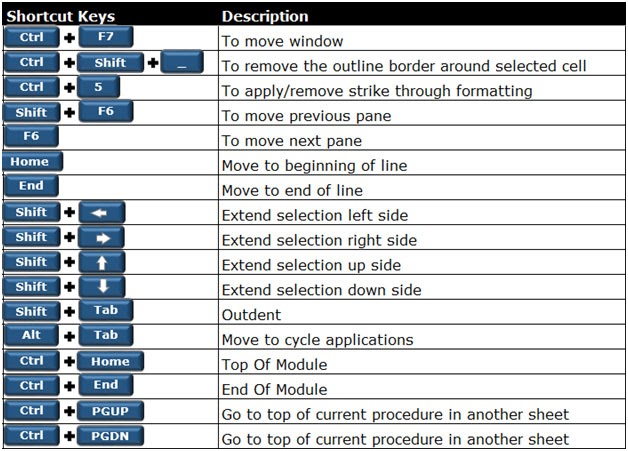
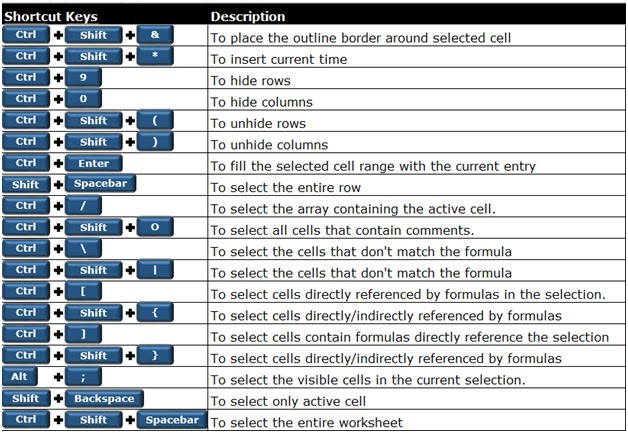
2. Select cell A1 in the Current Region and press Ctrl+Shift+* (in Excel 2003, press this or Ctrl+A).
3. From the Format menu, select Conditional Formatting.
4. In Condition 1, select Formula Is.
5. In the Formula box, enter the formula =$C1$C2. Be sure to enter the formula with absolute reference for the column and relative reference for the row.
6. In the Conditional Formatting dialog box, click the Format button, select the Border tab, in Border section click Underline and then choose a color.
7. Click OK twice.
Screenshot // Drawing Lines Between Sorted Groups
Drawing Lines Between Sorted Groups

Rate This Tip
12 34 5
Rating: 3.39     Views: 50921
DBA
Bruce Reedy  Posted on: 31-12-1969
Great tip! I had been looking for some time to to this - works perfectly. MS should include all these tips in their online help...
A blank row between Groups of Data after Sorting in Microsoft Excel
Anand  Posted on: 31-12-1969
Can we insert a blank row in between data after Sorting in Microsoft Excel. Please reply ASAP.

Thanks in aniticipation

Reply: A blank row between Groups of Data after Sorting in Microsoft Excel - Anand from Bangalore wrote on August 16, 2003 1:21 AM EST
Alan  Posted on: 31-12-1969
Hi Anand,

I may be missing something here, but you can certainly sort data and then insert a new row in the middle.

For example, if you have a list of names:

Bob
Anand
Charlie

You could first sort that data alphabetically, and then insert a blank row after Anand:

Anand
{Blank}
Bob
Charlie

If the new name entered was, say, 'Zac', then you might need to re-sort again.

Hope that helps,

Alan.
A blank row between Groups of Data after Sorting in Microsoft Excel
Anand  Posted on: 31-12-1969
Hi Alan ,
Thanks for reply,
I needed to insert a blank row on same lines of inserting a coloured line using a formula & conditional formating.
This happens automatically and if we have too many groups (for eg. I have about 1000 groups and will be changing very often), inserting blank lines manually will be a tedious work. SO using conditional formating or some other technic, Can we insert a balnk row which can act as seperator ?

Please help ASAP

Thanks
Reply: A blank row between Groups of Data after Sorting in Microsoft Excel - Anand from Bangalore wrote on August 17, 2003 11:25 PM EST
Alan  Posted on: 31-12-1969
Hi Anand,

You could apply conditional formatting to change the background colour (for example) when a certain field switches from one value to another.

Would that meet your requirements?

If so, then the *easiest* way to do that might be to add a column away on the right of the data (say), and use a formula to simply check whether the row you are working on is the same as the one above (for the given field). If there has been a change, then change from, say, 0 to 1 as the result, or back from 1 to 0 at the next change.

Then use conditional formatting to change the background colour based on that flag.

Hope that helps!

Alan
I could use an answer to this same question.
David  Posted on: 31-12-1969
Anand did you ever find an answer outside of this posting? Please share if you did.

I too was hoping to use a blank row as a separator as my data is in a single column. Each record is separated by a single row.

I was hoping there was a symbol for inserting a row so I simply highlight the column and do a find/replace: find blank cell and replace with 2 insert row symbols.
Reply: I could use an answer to this same question - David from Tampa, Fl wrote on August 23, 2003 12:05 AM EST
Alan  Posted on: 31-12-1969
Hi David,

I think you just need to write a simple macro to do that.

Essentially, just create a LOOP or a WITH statement to roll through the clumn of data, check the cell to see if it is blank, and if so, insert two rows (above or below as you require).

Just be carful not to add so many rows that you end up hitting the bottom of the sheet (row 65536), but you'd need a fair sized data set for that to happen!

Alan.
I could use an answer to this same question.
Alan  Posted on: 31-12-1969
Alan,

Thanks, but I bearly know what a macro is much less program one. I've got about 6,000 lines of data so I won't fill up the sheet if I only knew how.

Do you have instructions on how to write this particular macro. Most of my data is separated by one blank row though there may be a few exceptions where there are 2 or 3 blank lines separating the data. I guess once the macro runs into say 4 or 5 blank rows in a row then it would stop the process otherwise insert a blank row if the current row is blank AND the row above it is not blank. Is that how it would work?

It would be a big help if you could provide the steps in the writing this particular macro as I will have use for it many times in the future for the same purpose on large data sets.

Regards,
David
I could use an answer to this same question
David  Posted on: 31-12-1969
Your first guess what correct. I do not want to remove rows. My data looks like:

field data1
field data2
field data3
field data4
field data5
field data6
field data7
field data8
{blank}
field data1
field data2
field data3
field data4
field data5
field data6
field data7
field data8

I often have 5,000 to 6,000 lines of data in the above format so it is too time consuming each time to manually put in the additional row I need. I want it to look like this after the macro runs:

field data1
field data2
field data3
field data4
field data5
field data6
field data7
field data8
{blank}
field data1
field data2
field data3
field data4
field data5
field data6
field data7
field data8

The reason is I often have to add a field9 which it is easy enough for me to figure out how to do quickly as long as there is a blank row for field9. If I insert field9 in the datas current form with only one open blank row, then I will not have any blank rows after field9 is added. If I don't have a blank row between the records, I no longer have a separator to help me program each record separately.

I used the above illustration as an oversimplification of my situation. If the data I work with always had exactly 8 rows, then I guess I could figure a way to import the data based on these fixed number of rows. Often on record might have 8 rows and another one might have 9 rows all in the same spreadsheet of data. The only thing this helps me tell them apart so that I can massage the data into a format that can be exported to a database is the blank row.

Would be a HUGE help if you could show me how. I have written only the most basic of macros before and am not very proficient at them. I have never used a LOOP in macro.

Thanks!
David
Reply: I could use an answer to this same question - Tampa, Fl wrote on August 23, 2003 1:49 AM EST
Alan  Posted on: 31-12-1969
Hi David,

I may be confused.

Are you saying that you already have blank rows like this:

data
{blank}
data
{blank}
data
{blank}

And you want to add another blank row to make it like this:

data
{blank}
{blank}
data
{blank}
{blank}
data
{blank}
{blank}

Or do you want to remove those blank rows so that the data is contiguous?

I ask because the latter is a more normal request, but you seem to be asking for the former. Sorry if I am seeming dim!

Alan.
CORRECTION TO DATA BEFORE & AFTER MACRO RUN
David  Posted on: 31-12-1969
Alan,

My apologies as I made a mistake in what the data was suppose to look like after the macro runs. The before data was correct. Here is how both should be:

BEFORE MACRO RUN:

field data1
field data2
field data3
field data4
field data5
field data6
field data7
field data8
{blank}
field data1
field data2
field data3
field data4
field data5
field data6
field data7
field data8

DESIRED RESULT AFTER MACRO RUN:

field data1
field data2
field data3
field data4
field data5
field data6
field data7
field data8
{blank}
{blank}
field data1
field data2
field data3
field data4
field data5
field data6
field data7
field data8

Thanks,
David
Reply: CORRECTION TO DATA BEFORE & AFTER MACRO RUN - David from Tampa, FL wrote on August 23, 2003 11:35 AM EST
Alan  Posted on: 31-12-1969
Hi David,

I think I am beginning to understand now.

So, is there a standard number of total fields that you want to have 'space' for?

From your above example, it seems that the maximum total fields is 9, and some records have less than that, and for those records, you want to insert additional rows so that you can, later, add the missing fields up to 9.

Is that correct?

If that is the case, then it is a bit more complext thanI originally indicated, since we cannot just search or a single blank row, and insert a new blank row above or below that, else the fully populated records will have two blank rows after them, and those with, say, 2 missing fields will still not work.

Thanks,

Alan.
Getting closer
David  Posted on: 31-12-1969
It is hard to give a definite answer as I am provided data by my employer and sometimes it is a fixed number or rows and sometimes not. Sometimes it is orderly so that row5 is always the "city" for example and sometime the "city" is in row 4 and sometimes it is in another row all within the same column.

I've gotten pretty creative in addressing these other issues. I always have at least one blank row between the records and there are never blank rows within the record. In my previous example I posted to you, there were 8 fields per record.

My goal is to add a single row each time a blank row is reached.

It would be an even better goal if it only inserted a blank row the first time a blank row appears below a non-blank row. In other words, if there were two blank rows between each record, I really only to add one more additional row and not two.

Thanks again.
Reply: Getting closer - David from Tampa, FL wrote on August 23, 2003 6:04 PM EST
Alan  Posted on: 31-12-1969
Hi David,

Given the varying nature of your requirements, I cannot think of a way of writing code to be general enough - but I am not an expert!

However, this might be a simple workaround, if you don't mind it being less 'perfect' and possibly slower than a well written, dedicated VBA solution (although not necessarily):

1) Auto Filter your data

2) In the appropriate column, select {Blanks} as the filter criteria

3) Highlight the filtered cells (excluding the title row)

3) Use the 'Select Visible Cells' icon (you may have to add this to a tool bar - see below)

4) One the filtered blank rows are selected, then choose Edit - Insert - Row

5) All the blank rows that you had before are now doubled!

If you don't have the icon, you can add it from the Tools - Customise - Commands menu.

On the machine I am using right now, which has Excel 97, the icon is second from the bottom under the EDIT menu, but yours may be different - just use the narrative descriptions to find it and drag to any visible toolbar.

Is that good enough?

Alan.
Getting closer
David  Posted on: 31-12-1969
That's is a 100% improvement over how I am doing it now.

THANKS!!!
Additional steps gets me a 100% solution
David  Posted on: 31-12-1969
Just FYI - I came up with additional steps that will get me 100% of my desired solution. In other words, if I have varying numbers of lines between the data, I can now add just one row between each record. Here's how:

Assume the data is in column A. In column B I write a simple IF/THEN statement that if the cell to the immediately left is NOT blank, then display column A. If the cell to the immediate lefts is blank and the cell above it is NOT blank, then print an identifying code like "xx". I haven't tested it, but should look like assuming the cell pointer is in Cell B2:

=IF(A2<>"",A2,IF(AND(A2="",A1<>""),"xx",""))

I would copy this formula all the way down to the end of the data. I would then copy and paste the results of Column B in Column A using Paste Values and delete Column B.

There should now be a "xx" on what you use to be the first blank row after each record and nothing added to the additional blank rows between records.

Using you AutoFilter suggestion, I could filter for "xx" rather than filter for blank lines and then go through the rest of your steps.

At the end of the process, I would also have to highlight Column A and replace all "xx" with "".

Thanks again,
David
Name
Comment Title
Comments