Add Combo Box to a Sheet in Microsoft Excel 2010
Excel Combo box is used to create a drop down list of selected items as per the choices required. There are 2 types of Combo boxes - 1st is a Combo Box (form control) and 2nd is a Combo Box (ActiveX Control).
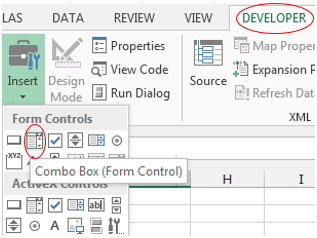
Combo Box (Form Control)
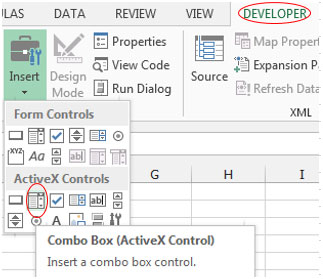
Combo Box (ActiveX Control)
We can use the Combo Boxes to prepare interactive charts, interactive reports where we just have to select the criteria as per our requirement and the linked data will appear.
To understand the uses of Combo Boxes, let’s take an example -
For Example: We have a list of months in range A2:A13. We want to prepare a Combo Box to show the drop down list.
To create the Combo Box (Form Control) follow the below given steps:-
- Go to the “Developer” tab on the ribbon.
- Insert “Combo Box” from the “Form Controls” group in the “Insert” drop down list.
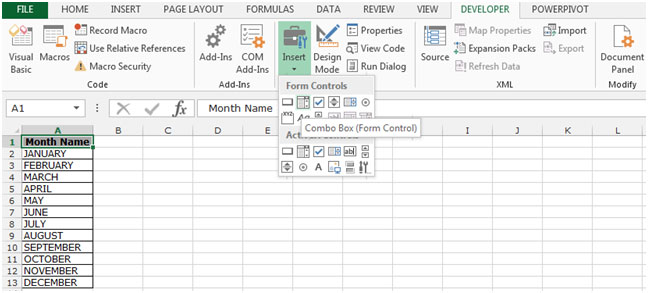
- You will see the “+” symbol, hold the left mouse pointer where you want to place it and drag it to the width and height you want. After dragging the “Combo Box” release the pointer.
- Select the Combo Box; right-click; and from the shortcut menu that appears, select Format Control. Then select the Control tab.
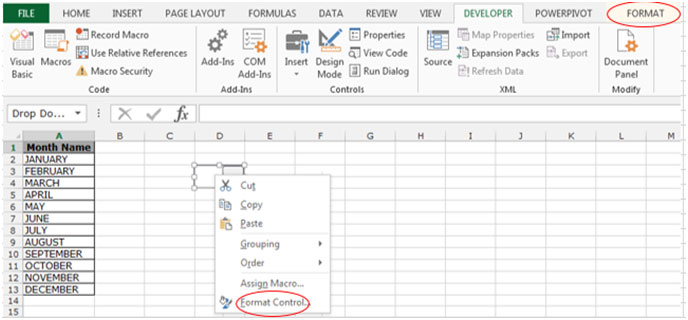
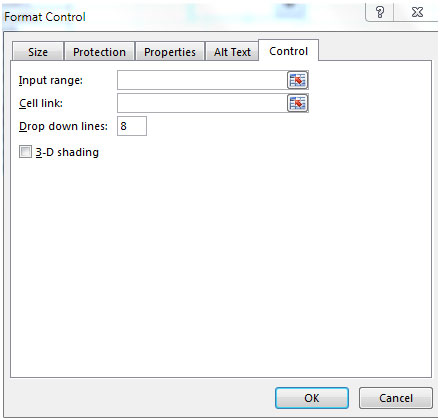
- In the “Input Range” box, select the range for the list of months which is A2:A13.
- In the “Cell Link” box, select any cell excluding the list of months. The Cell link box (This option is used to the range that is linked to the control’s value).
- Click OK.
- Type 1 in the selected cell to define the month number.
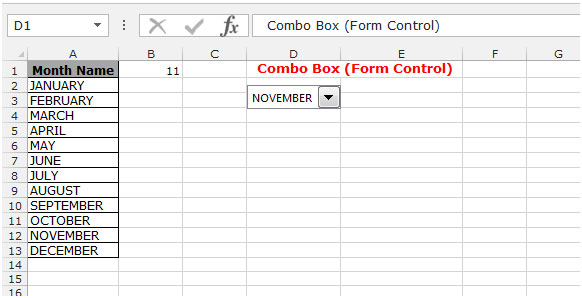
To create the combo Box (ActiveX Control) we define the name for the list of months.
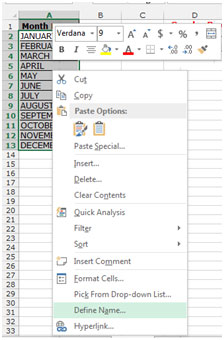
- Select the range A2:A13.
- Right-click on the mouse; and from the shortcut menu that appears, select Define a name.
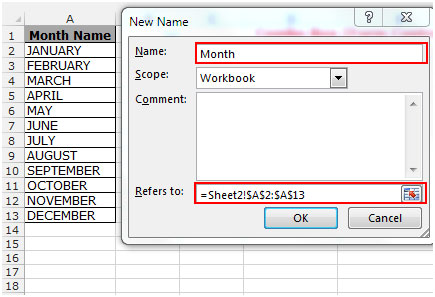
- “New Name” dialog box will appear.
- In the Name box write “Month” and click on ok.
To create the Combo Box (ActiveX Control) follow the below given steps:-
- Go to the “Developer” tab on the ribbon.
- Insert “Combo Box” from the“ActiveX Controls” group in the “Insert” drop down list.
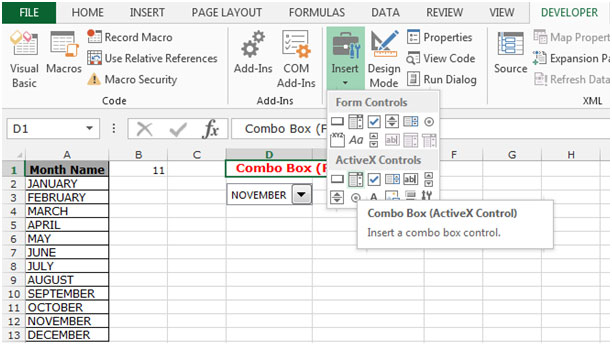
- You will see the “+” symbol, hold the left mouse pointer where you want to place it and drag it to the width and height you want. After dragging the “Combo Box” release the pointer.
- Select the Combo Box; right-click; and from the shortcut menu that appears, select Properties.
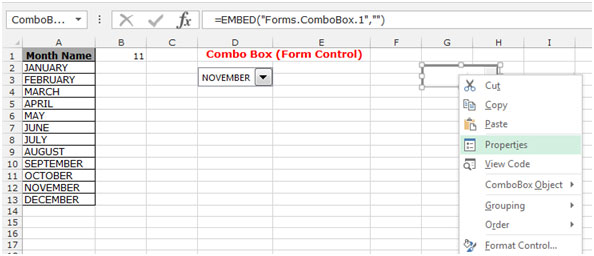
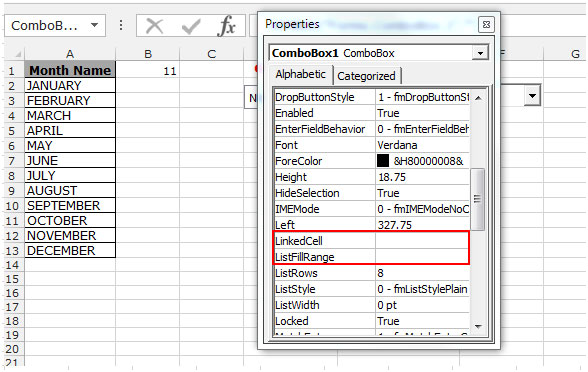
In the “LinkedCell” field, input the cell which will be linked to the combo box, and in the “ListFillRange” write the name which you had defined for the month list.
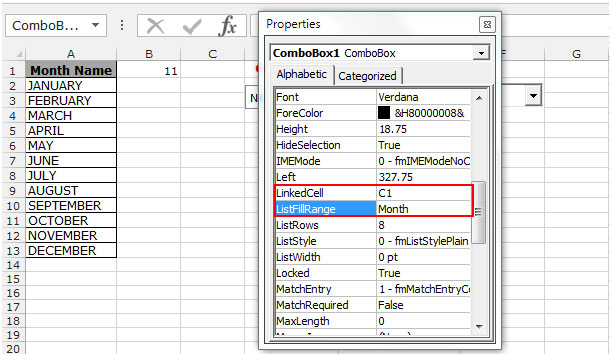
- Close the “properties” dialog box.
- Click on the “Design Mode”.
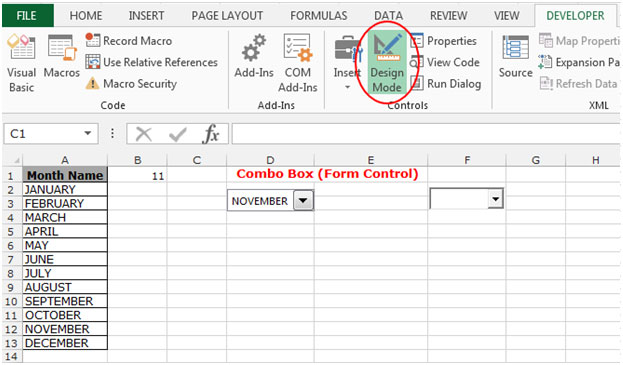
- Write any month’s name in the linked cell (C1).
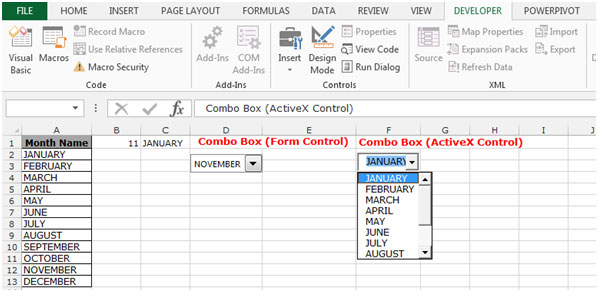
- When you will click on the Combo Box you will see that the corresponding month is shown in the dropdown.
- If you change the selection in the dropdown, the data in the linked cell will change as well.






i have a problem that combo box is not integrated with the work sheet and after entering data with the help of a combo box i cannot use filter on that column. how it can be resolved
"How do you selecting something that starts with the letter t? I want to be able to do samething as hitting the letter t in the font drop down box? Any advice?
How do I create a button to reset.
RON Posted on: 31-12-1969
I have Created a Sheet for people to enter specs, and it automaticly Creates, P/N's and Descriptions. Well The people I have created this for, are not so Bright at times. So there for I want to create a Button that Reset's all Combo-Box list's back to the top selection.
Basicly you have
Colors
Black
Blue
Green.
They selevet blue, Then when they are finished, they just hit a button to Select color again.
See I have about 15 Combo Boxs Created, so its hard for them to go back and select the Original Settings. Well I know that they can just close the File and open the Original, but They sometimes Save over the top of that one, so I have to constitenty send them the Original.
So this is why I'd like to create a reset Combo-Boxes Button.
I have tried recording macro's, and it does not work with, Control Tool Box, or Forms.
Anyone have any Sugestions?"
"Here is what I'm trying to create. I want to use one combo box or drop down list box and use one item from that list in various cells on a spreadsheet. I'm new to creating combo boxes, I don't even know if this can be done.
Any help would be great. "
I've noticed that when i select a value from the combo box, the linked cell will display the number according to the item placed in the combo box. Can i have the value displayed instead of number?
"As far as I can see, the list displayed in a combo box is dependent on what is present in the named range when the sheet is opened.
I am using an external query to return the list of options available in the combo box - and this data is not saved with the file (ie it refreshes on open, as it changes from day to day) - when the file opens, there is no list present in the combo box, and it does not refresh once the data list is present.
Has anyone else had this problem? "
"Could someone help me to link to a worksheet when the list from the combo box is clicked? Thanks a bunch 🙂 !
lt
"
Get rid of Excel and use Access. Spreadsheets are crap anyway :o)
"Put the combo in edit mode with Control toolbox.
Right-click it and click Format Control.
Select the Properties tab.
Select the 'Move and Size with cells' option."
"Put the combo into edit mode using the Control Toolbox.
Select the conbo and right-click to display Properties.
Change the BorderStyle property."
"Does any one know how to create a combo box (or drop down list) within a cell?
The usual combo box is just an add-on layer to a spreedsheet but not integrated into a cell. "
"Does any one know how to create a combo box (or drop down list) within a cell?
The usual combo box is just an add-on layer to a spreedsheet but not integrated into a cell. "
"Can anyone answer this question? I need to do this too.
Thanks!
» Combo Box border
JJ from IL wrote on June 21, 2003 9:39 PM EST
how can I get rid of the border of the comboxbox when I click on an item. i would like for it to look like a regular text without anything around it. "
"Hmm... Guess I was so quick to despair.
Data validation does what we want to do.
Check Data->Validation and choose list there.
Special thanks to jim from UK. "
"Hmm, Pim! It's good to know I'm not alone. Been 3 full working days, crawling the net, a thorough study in Excel Help and trial/error sessions, all seeking a solution to my question. And yes I can say,
Excel CANNOT do that!
In Excel, you CANNOT use relative cell references for ANY form & control toolbox managed item, such as ComboBox or Check Box. Poor Microsoft.
Jim from UK may be right, critisizing our basic usage of Combo Box. But what I want is something anyone can want at any time. Hmm... Let's see another very practical use of Combo box where we may desperately need relative references:
Consider the following situation:
(Jim read this! This is a good purpose to use spinners)
Think of a warehouse record sheet. You need:
1) Entrance date of a good
2) Departure date of the good.
Each requiring entering dates. We know how annoying it is to enter dates manually in excel. So, to solve that, I use a SPINNER. I format the cell as a date and put a spinner linked to it. Here, somethi,ng is extremely important : If u put the spinner from the ""Forms"", the maximum increment of the spinner is 30000. Considering the date format of excel starting from 01/01/1900 (stupid!!!) 30000 days later is some time in 1981. So spinner cannot come to 2003, failing my idea.
Instead, try putting it from Control Toolbox. There, from properties, you may select 100000 to maximum value of the spinner and initial value to 37750 (to start initially from 2003 - You may not want to scroll down all 1900's to come to 2003 :-)) So, I managed to put a very useful spinner to solve the terrible problem of entering dates in excel.
But here comes the problem :
Somebody may have thousands of goods to manage in a warehouse, each using my very way of date inputting. However, When you copy the cell of the first good (containing the spinner) to the remaining (lets say) 100 goods, all the copied spinners will change THE FIRST GOOD's date. What an idiot!
So, under such a circumstance, relative reference could have been a lifesavior. But where is Microsoft ? Still asking ""where do you want to go today?"" I'm not going anywhere! But you cannot even serve me here staying. Grrr...!
Anyways, there is always a solution for intelligence. Here's how you can approach the problem:
(again mentioning to the warehouse case)
Use the excel sheet to manage just your ""monthly"" entrance-departures. That will cut the number of items to a considerable amount, which will hopefully prevent you from boooming up while changing the cell link's of the copied Combo Boxes/Spinners.
Use the copy of the same sheet for all your monthly works.
Though, as you may have noticed, that's a short term solution. For medium&long term I suggest you learn programming 🙂 or wait for Microsoft's new office packets.
Will be here later on to read what you think,
See ya."
"I think you both -Ali & Pim use Combo box instead of using Validation.
to use Combo Box just for the purpose of selecting one option from two?
add list with two items to Validation ""paid"" and ""unpaid"" and add a simple if formula that will return 1 or 2, the real purpose of using Combo Box is to change hundreds of formulas calculation results by choosing one of the item from list."
This is exactly what I mean. Ali from Turkey and I share the same problem. Please help uz.....
"Well, using only 1 combo box is fine without caring about cell link's being relative or absolute. But when I copy the cell containing the combo box, I need the cell link to be relative.
Here's something to visualize the problem:
Think of an order form. I got 100 orders in the list. And I got a column which I want to put a combo box with selections ""paid"" or ""not paid"" . Well, I put my first combo box in my first order. But when I copy that cell down for the remaining 99 orders, all the combo boxes that I created (for the other 99 orders) all are linked to the FIRST order's combo box's cell reference. However I want that cell's reference to be relative so that when I copy the cell(and the combo box as well, as that cell contains containing the combo box) their cell link is changed. I need this cos I may have 10000 orders for example and modifying all the cell refeences of all those orders's combo boxes may be annoying.
JR from LA 's solution is not working (on the subject cell link - absolute to relative reference)
Any help is welcomed. Thanks in advance. "
Hi there, Is there anyone who could tell me how to create a formula for the LinkedCell property. I want to make 6 combo boxes on each row, and approximately 1000 rows, but i don't want to fill in the LinkedCell property over and over again. What should I do?
"How do I get data depending on the selection I make in the combo box?
eg. if my combo box includes Jan.Feb.Mar, and once I select Jan, the report for Jan is to be displayed on the same sheet, how do I do it. HELP please, i'm confused."
how can I get rid of the border of the comboxbox when I click on an item. i would like for it to look like a regular text without anything around it.
What if, instead of use the combo from Forms toolbars I use the one in Control Toolbox and I want to fill it by using the field in a recordset, I know how to do it if this is in a form, but not into the spreed sheet directly, can you give me some help ?
i would like the to enter text in the drop down list, and then when selected from the combo box, have some other text then displayed in a specific cell.
instead of insert cell address, insert a name define to link cell ( keep in mind that you can't use the keyboard short cut F3 in any box at the Format control window, so just type the name you defined ),then you may change the absolute reference to relative referance in the defined name window by pressing Ctrl+F3.
Can anyone answer Rob's question regarding the relative cell reference? I have the same problem. Thanks.
Thanks JR and mseyf. One more question: I'm using the combo box control from the "Control Toolbox" toolbar--how do I change the button size?
How do I get the link cell reference to be relative instead of absolute? I've tried all combinations of cell reference and $ using the F4 key. Any help would be appreciated - thanks.
"If you used the combo box from the 'Control Toolbox', there isn't a 'Control Tab'.
Right click on the combo box and select 'Properties', then look for the LinkedCell and ListFillRange fields which should be the equivalent to what is on the 'Control' tab."
If you use the combo box control from the 'Control Toolbox' toolbar instead of the 'Forms' toolbar, you'll be able to control the font
"To 37:
You can't change the font size.
To Ali:
see screen shot 2 "
I followed all steps. I couldn't find control tab at step 3. FYG office 2000 have been installed to my pc
How do you change the font size of the text displayed within the combo box?
How does Excel know that January=1, February=2, et cetera? Nowhere in the instructions do I see that we tell the sheet what to return when a certain month is selected. When I choose 'September', I get 'September'.
"I have Created a Sheet for people to enter specs, and it automaticly Creates, P/N's and Descriptions. Well The people I have created this for, are not so Bright at times. So there for I want to create a Button that Reset's all Combo-Box list's back to the top selection.
Basicly you have
Colors
Black
Blue
Green.
They selevet blue, Then when they are finished, they just hit a button to Select color again.
See I have about 15 Combo Boxs Created, so its hard for them to go back and select the Original Settings. Well I know that they can just close the File and open the Original, but They sometimes Save over the top of that one, so I have to constitenty send them the Original.
So this is why I'd like to create a reset Combo-Boxes Button.
I have tried recording macro's, and it does not work with, Control Tool Box, or Forms.
Anyone have any Sugestions?"
How do you selecting something that starts with the letter t? I want to be able to do samething as hitting the letter t in the font drop down box? Any advice?
Here is what I'm trying to create. I want to use one combo box or drop down list box and use one item from that list in various cells on a spreadsheet. I'm new to creating combo boxes, I don't even know if this can be done. Any help would be great. R
I've noticed that when i select a value from the combo box, the linked cell will display the number according to the item placed in the combo box. Can i have the value displayed instead of number?
Is it possible to split a cell diagonally, then input data, and devise a sum formula for each half of the cell?
Hi, Could someone help me to link to a worksheet when the list from the combo box is clicked? Thanks a bunch 🙂 ! lt
Get rid of Excel and use Access. Spreadsheets are crap anyway :o)
Put the combo in edit mode with Control toolbox. Right-click it and click Format Control. Select the Properties tab. Select the 'Move and Size with cells' option
Hi guys. Put the combo into edit mode using the Control Toolbox. Select the conbo and right-click to display Properties. Change the BorderStyle property.
Does any one know how to create a combo box (or drop down list) within a cell? The usual combo box is just an add-on layer to a spreedsheet but not integrated into a cell. Help!
"Can anyone answer this question? I need to do this too.
Thanks! » Combo Box border
JJ from IL wrote on June 21, 2003 9:39 PM EST
how can I get rid of the border of the comboxbox when I click on an item. i would like for it to look like a regular text without anything around it. "
"Hmm, Pim! It's good to know I'm not alone. Been 3 full working days, crawling the net, a thorough study in Excel Help and trial/error sessions, all seeking a solution to my question. And yes I can say,
Excel CANNOT do that!
In Excel, you CANNOT use relative cell references for ANY form & control toolbox managed item, such as ComboBox or Check Box. Poor Microsoft.
Jim from UK may be right, critisizing our basic usage of Combo Box. But what I want is something anyone can want at any time. Hmm... Let's see another very practical use of Combo box where we may desperately need relative references:
Consider the following situation: (Jim read this! This is a good purpose to use spinners)
Think of a warehouse record sheet. You need:
1) Entrance date of a good
2) Departure date of the good.
Each requiring entering dates. We know how annoying it is to enter dates manually in excel. So, to solve that, I use a SPINNER. I format the cell as a date and put a spinner linked to it. Here, somethi,ng is extremely important : If u put the spinner from the ""Forms"", the maximum increment of the spinner is 30000. Considering the date format of excel starting from 01/01/1900 (stupid!!!) 30000 days later is some time in 1981. So spinner cannot come to 2003, failing my idea.
Instead, try putting it from Control Toolbox. There, from properties, you may select 100000 to maximum value of the spinner and initial value to 37750 (to start initially from 2003 - You may not want to scroll down all 1900's to come to 2003 :-)) So, I managed to put a very useful spinner to solve the terrible problem of entering dates in excel.
But here comes the problem : Somebody may have thousands of goods to manage in a warehouse, each using my very way of date inputting. However, When you copy the cell of the first good (containing the spinner) to the remaining (lets say) 100 goods, all the copied spinners will change THE FIRST GOOD's date. What an idiot!
So, under such a circumstance, relative reference could have been a lifesavior. But where is Microsoft ? Still asking ""where do you want to go today?"" I'm not going anywhere! But you cannot even serve me here staying. Grrr...! Anyways, there is always a solution for intelligence. Here's how you can approach the problem:(again mentioning to the warehouse case)
Use the excel sheet to manage just your ""monthly"" entrance-departures. That will cut the number of items to a considerable amount, which will hopefully prevent you from boooming up while changing the cell link's of the copied Combo Boxes/Spinners. Use the copy of the same sheet for all your monthly works. Though, as you may have noticed, that's a short term solution. For medium&long term I suggest you learn programming 🙂 or wait for Microsoft's new office packets.
Will be here later on to read what you think,
See ya. "
"Hmm, Pim! It's good to know I'm not alone. Been 3 full working days, crawling the net, a thorough study in Excel Help and trial/error sessions, all seeking a solution to my question. And yes I can say,
Excel CANNOT do that!
In Excel, you CANNOT use relative cell references for ANY form & control toolbox managed item, such as ComboBox or Check Box. Poor Microsoft.
Jim from UK may be right, critisizing our basic usage of Combo Box. But what I want is something anyone can want at any time. Hmm... Let's see another very practical use of Combo box where we may desperately need relative references:
Consider the following situation: (Jim read this! This is a good purpose to use spinners)
Think of a warehouse record sheet. You need:
1) Entrance date of a good
2) Departure date of the good.
Each requiring entering dates. We know how annoying it is to enter dates manually in excel. So, to solve that, I use a SPINNER. I format the cell as a date and put a spinner linked to it. Here, somethi,ng is extremely important : If u put the spinner from the ""Forms"", the maximum increment of the spinner is 30000. Considering the date format of excel starting from 01/01/1900 (stupid!!!) 30000 days later is some time in 1981. So spinner cannot come to 2003, failing my idea.
Instead, try putting it from Control Toolbox. There, from properties, you may select 100000 to maximum value of the spinner and initial value to 37750 (to start initially from 2003 - You may not want to scroll down all 1900's to come to 2003 :-)) So, I managed to put a very useful spinner to solve the terrible problem of entering dates in excel.
But here comes the problem : Somebody may have thousands of goods to manage in a warehouse, each using my very way of date inputting. However, When you copy the cell of the first good (containing the spinner) to the remaining (lets say) 100 goods, all the copied spinners will change THE FIRST GOOD's date. What an idiot!
So, under such a circumstance, relative reference could have been a lifesavior. But where is Microsoft ? Still asking ""where do you want to go today?"" I'm not going anywhere! But you cannot even serve me here staying. Grrr...! Anyways, there is always a solution for intelligence. Here's how you can approach the problem:(again mentioning to the warehouse case)
Use the excel sheet to manage just your ""monthly"" entrance-departures. That will cut the number of items to a considerable amount, which will hopefully prevent you from boooming up while changing the cell link's of the copied Combo Boxes/Spinners. Use the copy of the same sheet for all your monthly works. Though, as you may have noticed, that's a short term solution. For medium&long term I suggest you learn programming 🙂 or wait for Microsoft's new office packets.
Will be here later on to read what you think,
See ya. "
I think you both -Ali & Pim use Combo box instead of using Validation. to use Combo Box just for the purpose of selecting one option from two? add list with two items to Validation "paid" and "unpaid" and add a simple if formula that will return 1 or 2, the real purpose of using Combo Box is to change hundreds of formulas calculation results by choosing one of the item from list.
I think you both -Ali & Pim use Combo box instead of using Validation. to use Combo Box just for the purpose of selecting one option from two? add list with two items to Validation "paid" and "unpaid" and add a simple if formula that will return 1 or 2, the real purpose of using Combo Box is to change hundreds of formulas calculation results by choosing one of the item from list.
This is exactly what I mean. Ali from Turkey and I share the same problem. Please help uz.....
"Well, using only 1 combo box is fine without caring about cell link's being relative or absolute. But when I copy the cell containing the combo box, I need the cell link to be relative.
Here's something to visualize the problem:
Think of an order form. I got 100 orders in the list. And I got a column which I want to put a combo box with selections ""paid"" or ""not paid"" . Well, I put my first combo box in my first order. But when I copy that cell down for the remaining 99 orders, all the combo boxes that I created (for the other 99 orders) all are linked to the FIRST order's combo box's cell reference. However I want that cell's reference to be relative so that when I copy the cell(and the combo box as well, as that cell contains containing the combo box) their cell link is changed. I need this cos I may have 10000 orders for example and modifying all the cell refeences of all those orders's combo boxes may be annoying.
JR from LA 's solution is not working (on the subject cell link - absolute to relative reference)
Any help is welcomed. Thanks in advance. "
Hi there, Is there anyone who could tell me how to create a formula for the LinkedCell property. I want to make 6 combo boxes on each row, and approximately 1000 rows, but i don't want to fill in the LinkedCell property over and over again. What should I do?
"How do I get data depending on the selection I make in the combo box?
eg. if my combo box includes Jan.Feb.Mar, and once I select Jan, the report for Jan is to be displayed on the same sheet, how do I do it. HELP please, i'm confused."
how can I get rid of the border of the comboxbox when I click on an item. i would like for it to look like a regular text without anything around it.
"What if, instead of use the combo from Forms toolbars I use the one in Control Toolbox and I want to fill it by using the field in a recordset, I know how to do it if this is in a form, but not into the spreed sheet directly, can you give me some help ?
Best Regards !!"
"i would like the to enter text in the drop down list, and then when selected from the combo box, have some other text then displayed in a specific cell.
Thanks"
instead of insert cell address, insert a name define to link cell ( keep in mind that you can't use the keyboard short cut F3 in any box at the Format control window, so just type the name you defined ),then you may change the absolute reference to relative referance in the defined name window by pressing Ctrl+F3.
Can anyone answer Rob's question regarding the relative cell reference? I have the same problem. Thanks
"Thanks JR and mseyf. One more question: I'm using the combo box control from the ""Control Toolbox"" toolbar--how do I change the button size?
Thanks again!"
How do I get the link cell reference to be relative instead of absolute? I've tried all combinations of cell reference and $ using the F4 key. Any help would be appreciated - thanks.
"Ali-If you used the combo box from the 'Control Toolbox', there isn't a 'Control Tab'.
Right click on the combo box and select 'Properties', then look for the LinkedCell and ListFillRange fields which should be the equivalent to what is on the 'Control' tab."
If you use the combo box control from the 'Control Toolbox' toolbar instead of the 'Forms' toolbar, you'll be able to control the font
"To 37:
You can't change the font size.
To Ali:
see screen shot 2 "
I followed all steps. I couldn't find control tab at step 3. FYG office 2000 have been installed to my pc regards
How do you change the font size of the text displayed within the combo box?
How does Excel know that January=1, February=2, et cetera? Nowhere in the instructions do I see that we tell the sheet what to return when a certain month is selected. When I choose 'September', I get 'September'.