

In this article, we will learn protecting cells that contain formulas in a protected sheet in Microsoft Excel 2010.
The Protecting cells function in a sheet is used where you do not want to view or delete the formulas. A common way to perform this task is by protecting the worksheet that will not let the end-user do any activity in the sheet that you have created.
But there are specific requirement where you want to protect your formulas along with the flexibility for the users to change the information as per their requirement. At times, you want both flexibility & protection of important formulas.
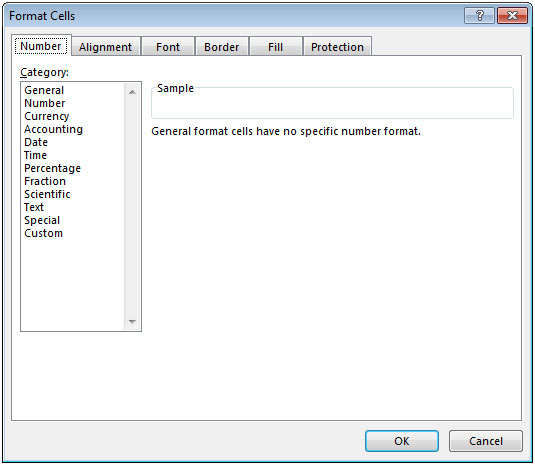
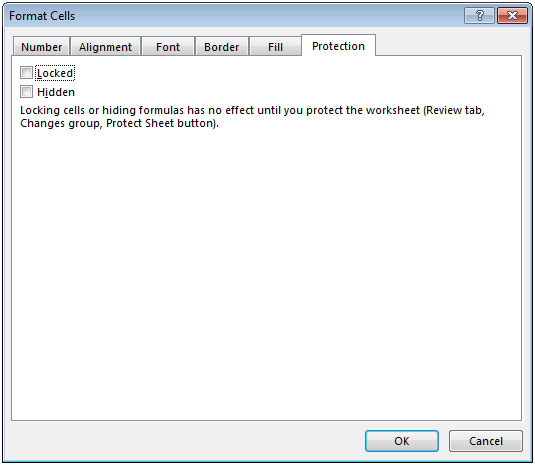
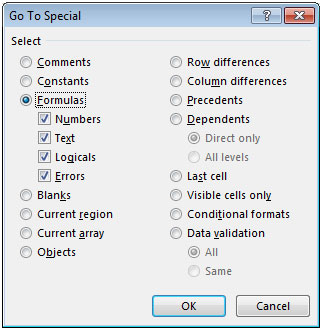
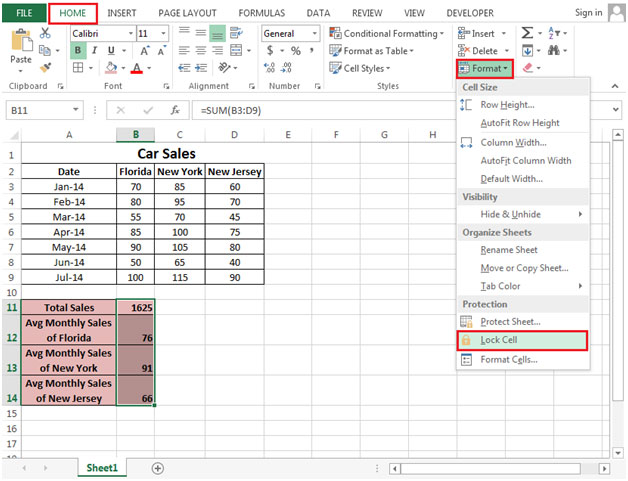
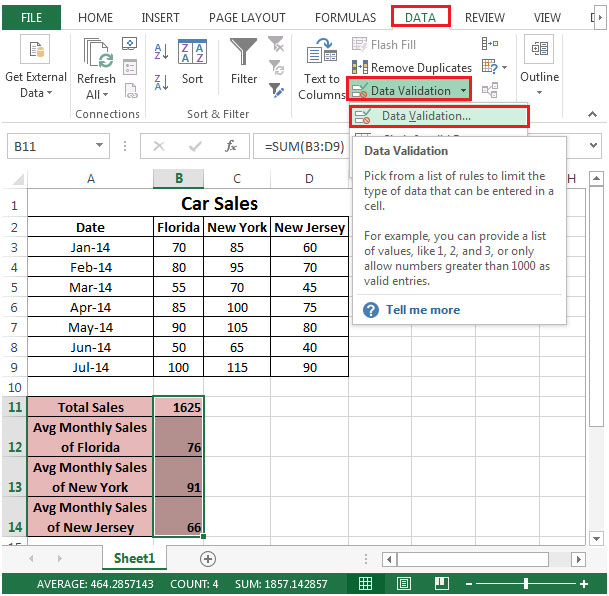
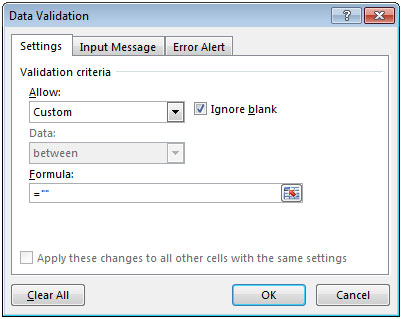
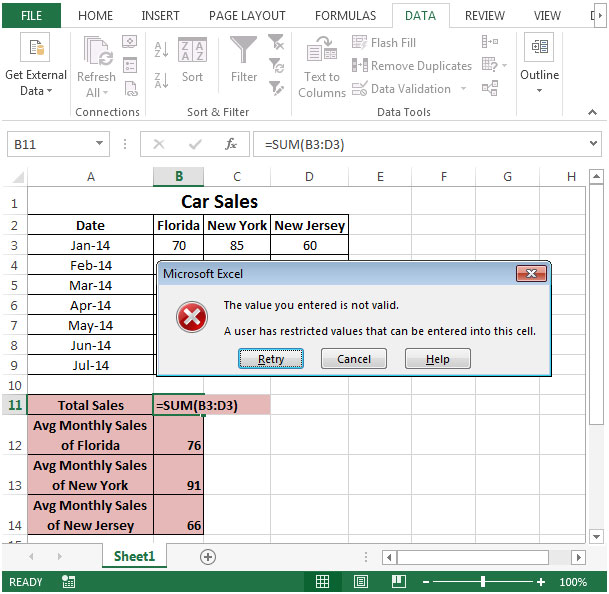
By default, all cells in the worksheet are locked. There is a simple way to apply protection on worksheet so that only formula cells remain locked and protected.
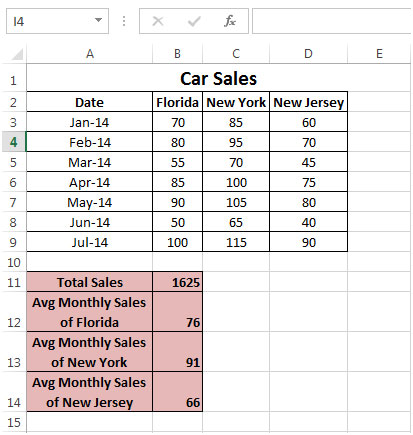
Let us take an example:

The applications/code on this site are distributed as is and without warranties or liability. In no event shall the owner of the copyrights, or the authors of the applications/code be liable for any loss of profit, any problems or any damage resulting from the use or evaluation of the applications/code.




nice tips