

In this article, we will learn how to find the orphan links and then how to delete it from the Excel workbook.
What is Orphan links?
In Excel, when we create reports, templates, dashboard then we have to create many Named ranges. After some time, we do some changes in the report and at that time, we just want to keep only the used ranges in ‘Named Manager’.
What are the reasons to create the orphan links?
How to find unwanted links by range names?
Let’s take an example to understand:-
We have data in which we have created range names.

To find unwanted links created by range Names:
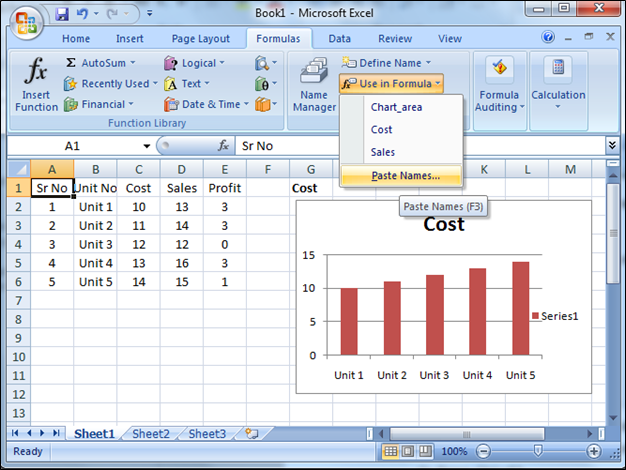
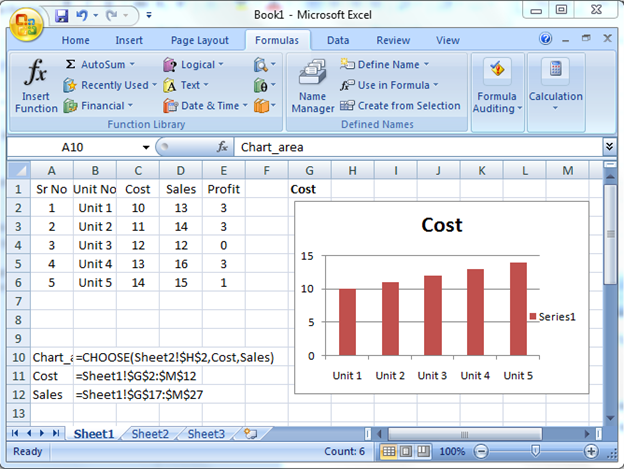

To delete unwanted or orphan links:


Conclusion: - You can easily find out and extract the links and define name in the Excel worksheet, and if you want to delete the external link you can use break link option in Microsoft Excel.

If you liked our blogs, share it with your friends on Facebook. And also you can follow us on Twitter and Facebook.
We would love to hear from you, do let us know how we can improve, complement or innovate our work and make it better for you. Write us at info@exceltip.com
The applications/code on this site are distributed as is and without warranties or liability. In no event shall the owner of the copyrights, or the authors of the applications/code be liable for any loss of profit, any problems or any damage resulting from the use or evaluation of the applications/code.



